Portraits
Isolate a person from the surrounding scene.
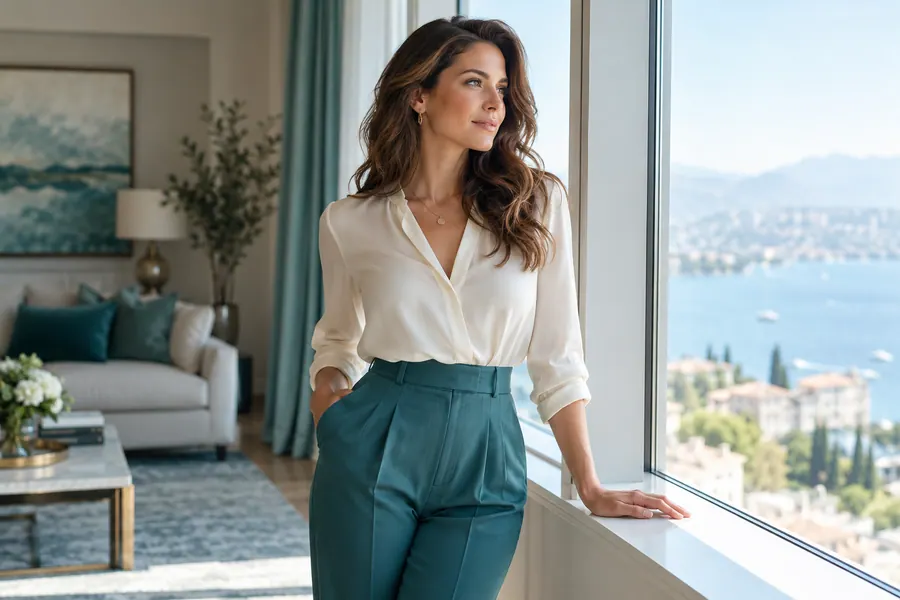
AVACLIK / BACKGROUND REMOVER
Remove the background with AI and save the subject on a transparent background. AvaClik is an editor for adults 18+.
 Illustration, not an editing result
AVACLIK / TOOLS
Separate the main subject from its surroundings for new compositions. Check the edges after processing.
Isolate a person from the surrounding scene.
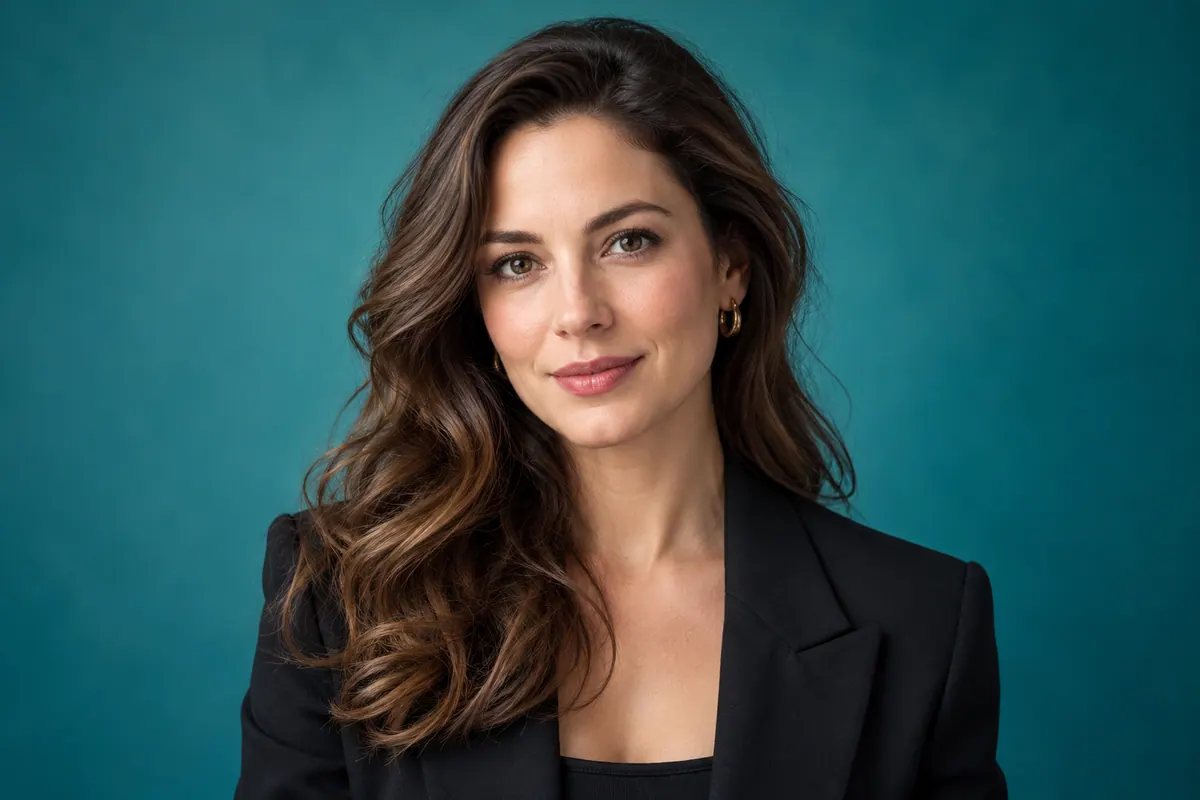
Try isolating a person in a portrait.
Check the result with pet photos.
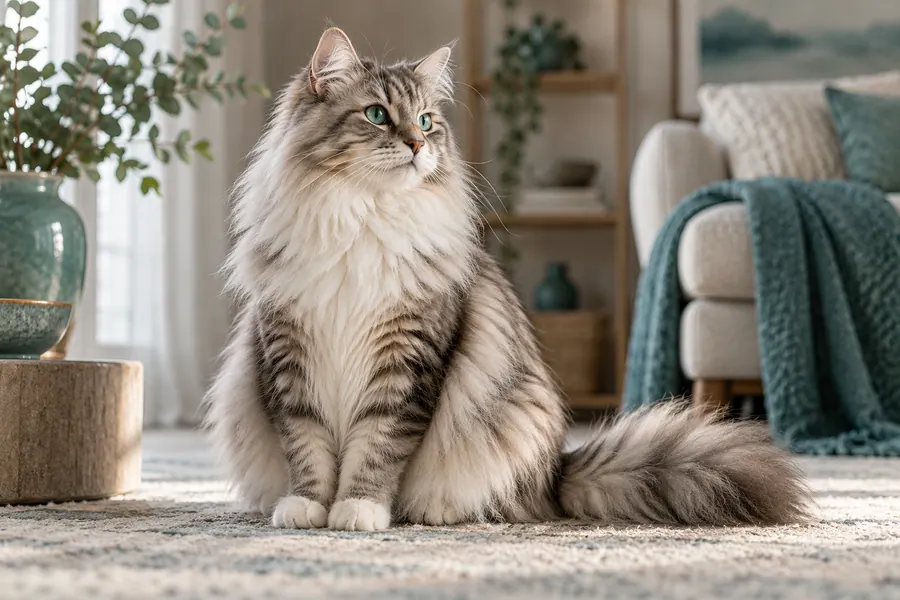
Separate the subject from its surroundings.

Review facial contours and fine details.
Pay attention to individual strands and boundaries.
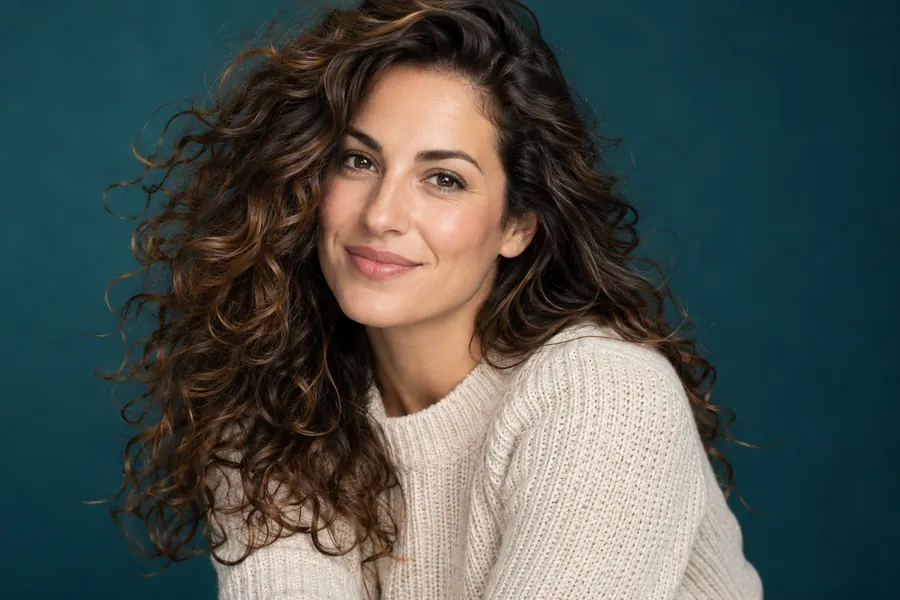
Fine details may need extra inspection.
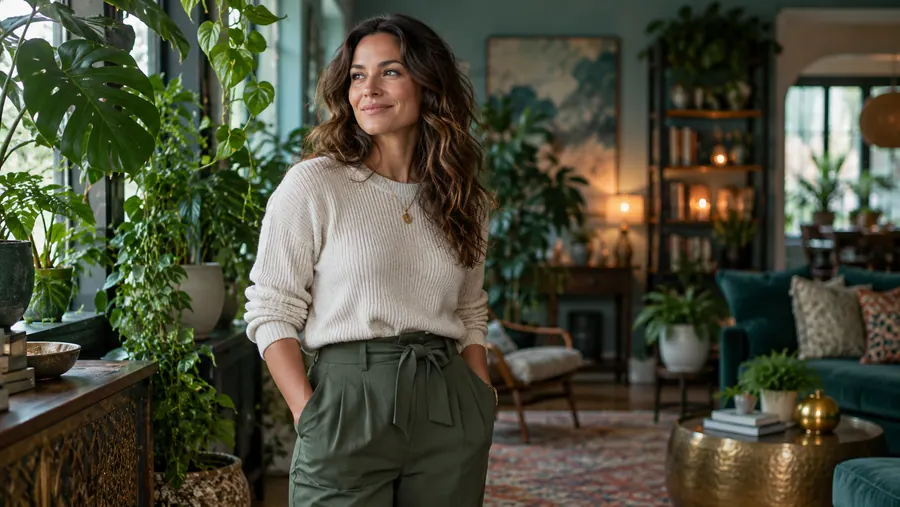
Check clothing, hands and shoes along the outline.
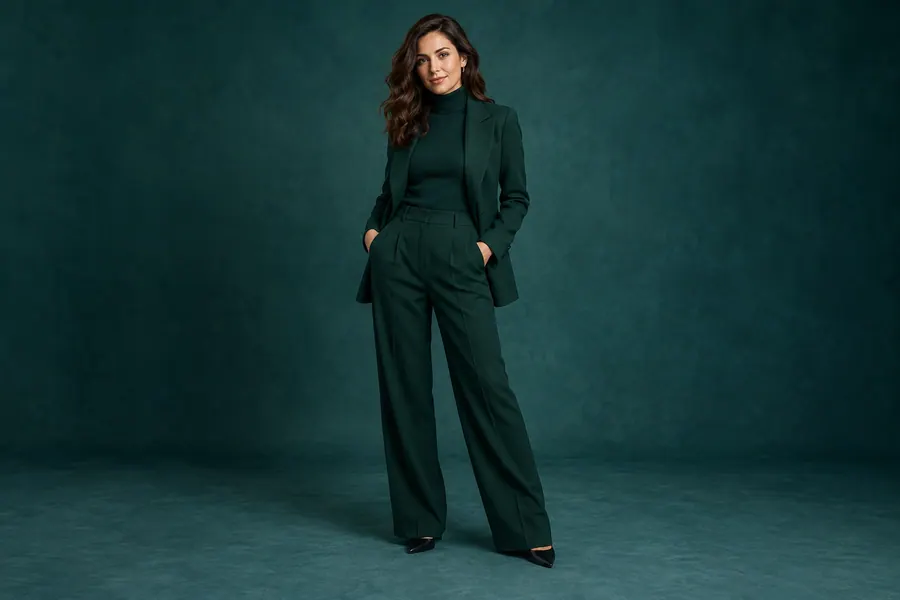
Illustration, not an editing result
AVACLIK / IDEAS
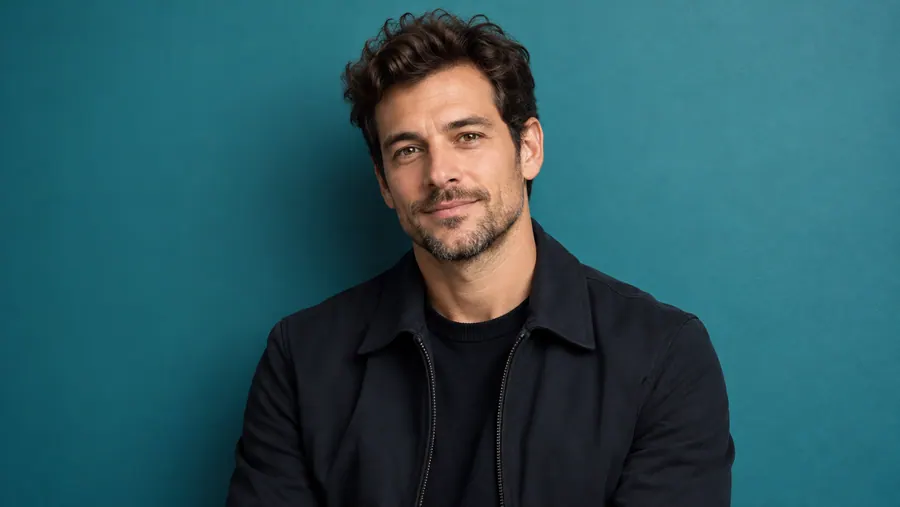
Prepare a consenting adult’s portrait for a new composition.
Work with images of consenting adults.
Use a subject without its original surroundings.
Illustration, not an editing result
AVACLIK / EXAMPLES
Explore real background-removal examples from AvaClik.
Before and after examples will appear here.
AVACLIK / HOW TO
Choose an image you have the right to edit.
Select Remove background in the editor.
AI creates a new version of the image.
Inspect the edges and save as PNG for transparency.
AVACLIK / CHOOSE
| Photo | Look closely at | Why it matters |
|---|---|---|
| Portrait | Hair and edges | Fine strands may not separate perfectly |
| Full-length person | Hands, clothing, shoes | Inspect the entire outline |
| Object | Outline and shadows | Shadows and thin details may change |
| Complex scene | Subject boundaries | Similar colors can make separation harder |
AVACLIK / PHOTO STUDIO
Use the isolated subject in another composition. Download as PNG to retain transparent areas: JPEG does not support transparency. AI may struggle with hair, shadows or semi-transparent details.
Open editor →Illustration, not an editing resultAVACLIK / TIPS
Zoom in to check hair and fine details.
PNG preserves transparency; JPEG does not.
Use photos with permission from the rights holder and the adults pictured.
AVACLIK / TOOLS
AVACLIK / FAQ
Upload a photo, select Remove background, run the edit and review the result.
Choose PNG when downloading. JPEG does not preserve transparency.
No. Fine strands, transparent objects and colors similar to the background can be difficult.
The token cost is shown in the editor before you start.
Use images you have rights to and photos of adults with their consent.
AVACLIK / AI STUDIO
Open the editor and choose Remove background.
Open editor →