Preset direction
Pick an available body look from the existing preset catalog.
AVACLIK / BODY STUDIO · 18+
Explore a visually slimmer figure in your photograph. Choose a preset in the Body tool and review your silhouette in a new version of the image.
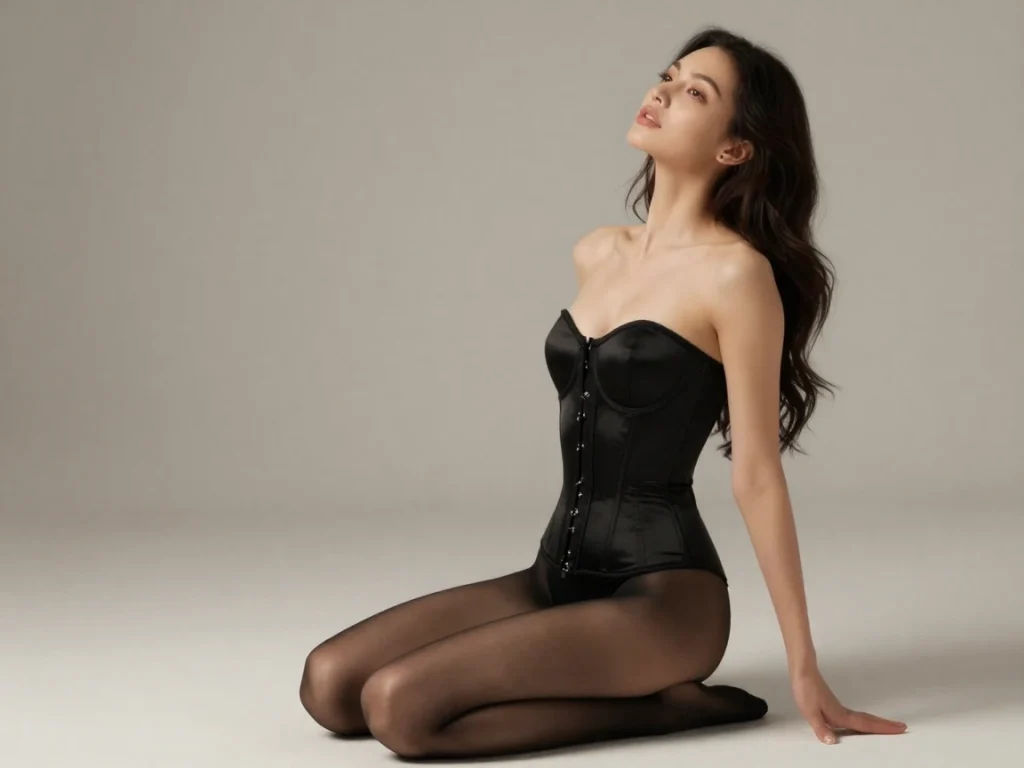
AVACLIK / BODY STUDIO
These pages describe the existing Body tool. Check the available presets and their current token cost before starting.
Pick an available body look from the existing preset catalog.
Browse the relevant category and choose the closest available look.
Edit only consenting adults, within the content policy and model restrictions.
Inspect outlines, clothes, hands and surroundings before saving your result.
AVACLIK / BODY STUDIO
Start with an overall look. A preset interprets the image as a whole, so review the balance of the figure rather than a single area.
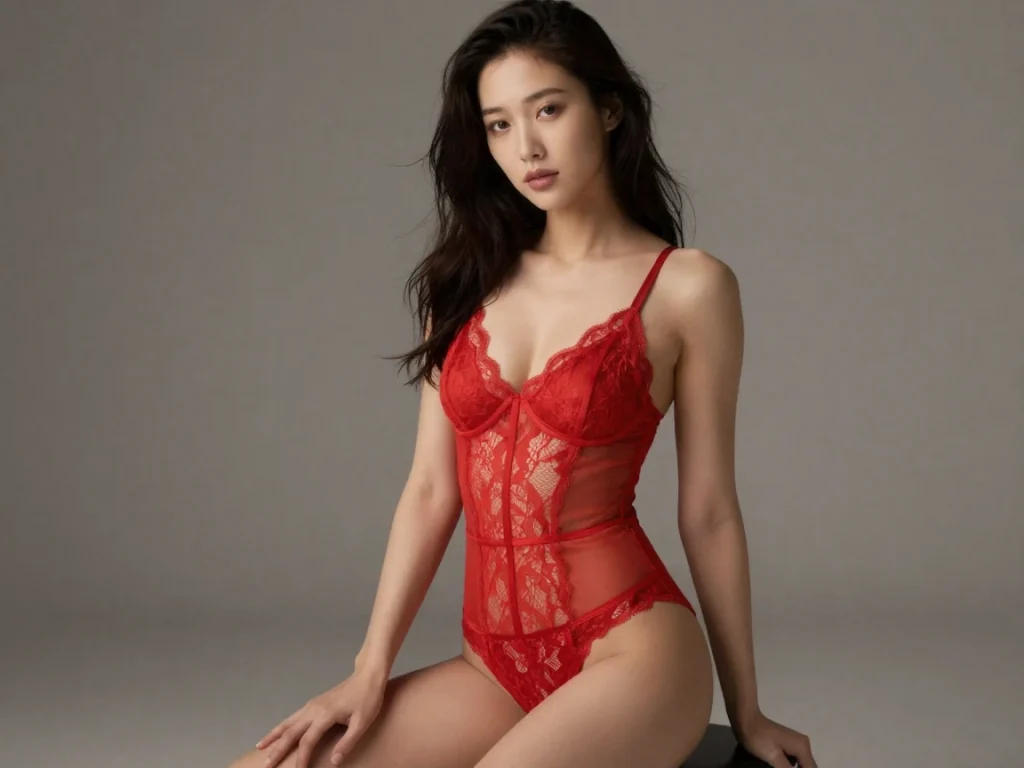
Explore a restrained change to your silhouette while keeping the look recognizable.
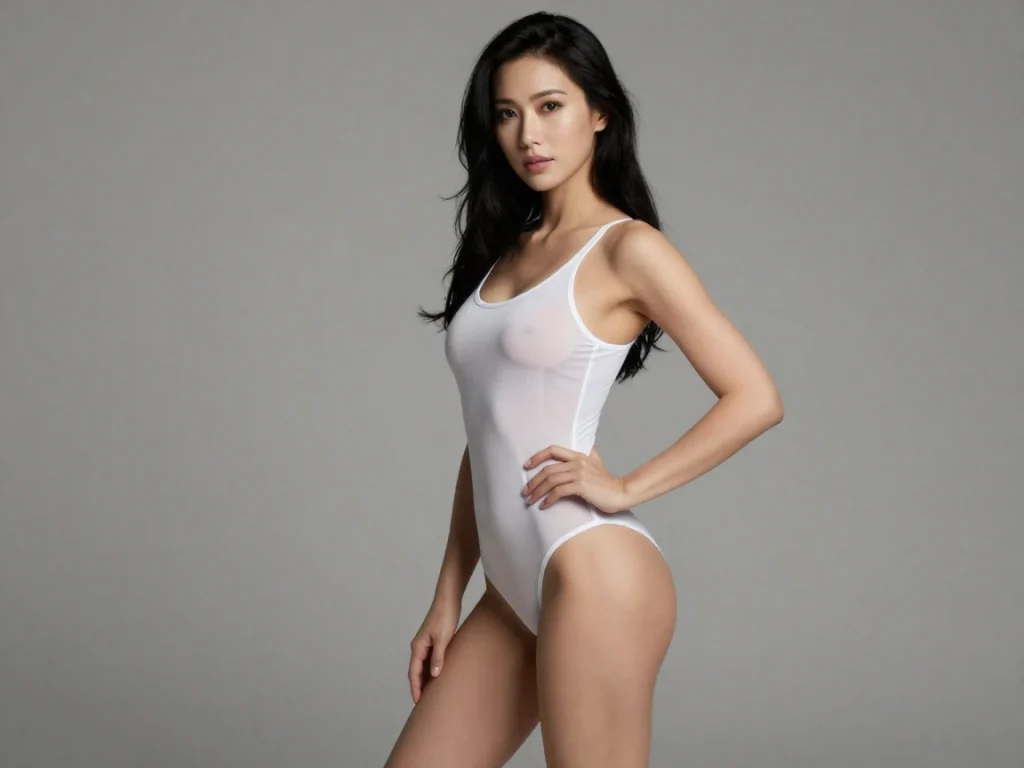
Choose the closest available preset and check how the proportions work together.
Browse men’s presets with attention to shoulders, torso and overall balance.
AVACLIK / BODY STUDIO
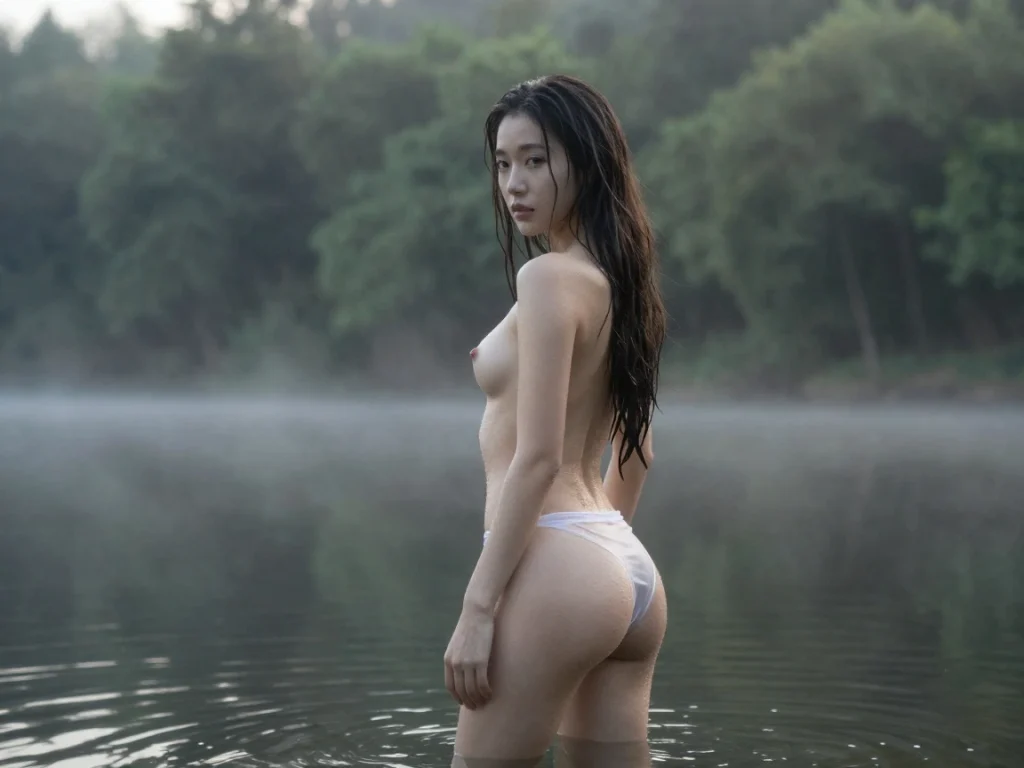
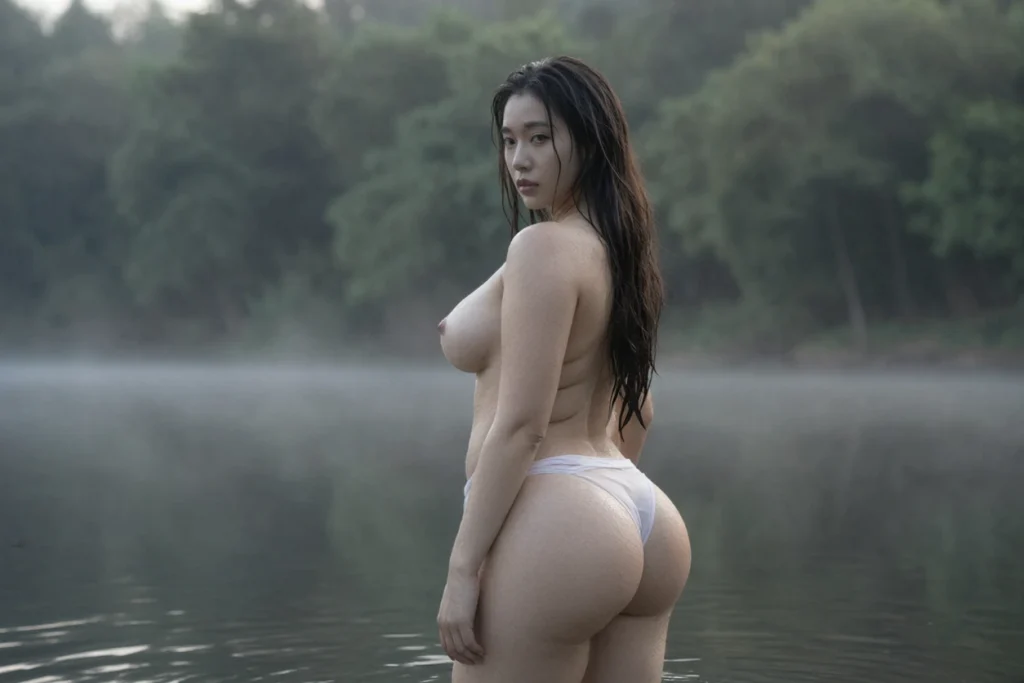
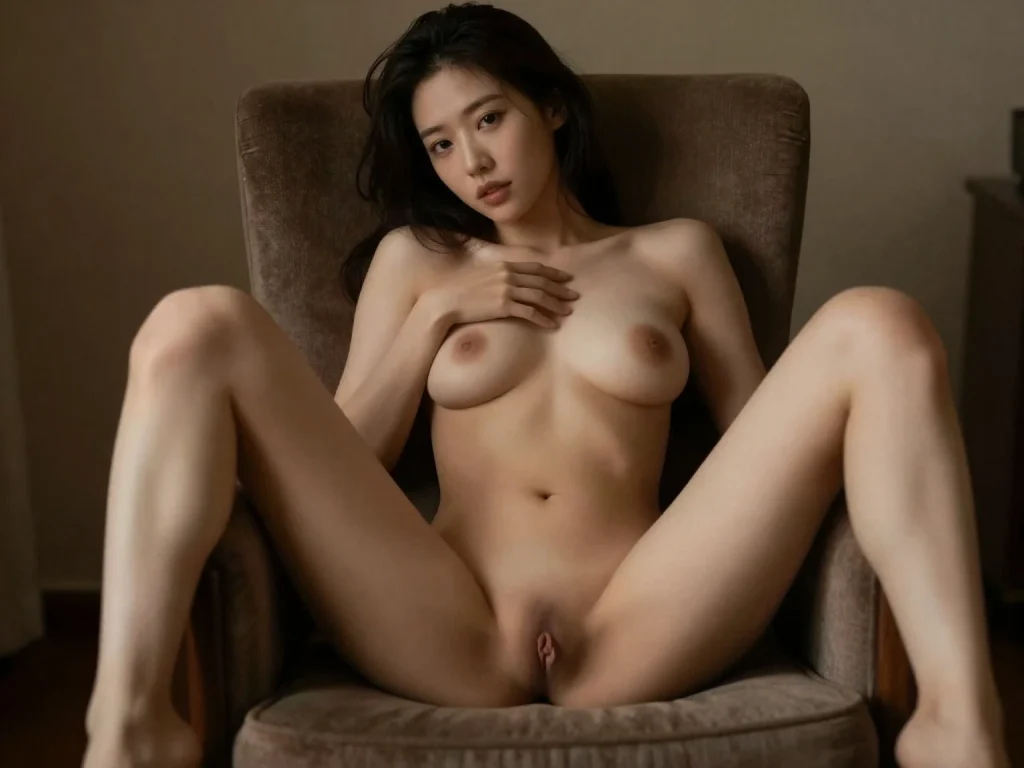
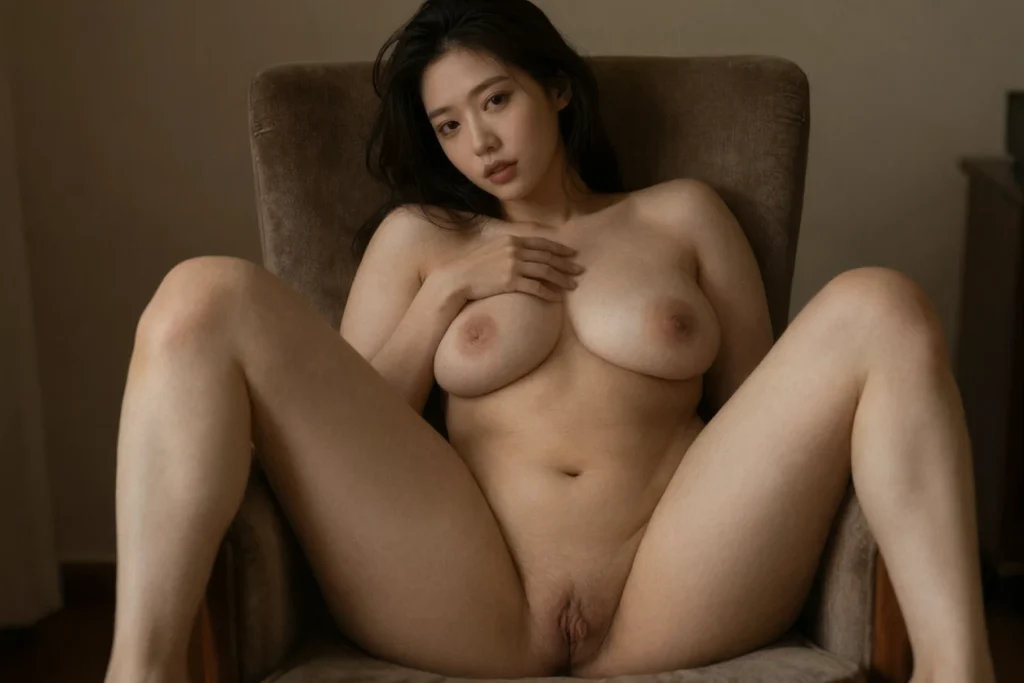
This section uses real pairs added by the site owner. Illustrations elsewhere on the page do not promise a particular result.
AVACLIK / BODY STUDIO
Choose an available preset and compare a new version of your photo, without manually moving body contours.
Use a clear photograph of a consenting adult. A full-length or mid-thigh portrait with visible body contours is a useful starting point.
Open Body, select the women’s or men’s category and choose an available preset closest to your idea. These are preset looks, not precise weight settings.
Run the edit, inspect proportions, hands and background, then compare versions in your history and download your preferred image.
AVACLIK / BODY STUDIO
This is a creative image edit. The tool creates another version of a silhouette; it does not measure your weight or predict how real weight loss would change your body.
Loose clothes, crossed arms and a complicated background make contours harder to interpret. Start with a clear photo and inspect the entire image after the edit.
AVACLIK / BODY STUDIO
A clearly visible silhouette matters more than a particular genre. Choose a photo that shows the part of the figure you want to explore.
See shoulders, waist and hips together when comparing the overall silhouette.
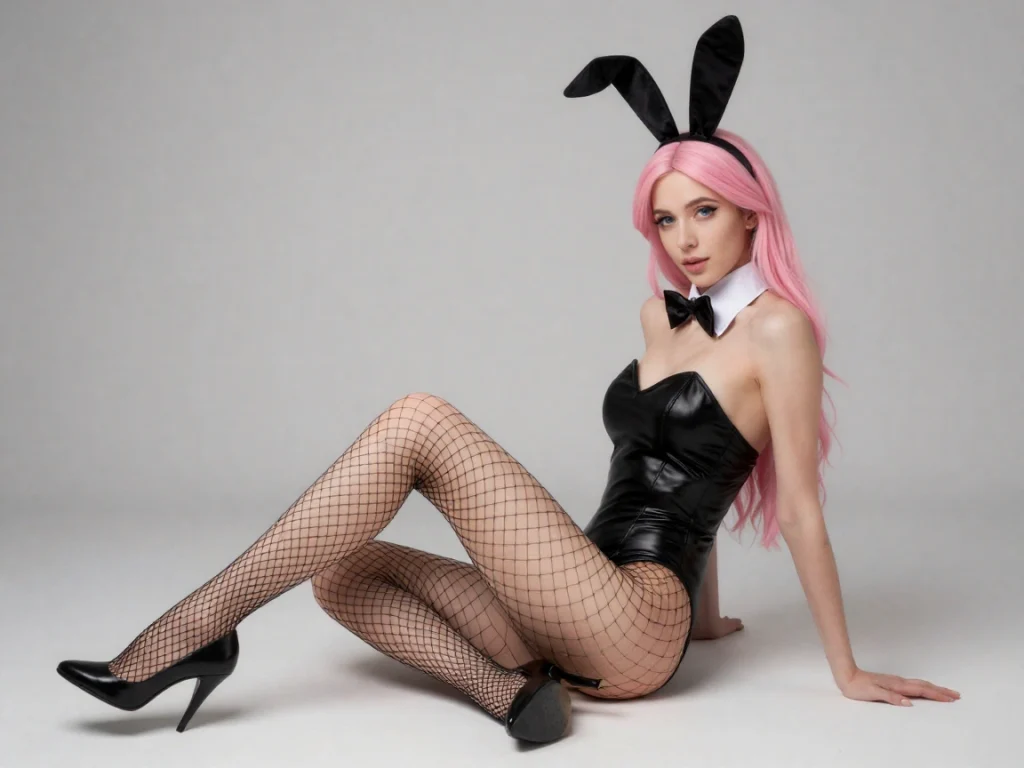
Review how the edited outline works with the fit and folds of clothing.
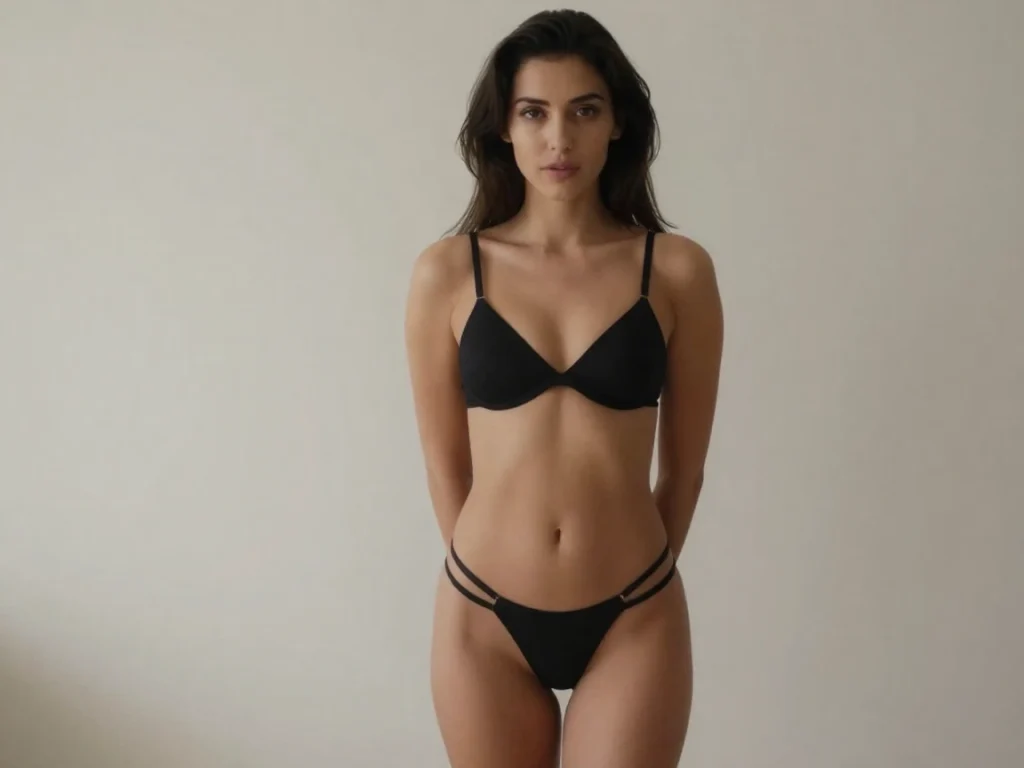
Explore a new look only with consenting adult subjects and within the content policy.
AVACLIK / BODY STUDIO
Compare shoulders, waist, hips and the length of limbs together.
Inspect folds, hands close to the body and the edges of garments.
Look for changes to straight lines and objects next to the silhouette.
AVACLIK / BODY STUDIO
Use your AvaClik balance for an available edit. The editor displays the cost on the action button.
Edits use your AvaClik token balance. The editor shows the cost of the selected action before you start. The output is an edited photograph, not a prediction of changes to your body.
Plans and tokens ↗AVACLIK / BODY STUDIO
There is no precise weight setting. Choose an available preset closest to your idea and judge the visual result.
You can try, but hidden contours are harder to interpret. A photo with a visible silhouette is easier to review.
This page describes body presets, not an isolated stomach slider. The edit may affect neighboring areas.
The editor shows the token cost for the selected edit before you start.
AvaClik is an 18+ editor. All depicted people must be adults and consent to the edit, and you must have the rights to the photo. Content policy and model restrictions apply.
AI may change neighboring details. Review each result, especially hands, clothing edges and objects near the body.
AVACLIK / BODY STUDIO
Open Body, select an available option and compare your image versions.
Open the body editor ↗18+ · Adult subjects only, with their consent and the rights to use the images
Content policy ↗