How to Upscale AI-Generated Images for High-Resolution Use
Prepare AI-generated images for 4K, print and marketing while preserving style and rechecking faces, hands, patterns and typography.
On this page
Open the AvaClik tool connected to this guide and try it on your photo.
AI-generated images are often created at a resolution that is comfortable for generation but too small for a poster, wallpaper, detailed website hero or print. Upscaling is a natural final-production step, but generated images already contain synthetic details, so the upscaler can reinforce both the strengths and the mistakes of the original generation.
Quick answer
Choose the final generated image first, fix obvious composition or anatomy problems, then upscale the approved version once to the size you need. After upscaling, recheck faces, hands, typography, repeated patterns and edges because small generation artifacts can become more obvious at high resolution.
Keep the original generation and prompt/settings if available. They provide a reference when the larger version changes a design element unexpectedly.
Why generated images often need upscaling
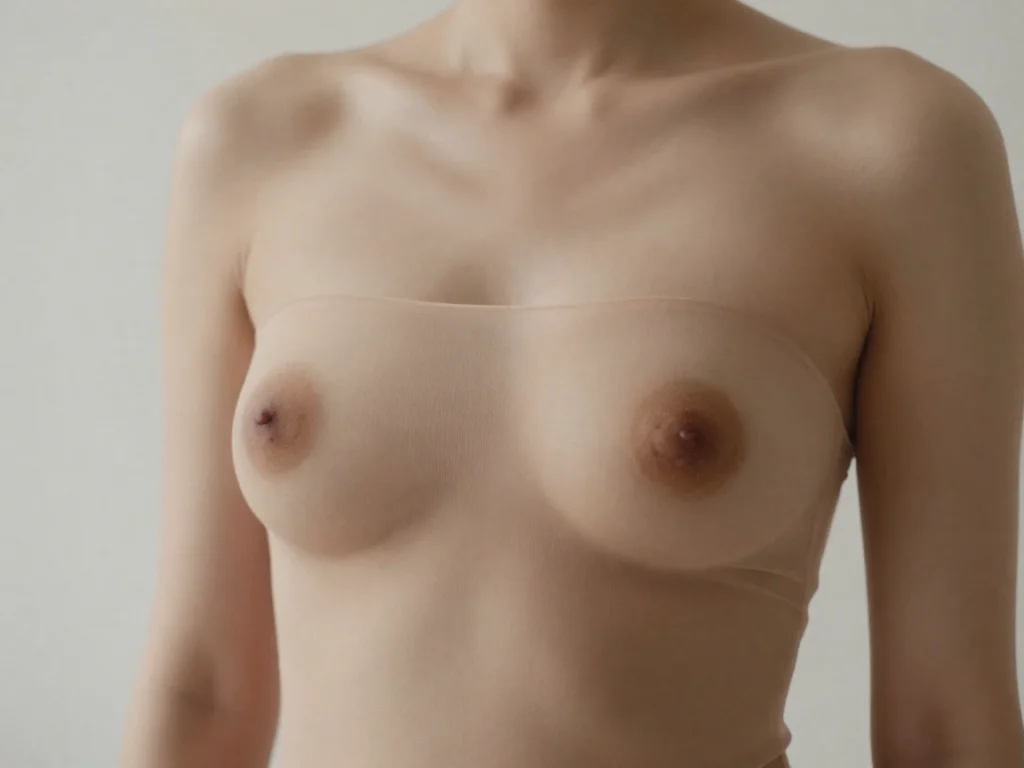
Generation systems balance compute, speed and composition quality, so the first image may be designed for preview rather than final delivery. Designers then need larger masters for print, social campaigns, wallpapers or crops.
Upscaling lets you separate creative selection from delivery resolution: generate and iterate efficiently, choose the winner, then spend compute on the final high-resolution asset.
Fix major errors before you upscale
Do not use upscaling as a substitute for correcting anatomy, composition or a broken object. A larger output can make those errors more detailed rather than remove them. Repair the source or regenerate it first.
Prioritize hands, eyes, typography, repeated objects and important geometry. Once the base image is approved, upscale the version you actually want to keep.
Preserve the intended visual style
Photorealistic, illustrated, painterly and 3D images have different texture languages. An upscaler that adds photographic micro-texture to a flat illustration can change the art direction.
Judge whether the larger result still feels like the same medium. More detail is only useful if it supports the style rather than replacing it.
Recheck faces and hands after enlargement
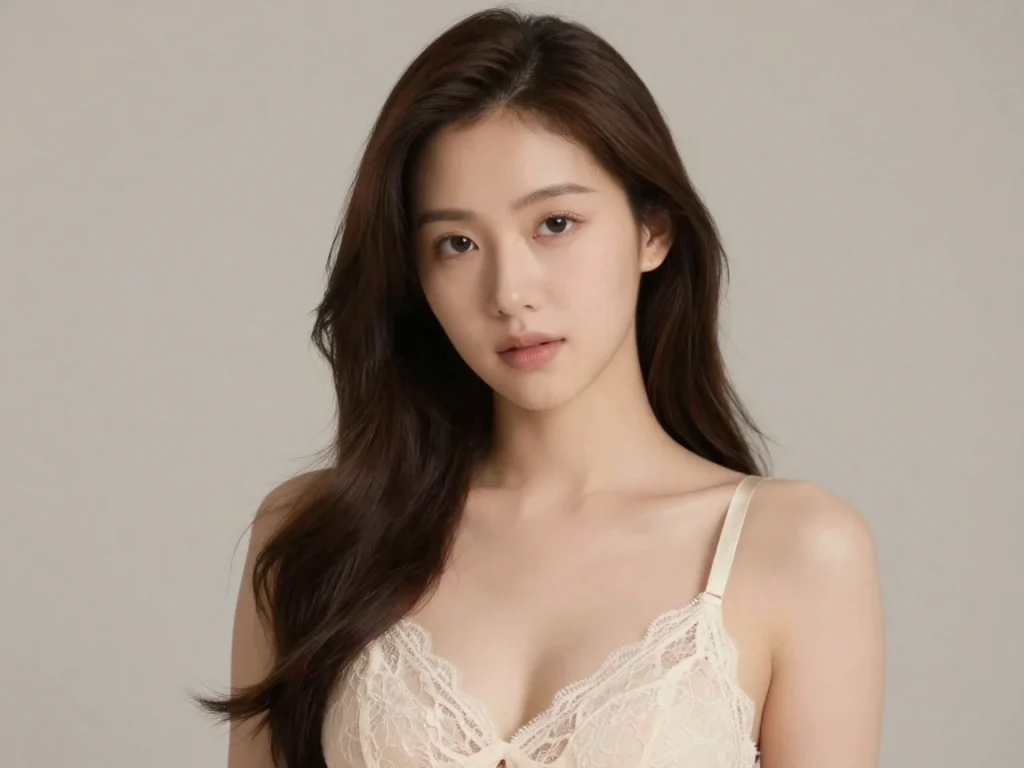
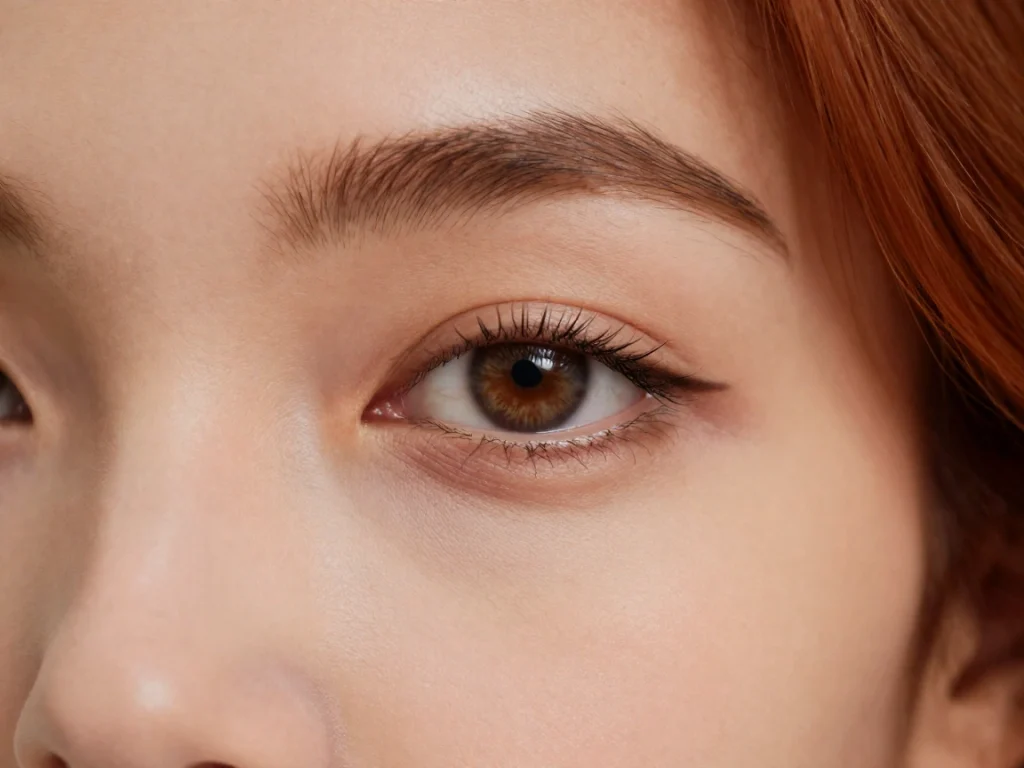
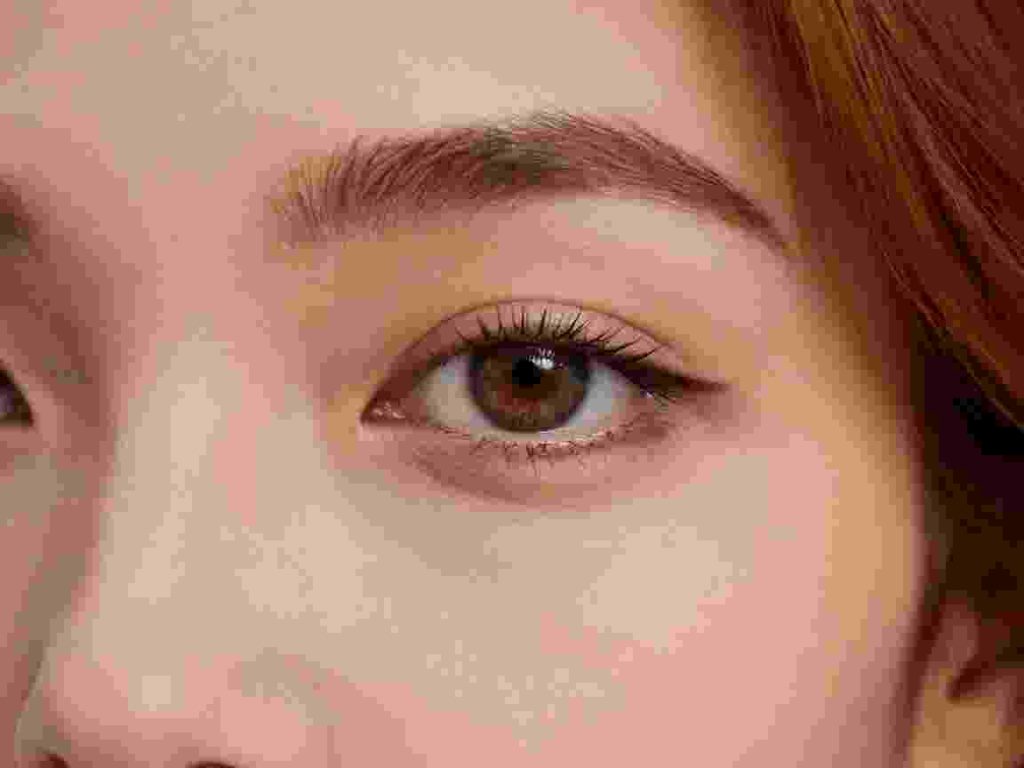
Generative images can contain small anatomical compromises that are hard to notice at preview size. Upscaling may sharpen them into obvious defects or reinterpret ambiguous fingers and facial features.
Compare the larger version to the selected original. If identity or hand structure changes, repair the base image or choose a more conservative upscale rather than accepting the new anatomy.
Typography requires manual verification
Even when a generated image includes readable text, the upscaler can change edges and character shapes. For posters, packaging concepts or UI mockups, preserve exact typography as a separate vector or text layer whenever possible.
Treat the image generator and upscaler as visual tools; use real type for information that must remain exact.
Watch repeating patterns and symmetry
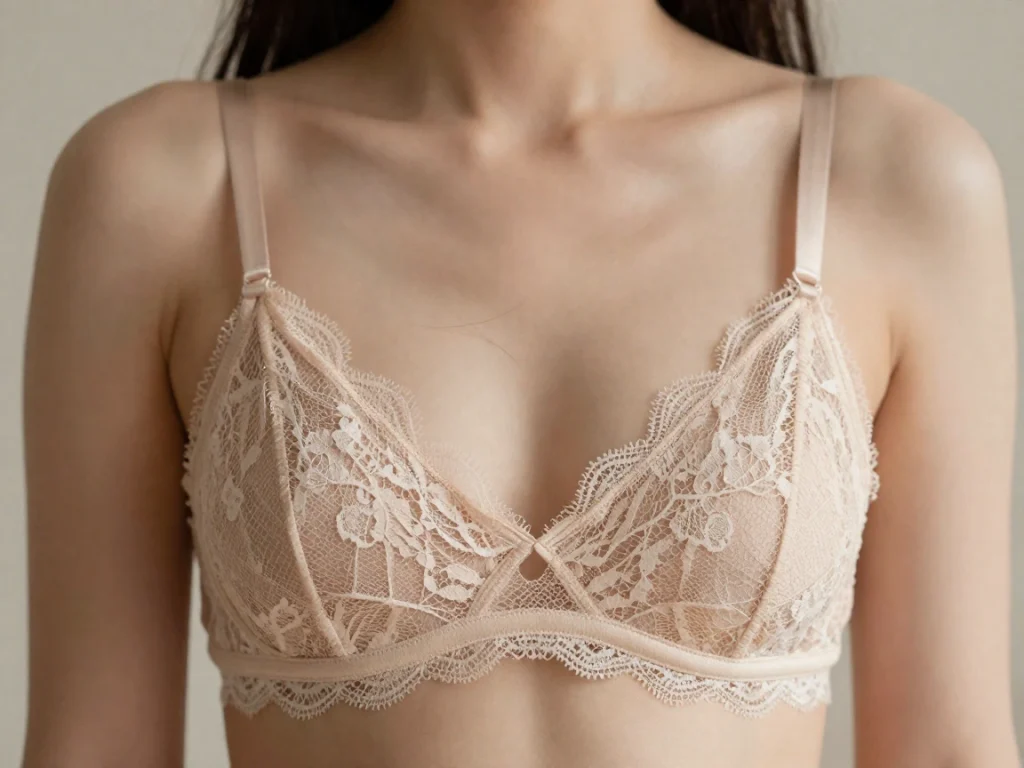
Wallpaper, tiles, fabric prints, architecture and jewelry can expose inconsistent reconstruction. A pattern that was barely coherent at small size may develop duplicated motifs or broken symmetry after upscale.
Inspect repeated structures across the full image, not only one crop. Small local improvements can hide global inconsistencies.
Preparing generated wallpapers
For desktop wallpaper, match or exceed the display’s pixel dimensions and preserve the intended aspect ratio. A 16:9 generation may need only a moderate upscale for a 4K screen, while an ultrawide display needs a different composition.
Upscale does not add scene area. If the aspect ratio is wrong, extend or crop the composition separately before final scaling.
Preparing generated art for print
Calculate the pixel requirement from print size and PPI, then upscale the final art to meet that target. Painterly work may tolerate lower effective PPI than crisp line art, but the print provider’s recommendation should guide the final file.
Order a proof for important pieces. Screen glow can hide texture and contrast problems that become obvious on paper.
Using high-resolution generations in web and marketing
Keep a large master for flexible design work, then export smaller channel-specific versions. This lets one approved generation feed banners, social crops, thumbnails and hero images without upscaling each derivative independently.
Do not serve the large master everywhere. Website performance still benefits from appropriately sized assets.
Keep versions and generation metadata
Name the source, edited master and upscaled output clearly. If your workflow tracks prompts, seeds or model settings, save them with the project. That makes it easier to reproduce or repair the image later.
Version control becomes especially valuable when multiple upscaled variants exist for different crops or channels.
A production workflow for AI-generated images
Generate and iterate at the practical working size, select the final image, correct major defects, prepare composition/aspect ratio, upscale once, inspect sensitive details and then export delivery versions.
The key is sequencing. Upscaling should be close to the end of the pipeline, after creative decisions but before final channel compression.
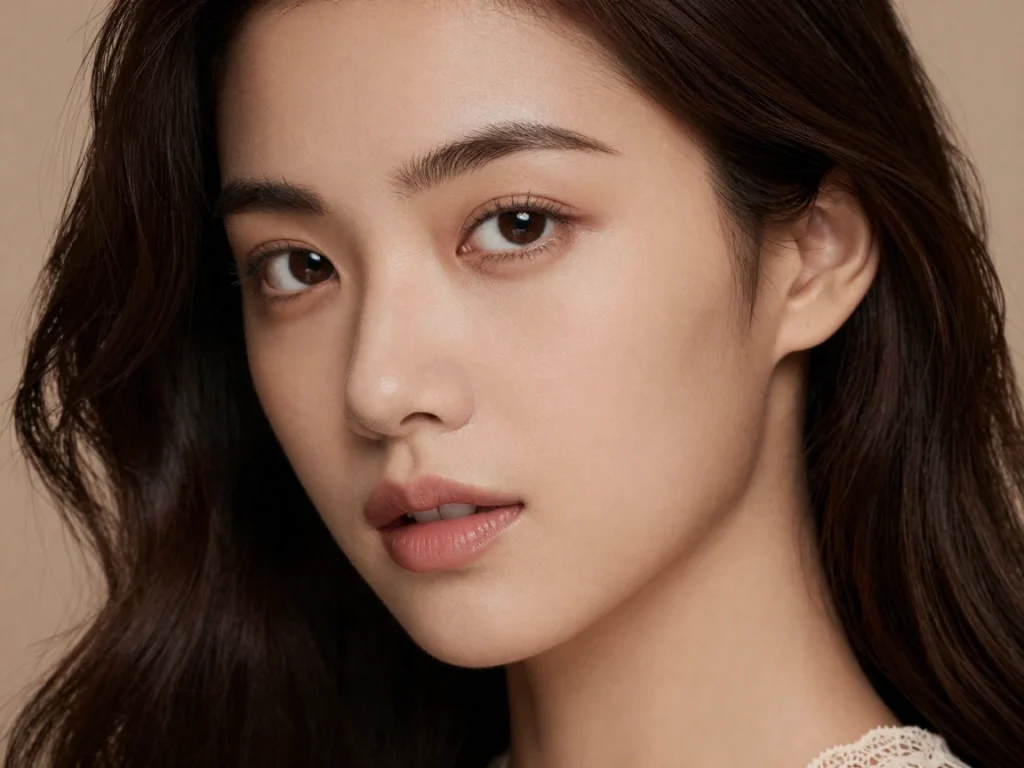
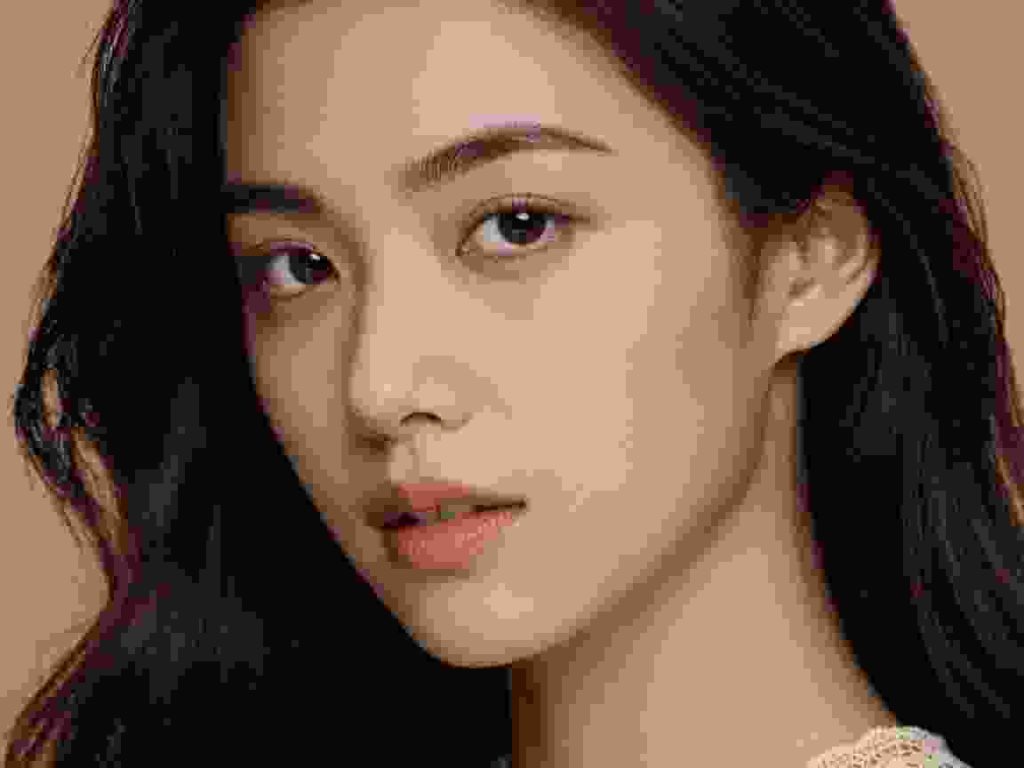
Generated-image upscale checklist
Before publishing the larger version, verify the following.
- Style remains consistent
- Faces and hands have not changed unexpectedly
- Typography is verified or replaced with real text
- Patterns and symmetry remain coherent
- No new halos or plastic texture
- Output dimensions fit the destination
- Original generation is preserved
Practical field notes and examples
The examples below show how the same upscaling principle changes depending on the source and destination. Use them as review prompts rather than rigid rules.
Photorealistic generations
Photorealistic AI images can benefit from a higher-resolution master, but skin, hair and reflective materials may gain excessive micro-texture. Compare the upscale with the selected generation and keep the original lighting and lens feel. Do not let the upscaler turn soft cinematic texture into hyper-sharp digital detail.
Anime and illustration
Flat color areas and clean line work need different QA from photography. Watch for wobbly outlines, added gradients and texture that changes the drawing style. If the image is intended for print, inspect line continuity at 100% and in a proof.
Fantasy art
Complex armor, jewelry and architecture contain many repeated motifs. Upscaling may make them more detailed but less consistent. Compare important symbols and silhouettes with the source, especially if the artwork is part of a character or world design system.
Product concepts
Generated product concepts may contain fake labels, ports or construction details. Upscaling can make those invented features look more authoritative. If the image is used for ideation, label it accordingly; if it represents a real product, replace exact details with verified assets.
Backgrounds and environments
Environment images contain foliage, windows, signs and repeated structures that can change during reconstruction. At wallpaper size, small inconsistencies may become visible. Inspect the focal area and any architectural lines before publishing.
Textures
Generated textures for games or design need tiling and pattern consistency. An upscaler can introduce local variation that breaks seamless repetition. Test the final texture in its real tiled context rather than approving a single isolated tile.
Character sheets
If several images show the same generated character, upscaling each independently can create slight identity differences. Keep a consistent source set and review face, costume and accessories across the group. A high-resolution master should reinforce character consistency, not weaken it.
Posters
Poster art often combines image and typography. Upscale the visual artwork before adding final text whenever possible. This keeps type exact and prevents reconstructed letters. Prepare the final poster dimensions from the print requirement rather than arbitrary maximum resolution.
Wallpapers
Match wallpaper output to the actual display and aspect ratio. A 4K screen does not benefit from an enormous 8K image if no crop is required, though an 8K master can be useful for several display variants. Keep the composition safe across desktop crops.
Asset-library workflow
Store the original generation, edited master and upscaled master together with prompt notes if available. This lets you regenerate or repair the image later without relying on a compressed derivative. Good asset management becomes more important as generated content scales across campaigns.
Advanced scenarios
These additional cases help translate the general workflow into real production decisions.
Game concept art
Concept art often contains suggestive rather than exact detail. Upscaling can over-define those brushy areas and accidentally lock in shapes the artist intended to remain loose. Compare the mood and focal hierarchy. Keep important silhouettes crisp while allowing background texture to stay subordinate.
Book-cover art
Book covers mix artwork with exact typography. Upscale the illustration first, then place title, author name and imprint as real text. This prevents letter reconstruction and gives the designer control over print sharpness. Check the art at final trim size and include bleed separately.
Character portraits
For generated character portraits, consistency may matter across a series. Upscale one approved source per pose and compare face shape, eye color, hairstyle and costume symbols. If the character identity changes at high resolution, repair the source rather than accepting a more detailed but different person.
Mockups and UI
Generated mockups can contain fake interfaces, icons and labels. Upscaling makes those inaccuracies more visible. Use generated imagery for concept mood, then replace interface elements with real design assets when the final output is meant to look functional or production-ready.
Print-on-demand
Print-on-demand products impose different canvas sizes for shirts, posters, mugs and other items. Prepare a high-resolution master only after the composition is approved, then export platform-specific files. Check thin lines and small patterns because printing processes can soften them even when the digital master is sharp.
Production notes
Use these final checks when the image is moving from experimentation into a real project.
Comics and sequential art
Sequential art needs consistency from panel to panel. If each panel is upscaled independently, line weight and texture can drift. Use the same settings, compare recurring characters and keep lettering separate. The goal is a coherent page, not ten individually impressive panels with slightly different visual treatment.
3D renders
Generated or rendered 3D imagery contains clean geometry, smooth materials and deliberate lighting. Upscaling should preserve those cues without adding photographic grain or random surface texture. Check straight edges, reflections and material roughness. A metallic surface should not acquire fabric-like detail simply because the model is trying to enrich the image.
Pattern design
For wallpapers, textiles or decorative patterns, repeatability matters more than local sharpness. Test the upscaled image as a tiled pattern. If seams, motif spacing or symmetry break, repair the base design before final output. A beautiful single tile that fails when repeated is not production-ready.
Final practical notes
Create once, deliver many times
A strong workflow creates one approved high-resolution master and derives the web, social and print versions from it. This avoids independent reconstruction for every channel and keeps the character, style and small details more consistent across a campaign.
Do not upscale rejected variants
Upscaling is a finishing cost. Select the final generation and fix obvious problems first. Processing ten near-identical drafts wastes time and can make version management confusing. A smaller set of approved masters is easier to review and reuse.
The final approval should compare the high-resolution result with the creative intent of the selected generation. If the larger image changes character identity, material style or composition emphasis, the extra pixels are not worth that drift. Fidelity to the chosen concept is the priority.
Keep a conservative version when fidelity is more important than spectacle.
Frequently asked questions
Should I upscale every AI generation?
No. Upscale only selected images that need a larger delivery size. This saves time and avoids processing rejected variants.
Can upscaling fix bad hands?
It may reinterpret them, but it is not a reliable anatomy-repair step. Fix obvious hand errors before the final upscale.
What size should I use for AI art prints?
Calculate pixels from the final print size and the print provider’s recommended PPI, then choose an upscale that meets that requirement.
Can the upscaler change the art style?
Yes, especially when it adds texture to ambiguous regions. Compare the larger result with the source at normal viewing size.
Should text be generated inside the image?
For exact wording, use real typography when possible. Generated or reconstructed text can change characters.
Related AvaClik upscaling guides
Continue with the guide that matches the next problem in your workflow.
- How to Upscale Images for Printing: Resolution, Pixels & DPI Explained
- 2K vs 4K vs 8K Image Upscaling: Which Resolution Should You Choose?
- AI Upscaling Mistakes: Faces, Text, Hair, Texture & Fake Detail
Try this in AvaClik
Try the workflow in AvaClik
Upload a photo you have permission to edit, make a change, check the result and refine it.
Try AvaClik AI Image Upscaler ↗