How to Fix Bad AI Makeup Edits: Eyes, Lips, Skin & Face Drift
Diagnose common AI makeup failures including changed faces, floating eyeliner, broken lashes, plastic skin, lipstick spill and inconsistent lighting.
On this page
Open the AvaClik tool connected to this guide and try it on your photo.
Bad AI makeup rarely fails in only one dramatic way. More often the result looks almost right while a few details—an altered eye shape, floating eyeliner, plastic skin or lipstick outside the lip boundary—make the portrait feel synthetic.
Quick answer
Identify the smallest visible failure before regenerating. If the face changed, prioritize identity. If eye or lip edges are broken, compare another candidate. If skin became plastic, choose a version that preserves texture. Do not keep stacking edits onto a result whose basic facial geometry is already wrong.
Problem: the face changed
A practical way to judge this part of the edit is to ask what evidence exists in the source photo and what the model had to invent. If jaw, eyes, nose or mouth geometry moved, treat the generation as an identity failure rather than a makeup preference. For this article, the goal is to diagnose makeup-specific artifacts and choose the cleanest recovery path. The more clearly the source shows the relevant facial region, the easier it is to distinguish a makeup decision from an accidental reconstruction.
Keep comparisons controlled: same source, same crop, same expression and the same scene. Then review face landmarks, eye geometry, eyeliner, lashes, shadow edges, skin texture, blush, lip boundary, highlight and background preservation. If several elements change at once, you lose the ability to tell whether the makeup itself improved the portrait or whether the model simply created a different, more flattering image.
Problem: skin became plastic
This detail matters because makeup is applied to existing anatomy; it should not replace that anatomy. Choose a candidate that preserves pores, freckles and natural tonal variation. In a useful AI preview, the cosmetic layer follows the original geometry while the person underneath remains stable. That distinction is what turns a generated portrait into a meaningful try-on rather than a generic beauty transformation.
Use side-by-side comparison whenever possible and pay particular attention to face landmarks, eye geometry, eyeliner, lashes, shadow edges, skin texture, blush, lip boundary, highlight and background preservation. Small deviations are easiest to catch when the original stays visible. If a version is visually impressive but changes facial landmarks, it is a weaker makeup preview than a slightly less dramatic version that preserves identity.
- Check face landmarks against the original rather than from memory.
- Check eye geometry against the original rather than from memory.
- Check eyeliner against the original rather than from memory.
- Check lashes against the original rather than from memory.
Problem: eyeliner floats above the lash line
Treat this section as a preservation test as much as a styling test. The line should attach to the real eyelid boundary instead of becoming a graphic object in front of the face. The target is to diagnose makeup-specific artifacts and choose the cleanest recovery path, not to regenerate the entire portrait. This keeps the article practical for real comparisons because readers can see exactly what the chosen makeup direction changed.
Generate multiple candidates when this area is difficult. Differences in face landmarks, eye geometry, eyeliner, lashes, shadow edges, skin texture, blush, lip boundary, highlight and background preservation can be substantial even when the overall look name is the same. Selecting the cleanest candidate is often more reliable than trying to repair a generation that already distorted the face, hair or scene.
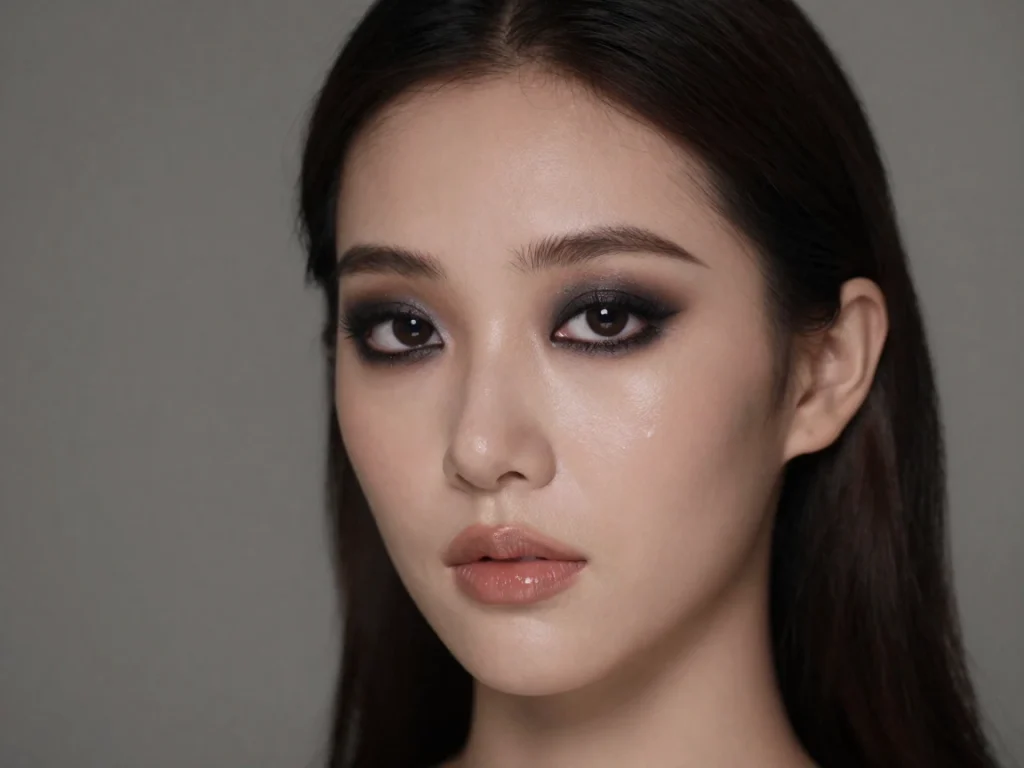
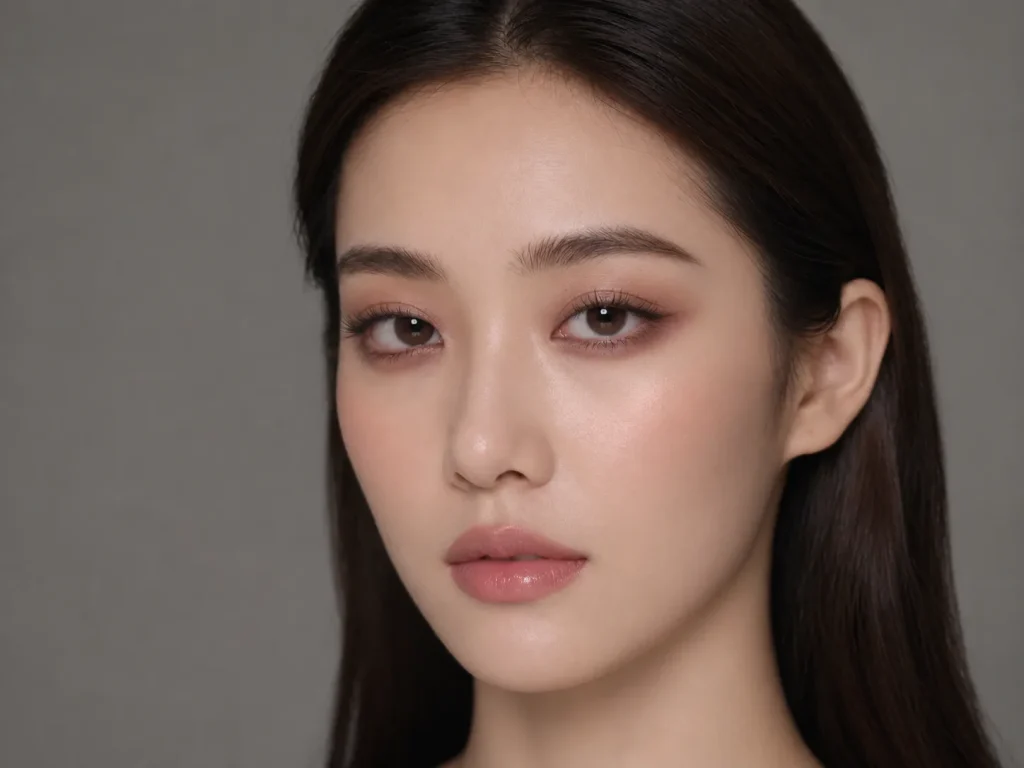
Problem: lashes duplicate or detach
When reviewing this section, separate the requested cosmetic change from everything else in the portrait. Broken lash roots are easier to fix by regenerating than by accepting a dramatic but anatomically weak version. The result is strongest when diagnose makeup-specific artifacts and choose the cleanest recovery path. Compare the same area against the source rather than judging the generated image in isolation, because flattering lighting or smoothing can hide small identity changes.
Inspect face landmarks, eye geometry, eyeliner, lashes, shadow edges, skin texture, blush, lip boundary, highlight and background preservation at two scales. At normal viewing size, ask whether the makeup feels coherent with the whole portrait. At close zoom, check the exact edges and texture described in this section. A clean candidate should survive both tests without requiring you to excuse a changed face or inconsistent lighting.
Problem: eyeshadow becomes muddy
A practical way to judge this part of the edit is to ask what evidence exists in the source photo and what the model had to invent. Shadow should blend gradually and stay inside a plausible eye-makeup region. For this article, the goal is to diagnose makeup-specific artifacts and choose the cleanest recovery path. The more clearly the source shows the relevant facial region, the easier it is to distinguish a makeup decision from an accidental reconstruction.
Keep comparisons controlled: same source, same crop, same expression and the same scene. Then review face landmarks, eye geometry, eyeliner, lashes, shadow edges, skin texture, blush, lip boundary, highlight and background preservation. If several elements change at once, you lose the ability to tell whether the makeup itself improved the portrait or whether the model simply created a different, more flattering image.
Problem: lipstick spills beyond the lips
This detail matters because makeup is applied to existing anatomy; it should not replace that anatomy. Compare the original mouth contour and reject versions that redraw the mouth. In a useful AI preview, the cosmetic layer follows the original geometry while the person underneath remains stable. That distinction is what turns a generated portrait into a meaningful try-on rather than a generic beauty transformation.
Use side-by-side comparison whenever possible and pay particular attention to face landmarks, eye geometry, eyeliner, lashes, shadow edges, skin texture, blush, lip boundary, highlight and background preservation. Small deviations are easiest to catch when the original stays visible. If a version is visually impressive but changes facial landmarks, it is a weaker makeup preview than a slightly less dramatic version that preserves identity.
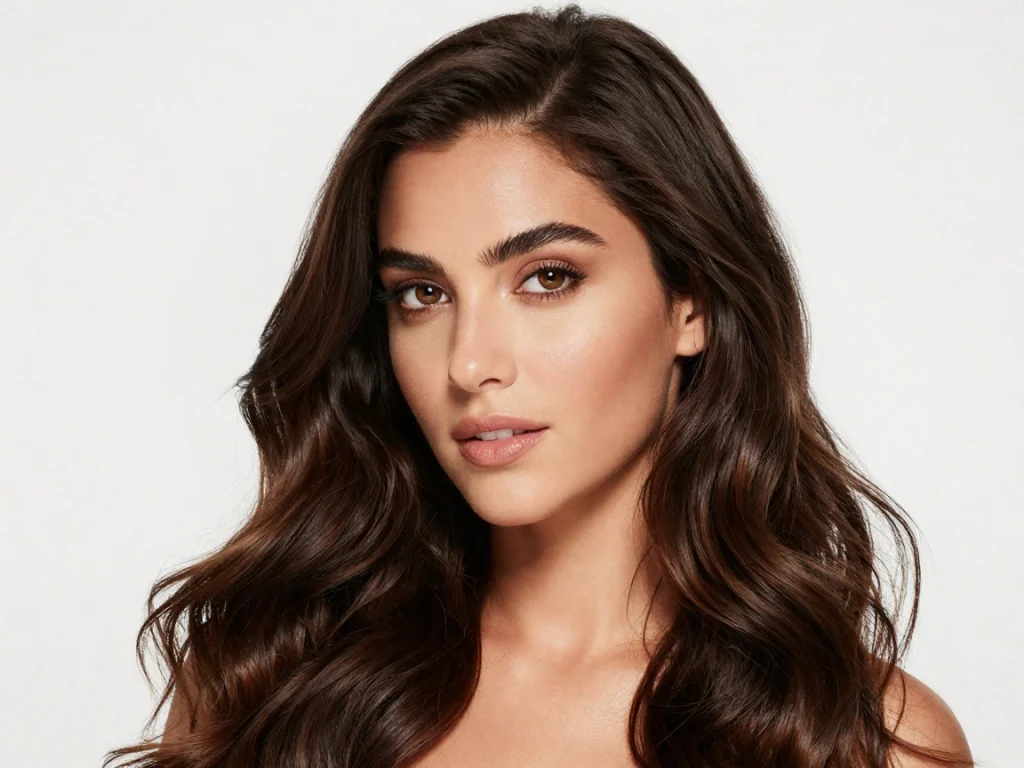
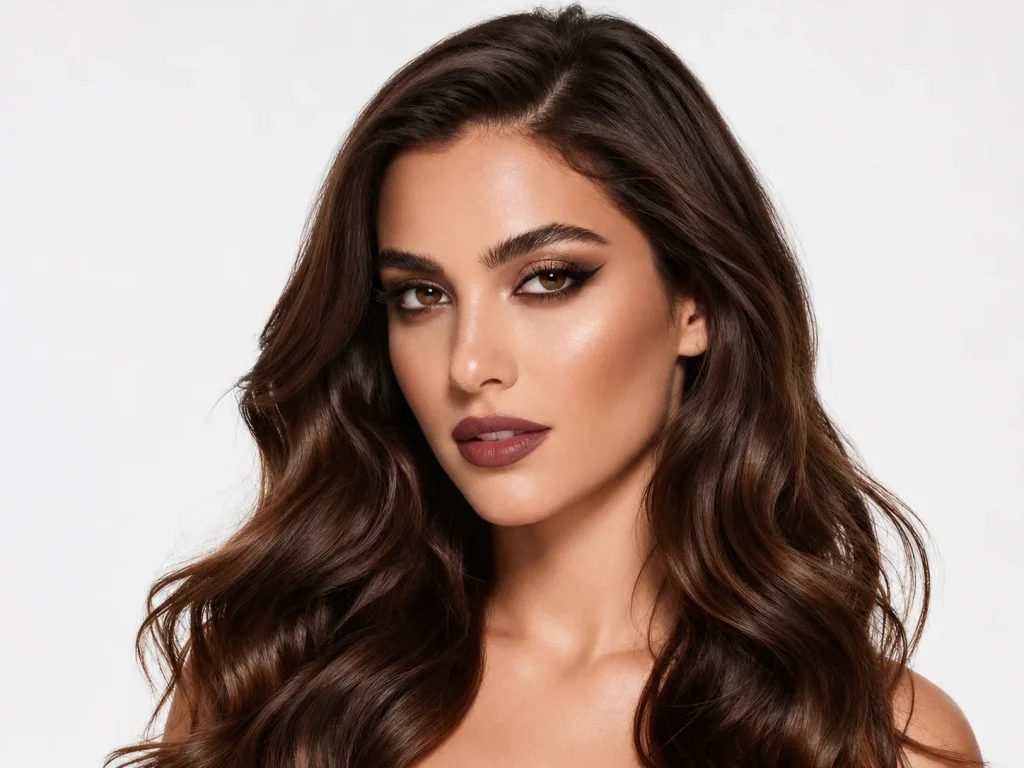
Problem: teeth or smile changed
Treat this section as a preservation test as much as a styling test. A lip edit should not reconstruct teeth or change the expression. The target is to diagnose makeup-specific artifacts and choose the cleanest recovery path, not to regenerate the entire portrait. This keeps the article practical for real comparisons because readers can see exactly what the chosen makeup direction changed.
Generate multiple candidates when this area is difficult. Differences in face landmarks, eye geometry, eyeliner, lashes, shadow edges, skin texture, blush, lip boundary, highlight and background preservation can be substantial even when the overall look name is the same. Selecting the cleanest candidate is often more reliable than trying to repair a generation that already distorted the face, hair or scene.
- Check face landmarks against the original rather than from memory.
- Check eye geometry against the original rather than from memory.
- Check eyeliner against the original rather than from memory.
- Check lashes against the original rather than from memory.
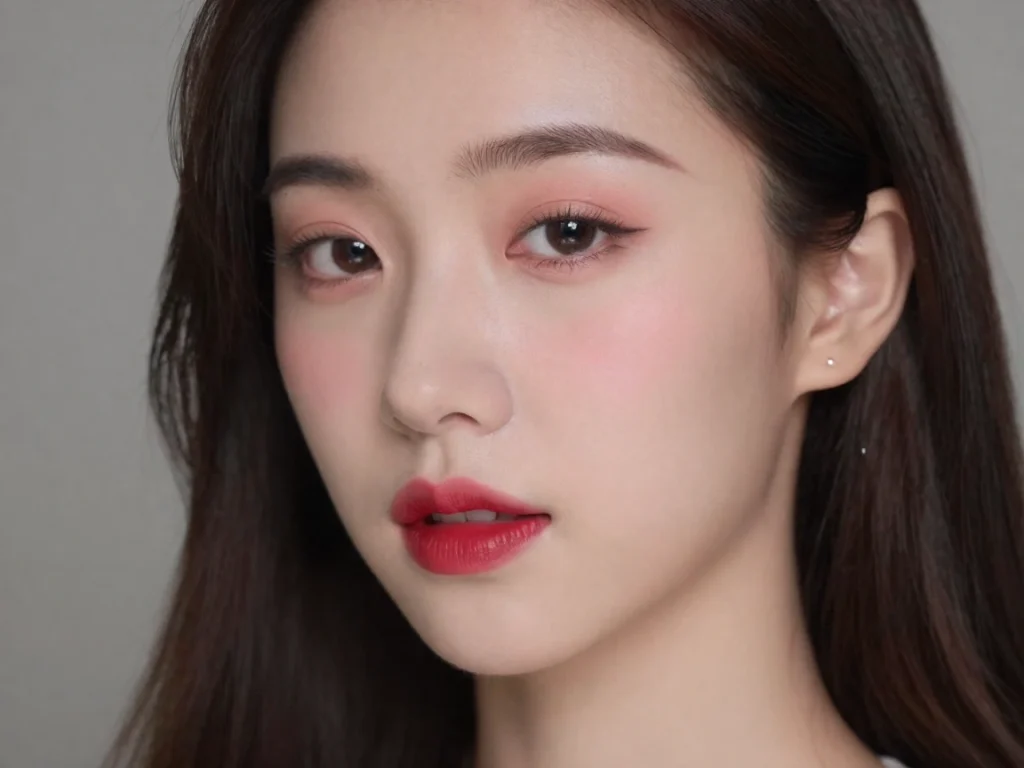
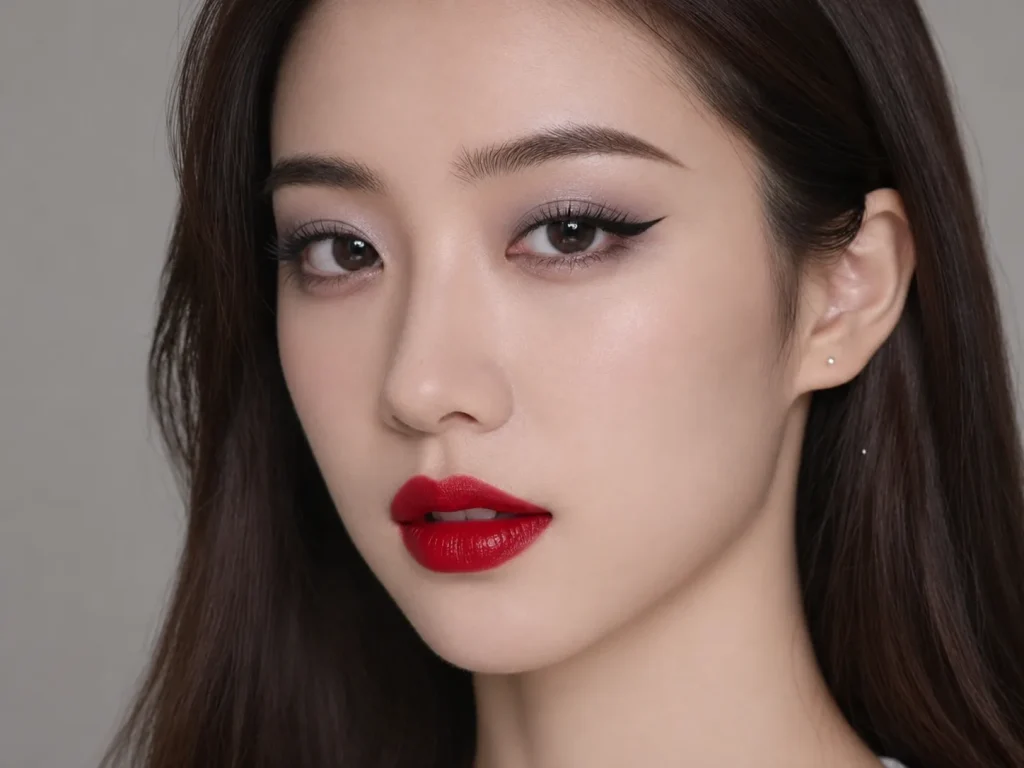
Problem: blush looks like a flat patch
When reviewing this section, separate the requested cosmetic change from everything else in the portrait. Good cheek color follows face curvature and lighting rather than sitting as a uniform circle. The result is strongest when diagnose makeup-specific artifacts and choose the cleanest recovery path. Compare the same area against the source rather than judging the generated image in isolation, because flattering lighting or smoothing can hide small identity changes.
Inspect face landmarks, eye geometry, eyeliner, lashes, shadow edges, skin texture, blush, lip boundary, highlight and background preservation at two scales. At normal viewing size, ask whether the makeup feels coherent with the whole portrait. At close zoom, check the exact edges and texture described in this section. A clean candidate should survive both tests without requiring you to excuse a changed face or inconsistent lighting.
Problem: highlights glow independently
A practical way to judge this part of the edit is to ask what evidence exists in the source photo and what the model had to invent. Gloss and shimmer should react to the same light source as the rest of the portrait. For this article, the goal is to diagnose makeup-specific artifacts and choose the cleanest recovery path. The more clearly the source shows the relevant facial region, the easier it is to distinguish a makeup decision from an accidental reconstruction.
Keep comparisons controlled: same source, same crop, same expression and the same scene. Then review face landmarks, eye geometry, eyeliner, lashes, shadow edges, skin texture, blush, lip boundary, highlight and background preservation. If several elements change at once, you lose the ability to tell whether the makeup itself improved the portrait or whether the model simply created a different, more flattering image.
Problem: eyebrows changed too much
This detail matters because makeup is applied to existing anatomy; it should not replace that anatomy. Brows are part of identity; choose a cleaner result if their position or shape moves unexpectedly. In a useful AI preview, the cosmetic layer follows the original geometry while the person underneath remains stable. That distinction is what turns a generated portrait into a meaningful try-on rather than a generic beauty transformation.
Use side-by-side comparison whenever possible and pay particular attention to face landmarks, eye geometry, eyeliner, lashes, shadow edges, skin texture, blush, lip boundary, highlight and background preservation. Small deviations are easiest to catch when the original stays visible. If a version is visually impressive but changes facial landmarks, it is a weaker makeup preview than a slightly less dramatic version that preserves identity.
Problem: hair or background changed
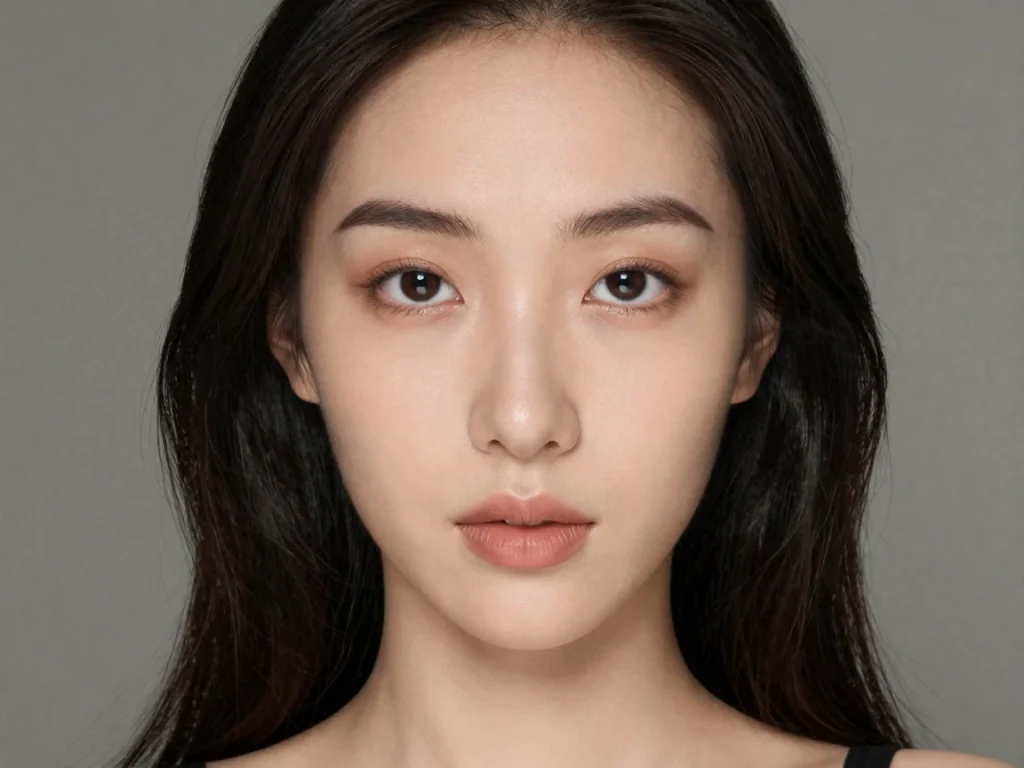
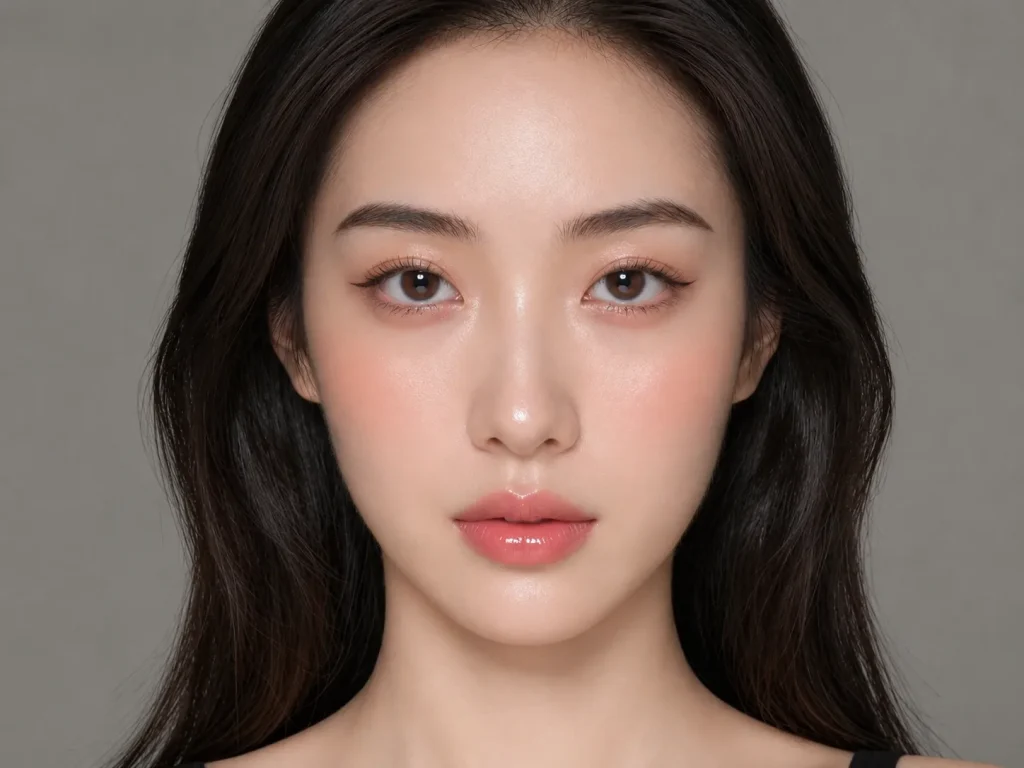
Treat this section as a preservation test as much as a styling test. A makeup operation should not silently redesign the surrounding portrait. The target is to diagnose makeup-specific artifacts and choose the cleanest recovery path, not to regenerate the entire portrait. This keeps the article practical for real comparisons because readers can see exactly what the chosen makeup direction changed.
Generate multiple candidates when this area is difficult. Differences in face landmarks, eye geometry, eyeliner, lashes, shadow edges, skin texture, blush, lip boundary, highlight and background preservation can be substantial even when the overall look name is the same. Selecting the cleanest candidate is often more reliable than trying to repair a generation that already distorted the face, hair or scene.
Use a simple recovery sequence
When reviewing this section, separate the requested cosmetic change from everything else in the portrait. Return to the original source, choose the closest makeup look again, generate several candidates and select the version with the least unintended change. The result is strongest when diagnose makeup-specific artifacts and choose the cleanest recovery path. Compare the same area against the source rather than judging the generated image in isolation, because flattering lighting or smoothing can hide small identity changes.
Inspect face landmarks, eye geometry, eyeliner, lashes, shadow edges, skin texture, blush, lip boundary, highlight and background preservation at two scales. At normal viewing size, ask whether the makeup feels coherent with the whole portrait. At close zoom, check the exact edges and texture described in this section. A clean candidate should survive both tests without requiring you to excuse a changed face or inconsistent lighting.
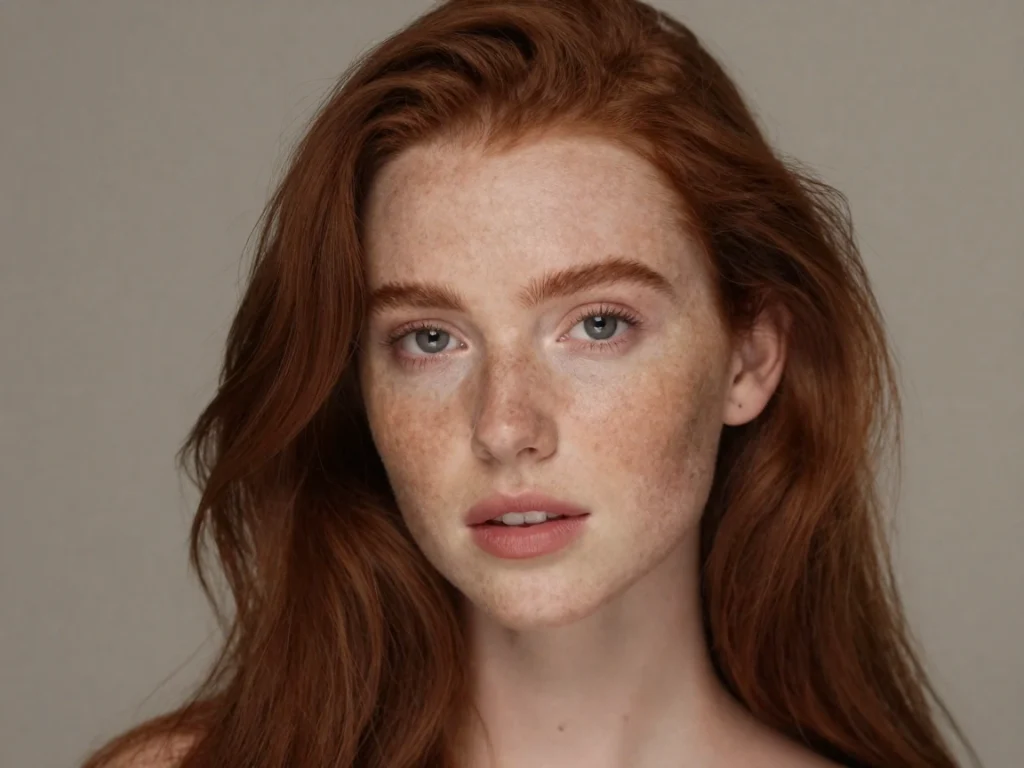
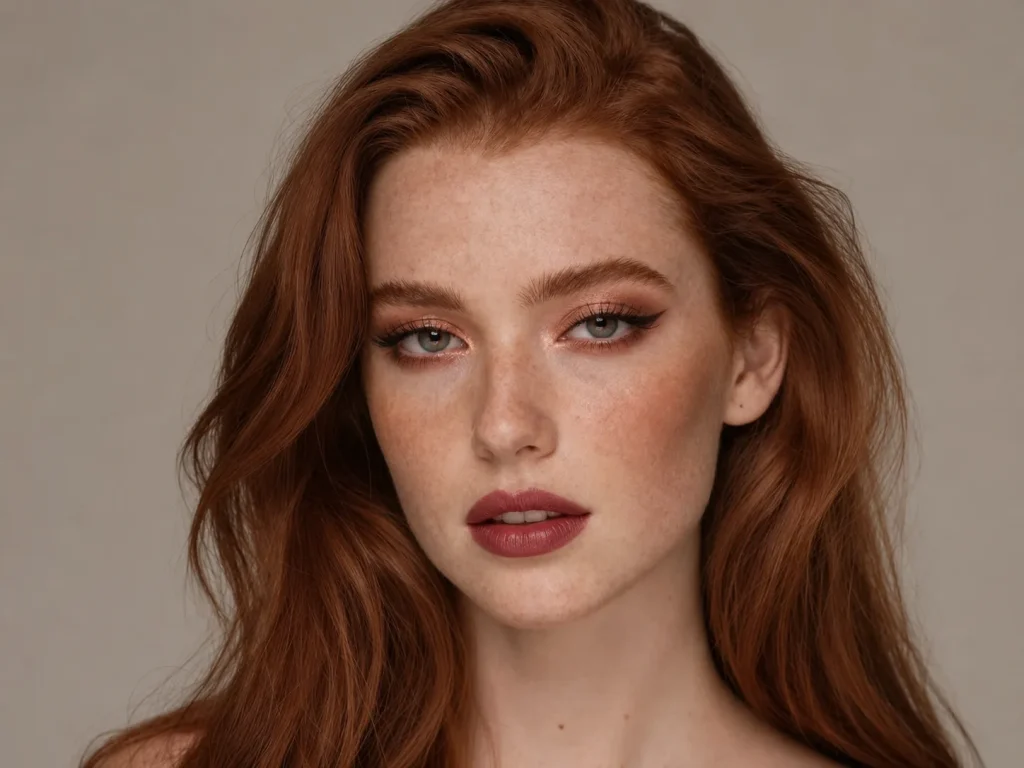
Practical review checklist
- Confirm the result still shows the same person before judging the makeup style.
- Review face landmarks, eye geometry, eyeliner, lashes, shadow edges, skin texture, blush, lip boundary, highlight and background preservation against the source image.
- Zoom in on eyes, brows and lips for edge artifacts, then zoom out to judge overall balance.
- Reject candidates that silently reshape the face or heavily smooth skin when that was not the purpose.
- Remember that screen color and AI rendering are approximate references for real cosmetics.
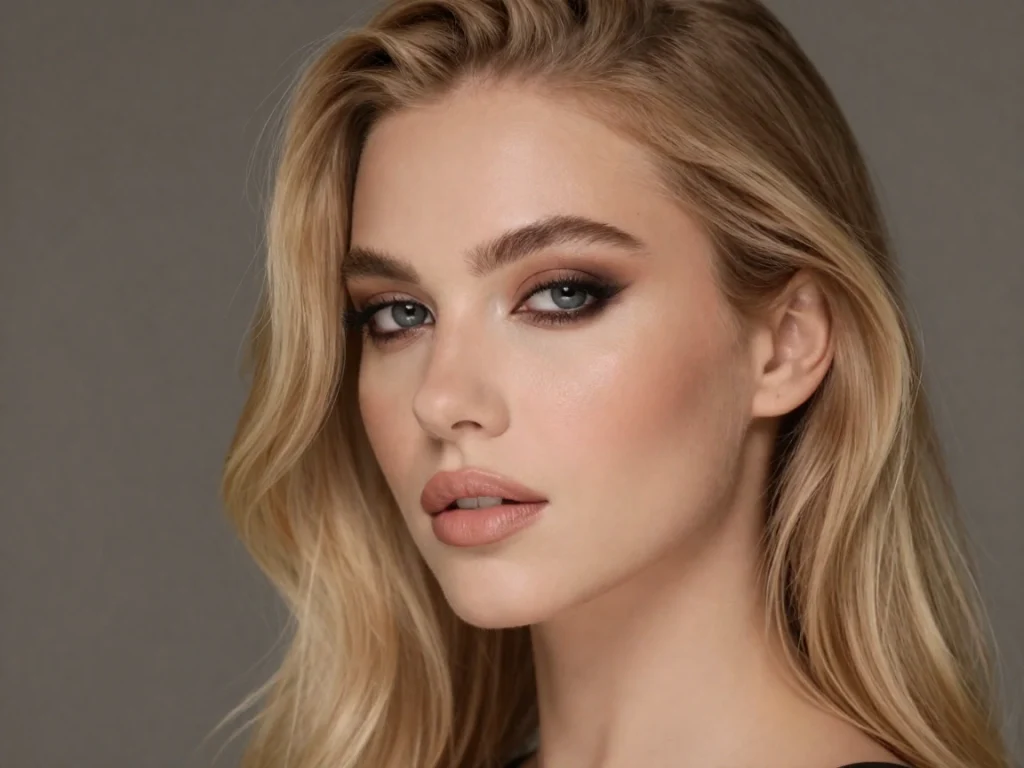
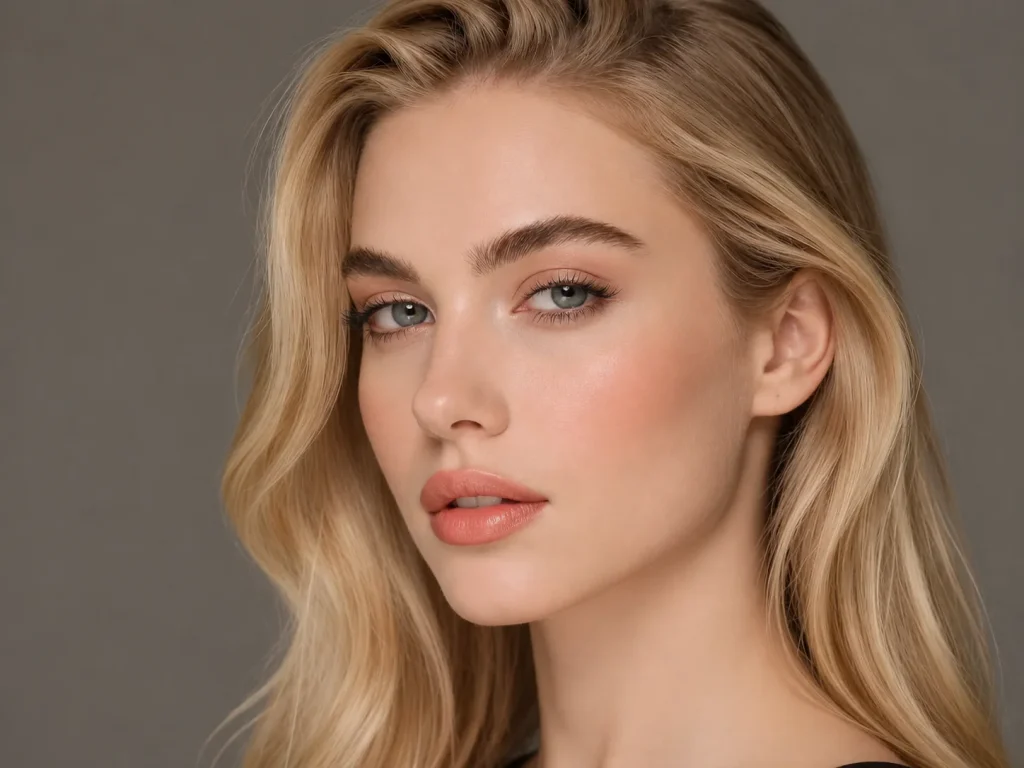
Related AvaClik guides
- Natural vs Glam vs Smokey vs Evening Makeup: Which AI Look Should You Try?
- How to Try Makeup on Your Photo With AI: Complete Guide
- 30 AI Makeup Looks to Try on Your Photo
- How to Try Natural Makeup With AI
Try the makeup look in AvaClik
For How to Fix Bad AI Makeup Edits: Eyes, Lips, Skin & Face Drift, open the AvaClik AI Makeup tool with the same adult portrait used for your comparison. Keep the original visible beside the generated result so you can judge the makeup direction while checking that the face, hair, expression and scene remain consistent.
Try AvaClik AI Makeup
Choose a ready-made makeup look, generate a new portrait and review the face, skin, eyes and lips against your original.

Try this in AvaClik
Try the workflow in AvaClik
Upload a photo you have permission to edit, make a change, check the result and refine it.
Try AvaClik AI Makeup ↗