How to Make AI-Changed Poses Look Natural and Realistic
Make AI pose edits look more natural by controlling weight, support, joints, clothing folds, shadows and camera perspective.
On this page
Open the AvaClik tool connected to this guide and try it on your photo.
A pose can be anatomically possible and still look visually wrong. Natural posture depends on weight distribution, support, joint angles, clothing response and contact with the environment. The most reliable pose edits are not necessarily dramatic; they are the ones where all of those small relationships agree.
Quick answer
Describe where body weight is supported, keep joint positions simple, name the surface the person touches, and review contact shadows and garment folds. If the posture looks like the person is floating, twisted or balanced impossibly, simplify the request and regenerate from the original.
Start with believable balance and center of gravity
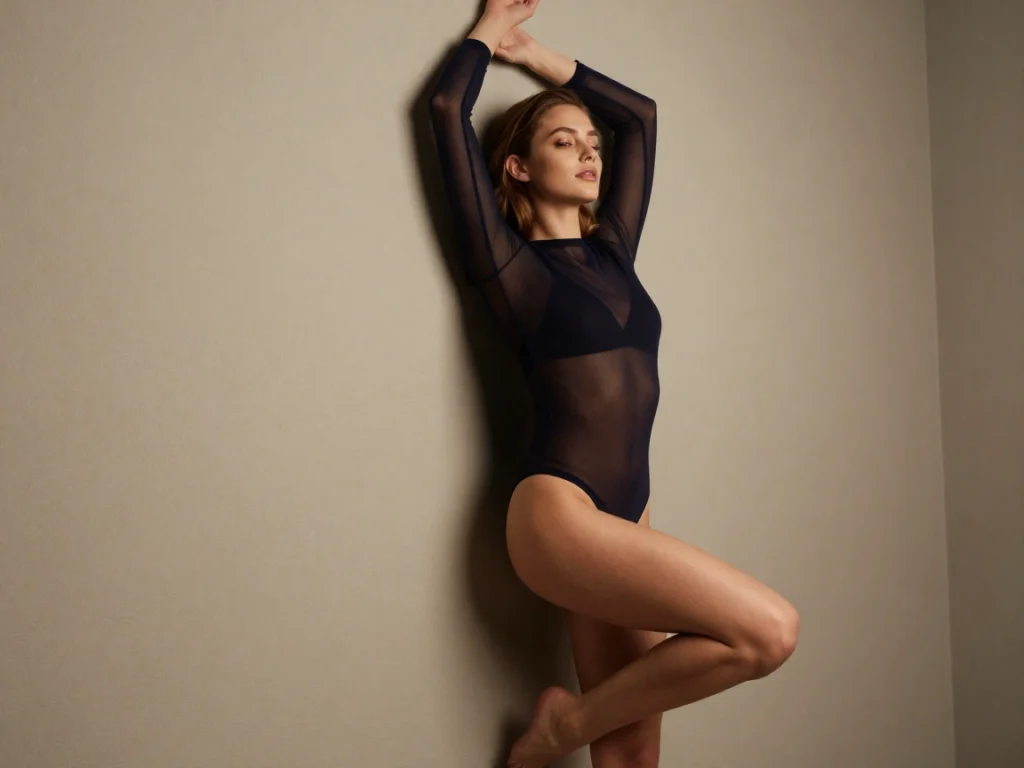
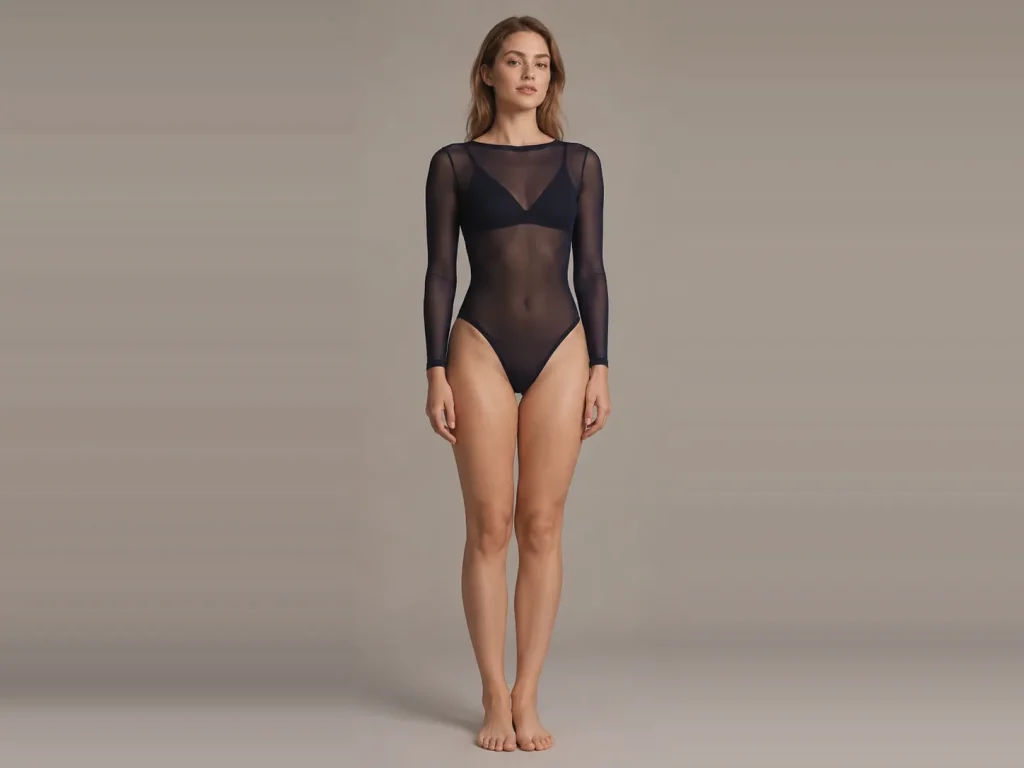
A standing body needs a support base under its center of mass; extreme hip shifts without a corresponding foot position often look unstable. In How to Make AI-Changed Poses Look Natural and Realistic, pose generation is strongest when the requested posture is visually specific. Words such as “confident” or “relaxed” are useful as secondary cues, but concrete instructions such as where the weight rests, how the torso turns and what each hand does give the model a much clearer target.
For this specific issue, evaluate the result against the original rather than against an imagined perfect pose. Preserve the parts that already work, and make the next instruction about start with believable balance and center of gravity as concrete as possible. This keeps the edit measurable and prevents unrelated changes from hiding the original problem.
Name the support points
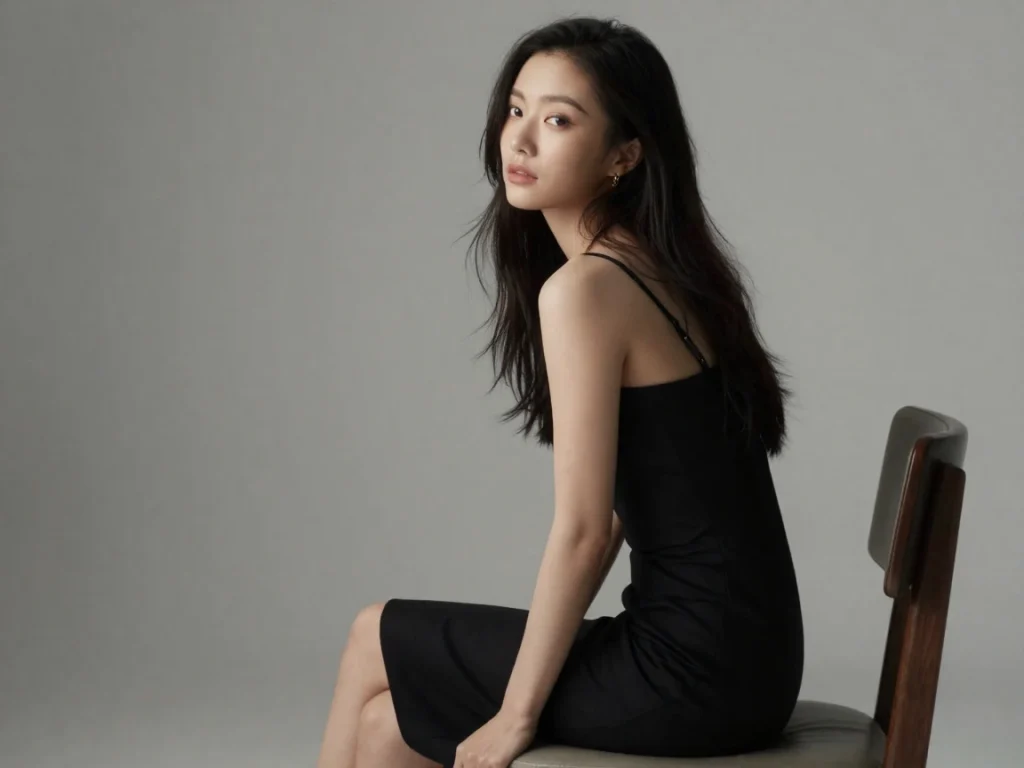
A seated person needs contact with the seat, a leaning person needs a wall or table, and a crouched pose needs plausible feet and knees. For How to Make AI-Changed Poses Look Natural and Realistic, when the result is almost right, avoid rewriting the entire request. Preserve the successful parts and correct one failure at a time—for example the right hand, the planted foot or the shoulder angle. This makes the workflow easier to compare and reduces the chance that a fix introduces a completely different composition.
Contact is visual evidence of gravity. Chairs, floors, walls and tables should physically support the body and share the same lighting and shadow logic as the rest of the scene. In this guide on How to Make AI-Changed Poses Look Natural and Realistic, use that check specifically when reviewing name the support points.
Keep joints inside plausible ranges
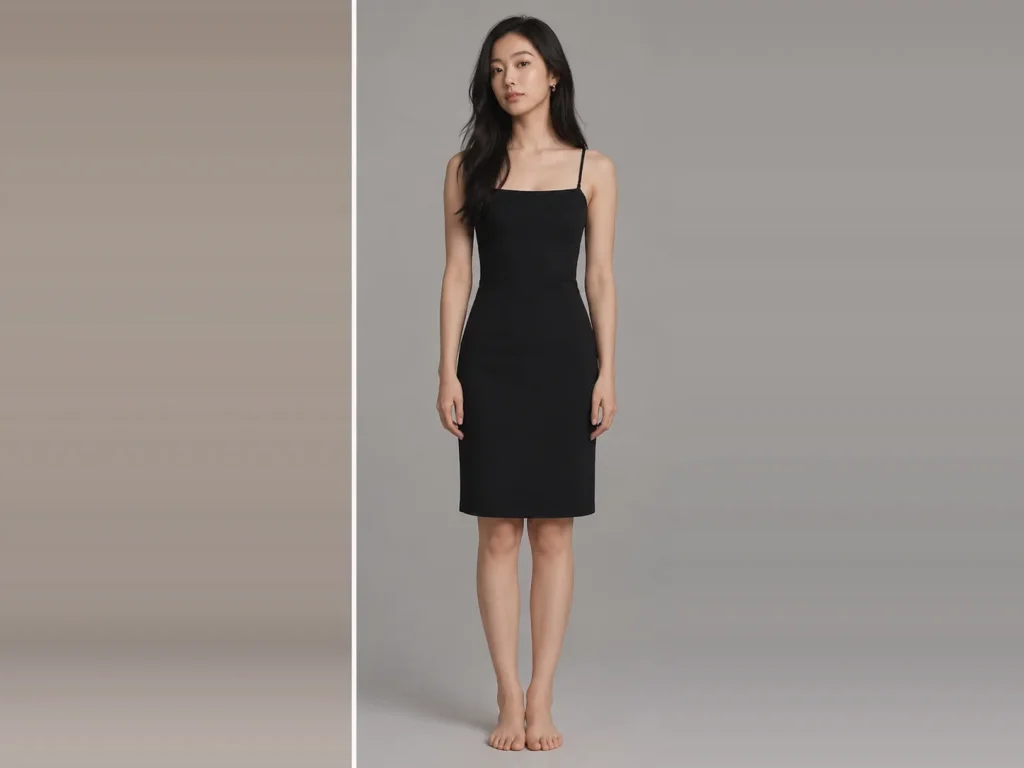
Elbows, wrists, knees and ankles are easier to judge when the prompt avoids ambiguous overlapping limbs. In How to Make AI-Changed Poses Look Natural and Realistic, this matters in AI pose editing because the model has to redraw a connected body, not move a rigid cut-out. A small change in the hips or shoulders can force new clothing folds, contact shadows and limb positions elsewhere in the frame. Treat the request as a new photographic arrangement while explicitly naming the details that should remain recognizable.
For this specific issue, evaluate the result against the original rather than against an imagined perfect pose. Preserve the parts that already work, and make the next instruction about keep joints inside plausible ranges as concrete as possible. This keeps the edit measurable and prevents unrelated changes from hiding the original problem.
Use shoulder and hip counter-rotation carefully
Subtle counter-rotation creates a natural S-curve, while exaggerated opposition can make the torso appear twisted. For How to Make AI-Changed Poses Look Natural and Realistic, the practical goal is not to control every pixel; it is to give the model enough geometric constraints that the new posture reads clearly while identity, clothing and scene remain close to the source. The more unusual the requested pose, the more useful it is to describe support points, hand placement, foot placement and body direction instead of relying on a vague style word.
For this specific issue, evaluate the result against the original rather than against an imagined perfect pose. Preserve the parts that already work, and make the next instruction about use shoulder and hip counter-rotation carefully as concrete as possible. This keeps the edit measurable and prevents unrelated changes from hiding the original problem.
Give hands a job
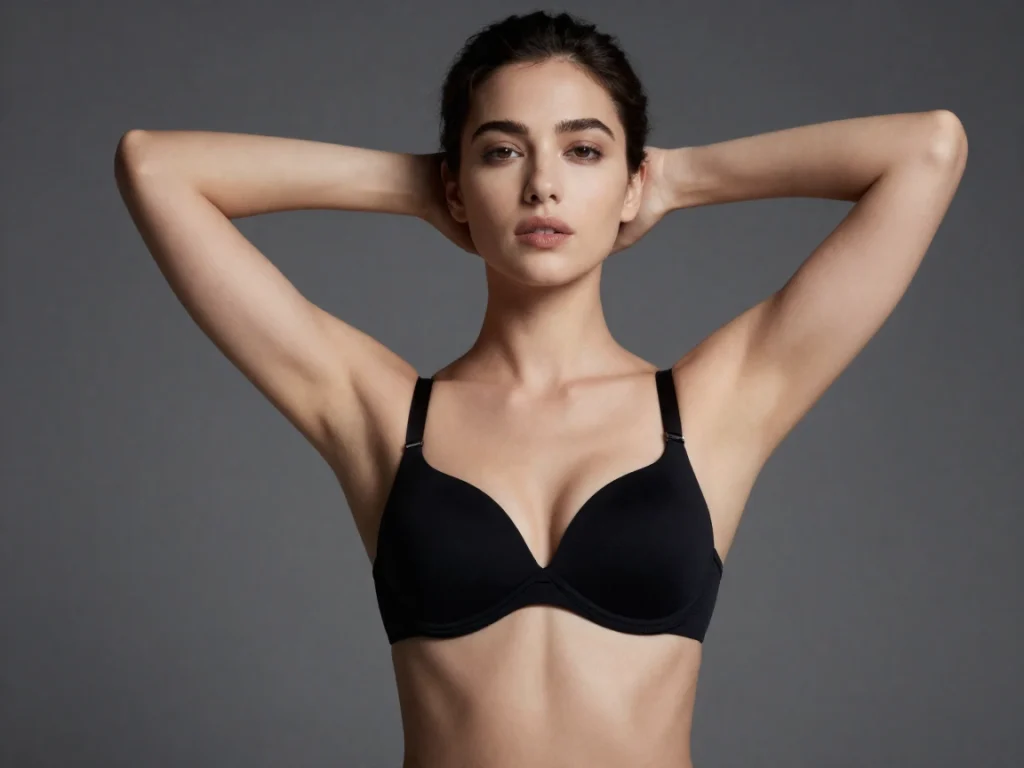
Hands look more convincing when they rest on a thigh, hold a lapel, sit in a pocket or touch a real surface. In How to Make AI-Changed Poses Look Natural and Realistic, a good result should still look plausible when you inspect it at full size. Look beyond the overall silhouette and check joints, fingers, shoes, garment seams, floor contact and the direction of light. Those small relationships are where an attractive thumbnail can reveal that the pose was not physically resolved.
When hands are visible, count fingers, check wrist direction and verify that palms or knuckles do not merge into clothing. A simple hand position is easier to evaluate than a decorative gesture with overlapping fingers. In this guide on How to Make AI-Changed Poses Look Natural and Realistic, use that check specifically when reviewing give hands a job.
Make the feet explain the posture
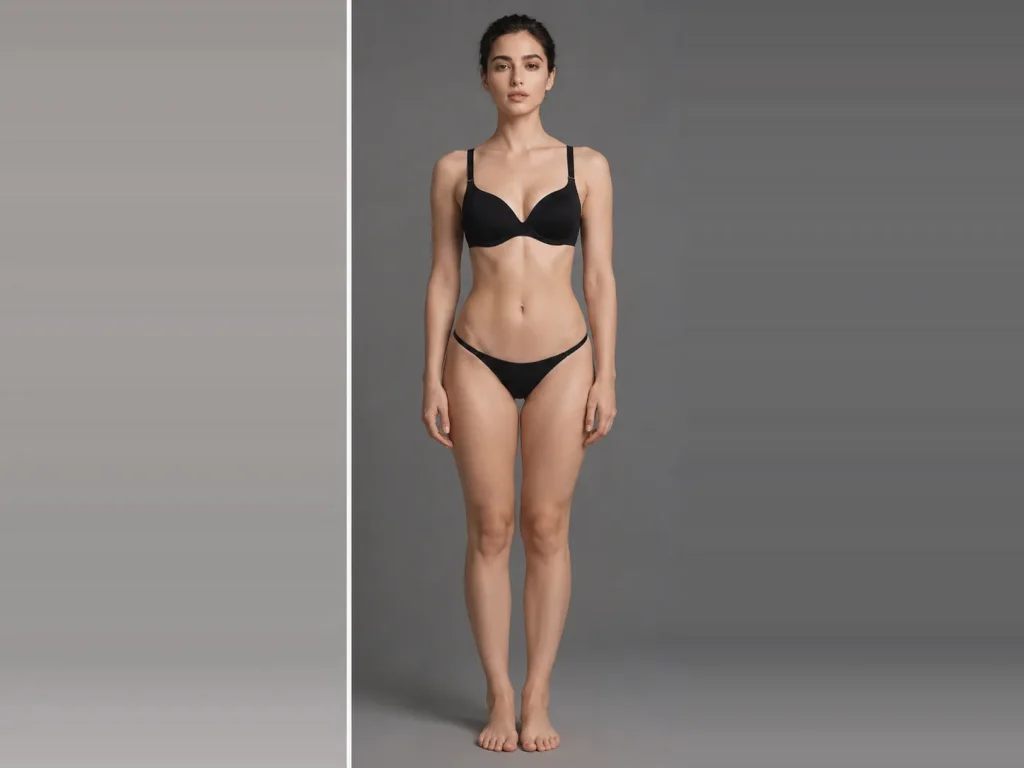
Planted feet, heel lift and toe direction tell the viewer how the body is moving or balancing. For How to Make AI-Changed Poses Look Natural and Realistic, think of the source photo as a set of constraints: camera position, body visibility, outfit, background and lighting. The pose instruction changes one part of that system. Asking for fewer unrelated changes at the same time generally makes it easier to judge whether the pose itself worked and to refine the next attempt.
Shoes and feet explain balance. Compare sole contact, ankle alignment and the shadow immediately beneath the shoe; a small floating gap can make an otherwise convincing body feel synthetic. In this guide on How to Make AI-Changed Poses Look Natural and Realistic, use that check specifically when reviewing make the feet explain the posture.
Check whether fabric responds to the pose
Bent elbows and knees should change sleeve and trouser folds; a skirt should react to sitting rather than staying shaped like a standing garment. In How to Make AI-Changed Poses Look Natural and Realistic, pose generation is strongest when the requested posture is visually specific. Words such as “confident” or “relaxed” are useful as secondary cues, but concrete instructions such as where the weight rests, how the torso turns and what each hand does give the model a much clearer target.
Clothing is attached to the pose. When elbows, hips or knees move, fabric should crease and stretch in the same direction without changing color, pattern or garment construction unless that is part of the request. In this guide on How to Make AI-Changed Poses Look Natural and Realistic, use that check specifically when reviewing check whether fabric responds to the pose.
Contact shadows make support believable
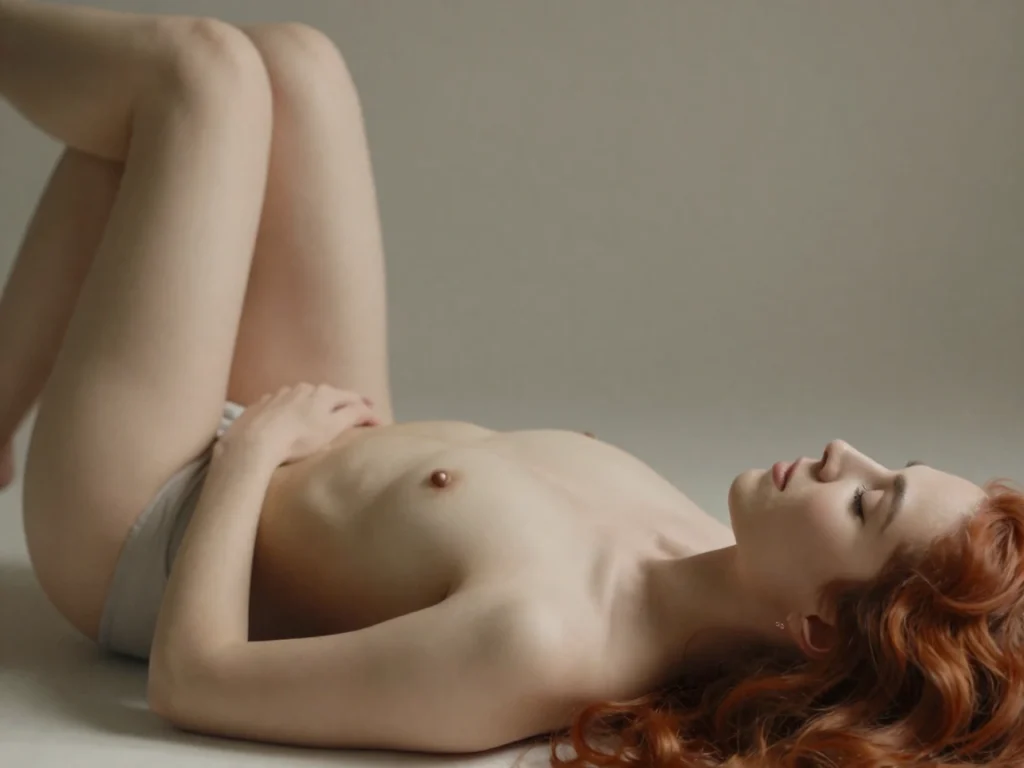
Feet, chairs and walls should create shadows or occlusion consistent with the scene lighting. For How to Make AI-Changed Poses Look Natural and Realistic, when the result is almost right, avoid rewriting the entire request. Preserve the successful parts and correct one failure at a time—for example the right hand, the planted foot or the shoulder angle. This makes the workflow easier to compare and reduces the chance that a fix introduces a completely different composition.
Contact is visual evidence of gravity. Chairs, floors, walls and tables should physically support the body and share the same lighting and shadow logic as the rest of the scene. In this guide on How to Make AI-Changed Poses Look Natural and Realistic, use that check specifically when reviewing contact shadows make support believable.
Keep body scale consistent with perspective
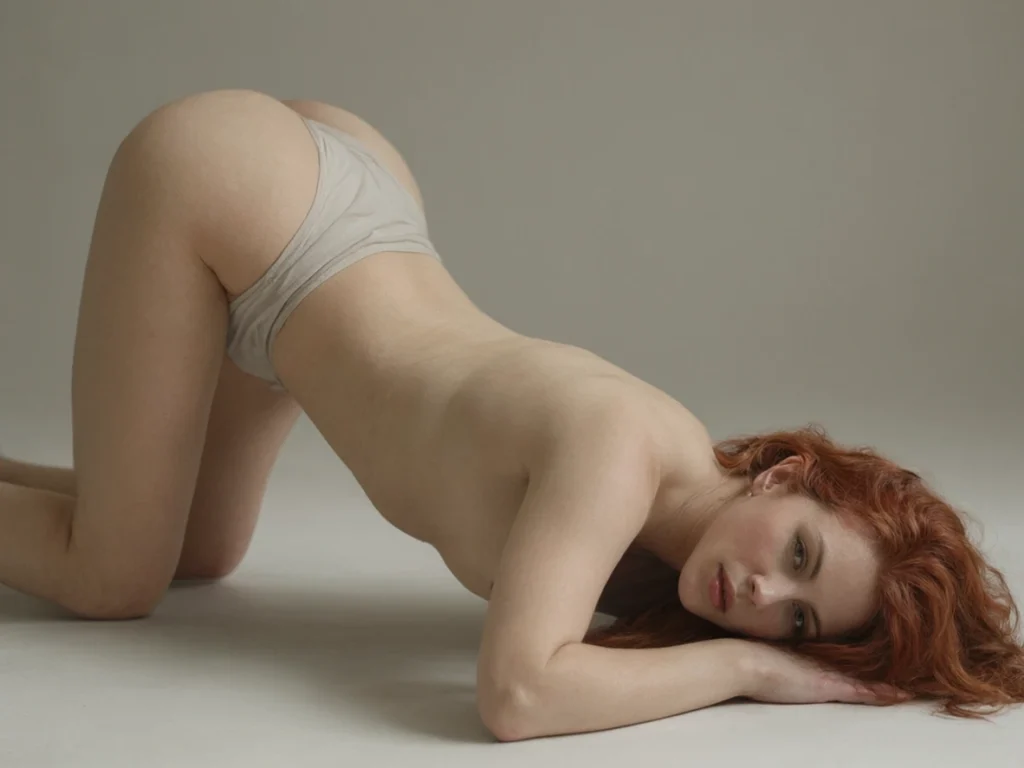
A limb moved toward camera may appear larger, while one moved back should not remain the same apparent scale. In How to Make AI-Changed Poses Look Natural and Realistic, this matters in AI pose editing because the model has to redraw a connected body, not move a rigid cut-out. A small change in the hips or shoulders can force new clothing folds, contact shadows and limb positions elsewhere in the frame. Treat the request as a new photographic arrangement while explicitly naming the details that should remain recognizable.
For this specific issue, evaluate the result against the original rather than against an imagined perfect pose. Preserve the parts that already work, and make the next instruction about keep body scale consistent with perspective as concrete as possible. This keeps the edit measurable and prevents unrelated changes from hiding the original problem.
Use a subtle version before an extreme pose
A smaller successful edit gives you a baseline and helps reveal which part of a more dramatic request causes artifacts. For How to Make AI-Changed Poses Look Natural and Realistic, the practical goal is not to control every pixel; it is to give the model enough geometric constraints that the new posture reads clearly while identity, clothing and scene remain close to the source. The more unusual the requested pose, the more useful it is to describe support points, hand placement, foot placement and body direction instead of relying on a vague style word.
For this specific issue, evaluate the result against the original rather than against an imagined perfect pose. Preserve the parts that already work, and make the next instruction about use a subtle version before an extreme pose as concrete as possible. This keeps the edit measurable and prevents unrelated changes from hiding the original problem.
Prompt examples
The examples in How to Make AI-Changed Poses Look Natural and Realistic are deliberately specific about body geometry. Shorten them if the source already makes a detail obvious, or add preservation constraints for distinctive clothing and accessories.
Change the pose to a relaxed contrapposto with weight clearly over the left leg, right knee soft, right heel slightly relaxed, shoulders gently counter-rotated and hands natural. Preserve the same camera angle and floor.
Generate from the original source and inspect anatomy and preservation at full size.
Seat the person fully on the chair with pelvis supported by the seat, both feet contacting the floor and hands resting naturally on the thighs. Match existing light and add plausible contact shadows.
Generate from the original source and inspect anatomy and preservation at full size.
A practical step-by-step workflow
For how to make ai-changed poses look natural and realistic, a repeatable workflow is more useful than chasing a single lucky generation. Start from the original image each time so you can compare alternatives without accumulating changes from earlier outputs.
- 1. Choose the clearest original image you have and confirm that the requested body parts are visible enough for the planned change.
- 2. Decide whether a preset is sufficient or whether a text description is needed for hands, feet, support and body direction.
- 3. Write the pose as the only main change and list the identity, clothing or scene details that must remain recognizable.
- 4. Generate one candidate from the original rather than chaining from an earlier edited pose.
- 5. Inspect face, hands, joints, shoes, clothing folds, support points, shadows and background at full size.
- 6. If one detail fails, simplify or correct that region and generate another candidate from the original.
Save the original and compare candidates side by side before choosing a final version. In How to Make AI-Changed Poses Look Natural and Realistic, this matters in pose editing because the model has to redraw a connected body, not move a rigid cut-out. A small change in the hips or shoulders can force new clothing folds, contact shadows and limb positions elsewhere in the frame. Treat the request as a new photographic arrangement while explicitly naming the details that should remain recognizable.
Use pose editing responsibly
When applying the workflow from How to Make AI-Changed Poses Look Natural and Realistic, use images you have the right to edit and photos of adults who have consented to the use of their image. A pose edit can create a convincing new depiction that was never photographed, so do not present generated posture changes as documentary evidence of an event that did not occur.
For professional or commercial use of how to make ai-changed poses look natural and realistic, keep the original and record which image was AI-edited. This is especially useful when a client needs to compare wardrobe, identity or scene details against the source.
Related AvaClik guides
After How to Make AI-Changed Poses Look Natural and Realistic, continue with the most relevant AvaClik pose guide below when the next step needs a different level of control. The linked articles separate source-photo choice, prompt design, preservation and troubleshooting so each problem can be reviewed on its own.
- How to Change a Pose in a Photo With AI
- 40 AI Pose Changer Prompts
- How to Keep the Same Face and Outfit
- How to Fix Bad AI Pose Edits
Frequently asked questions
Why can a technically correct pose still look fake?
Because realism comes from relationships between balance, support, shadows, fabric and perspective, not only from limb positions.
Should I use anatomy terms in prompts?
Simple visible descriptions are usually clearer. Say which foot is planted and where the hand rests rather than relying on specialist terminology.
Are dramatic fashion poses harder?
Often yes because they introduce more extreme joint angles, overlap and weight shifts.
How do I know when to stop refining?
Stop when the image works at the size it will actually be used and the remaining differences are not important to the purpose of the photo.
Try this in AvaClik
Try the workflow in AvaClik
Upload a photo you have permission to edit, make a change, check the result and refine it.
Try AvaClik AI Pose Changer ↗