How to Preserve Pose, Face and Background in AI Photo Editing
A practical guide to preserving identity, pose, hands, background, crop and lighting while making prompt-based AI photo edits.
On this page
Open the AvaClik tool connected to this guide and try it on your photo.
A strong AI photo edit is often defined less by what changed than by what did not. If you replace an outfit but the face becomes a different person, the edit failed. If the face is perfect but the pose shifts, the comparison no longer feels like the same photograph. If the background changes unexpectedly, a simple retouch becomes a new scene.
Make [requested edit]. Keep the same identity, facial proportions, hairstyle, body proportions, pose, hands, background, camera angle and crop. Match the original lighting and perspective. Shorten the list to the details that matter for your image.This guide explains how to preserve face, pose, background and composition when editing an uploaded image with the AvaClik AI Photo Editor by Prompt.
What “preserve the original” actually means
Preservation is not one thing. A photo contains several layers of visual identity: the person’s face, body geometry, pose, clothing, objects, background, camera viewpoint, framing and lighting. A prompt can protect some of these while intentionally changing others.
The first step is deciding what must remain stable for the edit to still count as the same photo. For an outfit replacement, that may be identity, pose, body proportions, hands, background and camera angle. For a background replacement, clothing can stay but the environment changes. For hair color, the hairstyle itself may need to remain stable while only color changes.
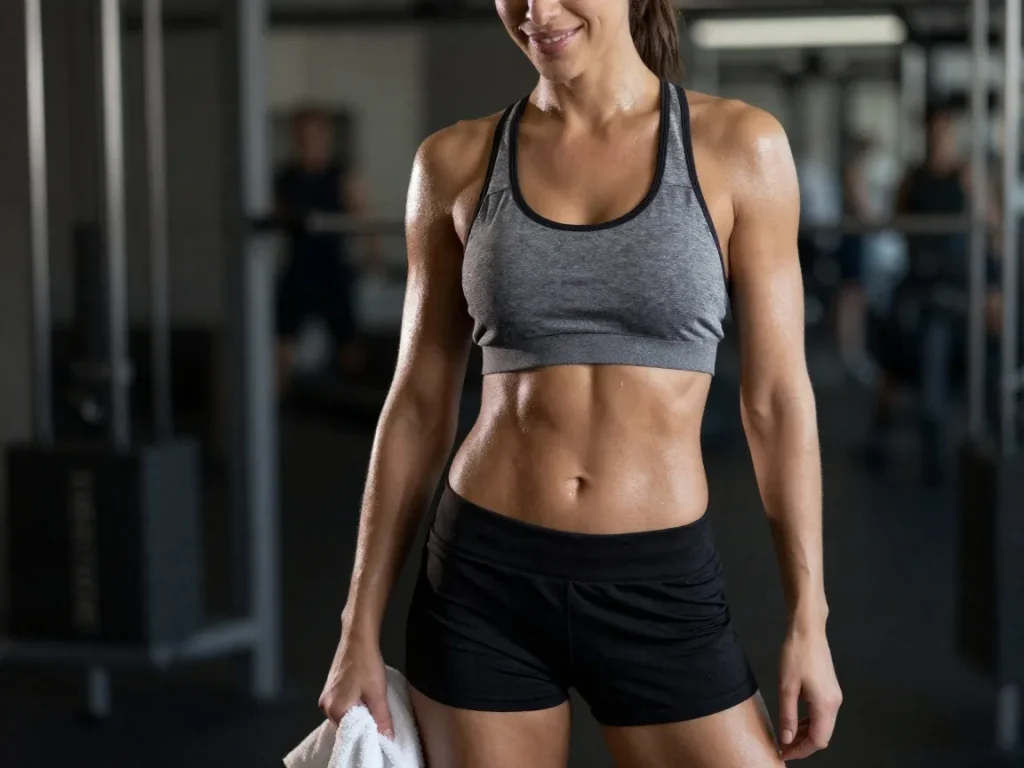
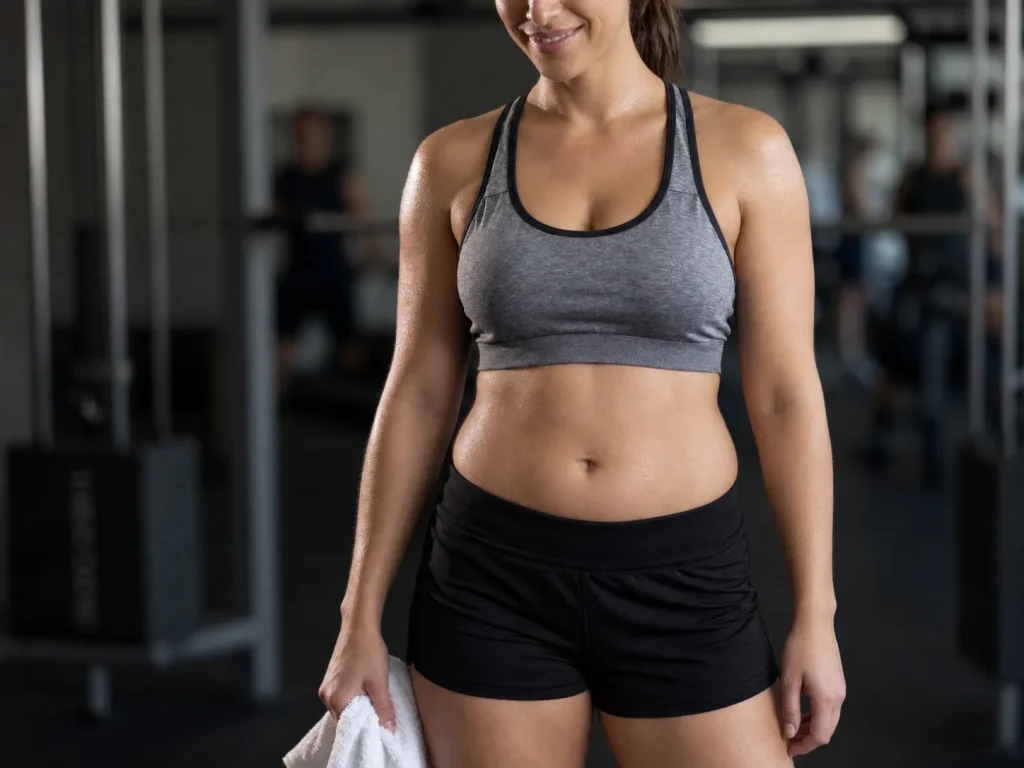
How to preserve the same face
Identity drift is the most noticeable failure because people are extremely sensitive to changes in facial proportions. The model can keep the general “look” of a person while still altering eye spacing, nose shape, lips, jawline or age enough that the result feels wrong.
A strong identity-preservation line names the features that define recognition without asking the model to freeze every pixel.
Keep the person’s identity as close to the uploaded photo as possible. Preserve facial proportions, eye shape and spacing, nose, lips, jawline, hairline, skin marks and expression. Do not beautify, age or reshape the face.
Use this when the requested edit is unrelated to the face.
For more examples, see How to Keep the Same Face When Editing Photos With AI.
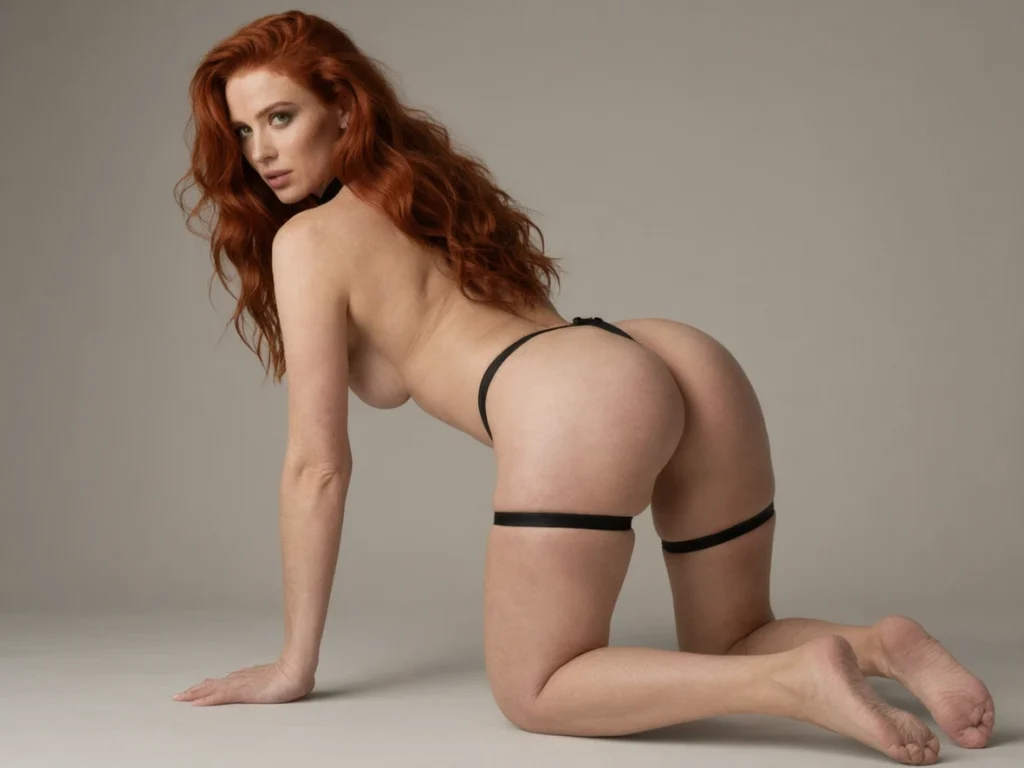
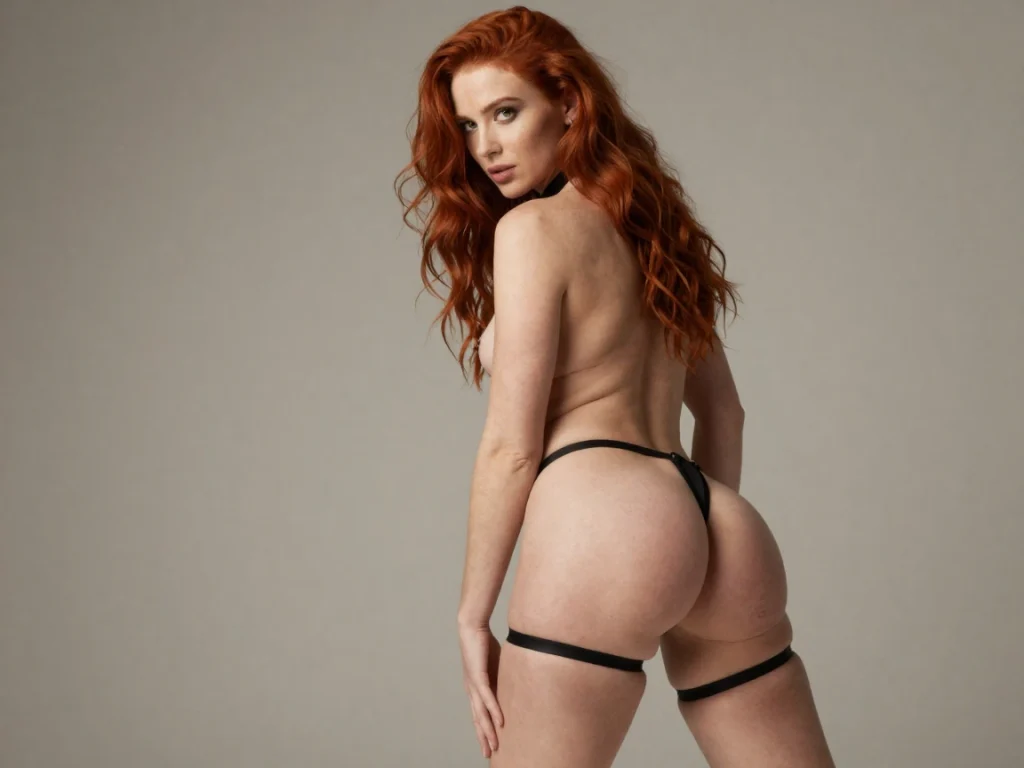
How to preserve pose and body geometry
Pose drift can be subtle. A shoulder angle moves, the hips rotate, a hand changes position or the torso length changes. These shifts matter when you want a true before/after comparison.
Keep the exact pose and body orientation from the source photo: preserve head angle, shoulder line, torso angle, hip position, arm placement, hand position and leg stance. Do not reposition the subject or change body proportions.
Use only the level of detail visible in the source image.
When clothing is being replaced, let the fabric conform to the existing pose rather than allowing the body to conform to the new garment.
Hands need their own check
Hands are often close to clothing, hair or objects, so they may be regenerated during an unrelated edit. If hand placement matters, include it explicitly and inspect fingers, grip and contact points after generation.
Keep both hands in the same position with the same finger placement and contact with nearby objects. Do not add, remove or reposition fingers.
Useful for outfit edits, accessories and object changes near the hands.
How to preserve the background
A prompt that focuses on the person can still cause the environment to drift. Furniture moves, wall decorations disappear or depth of field changes. If the existing background is part of the photo you want to keep, say so.
Keep the background unchanged: preserve the room layout, furniture, wall details, windows, floor, visible objects, depth of field and existing light sources. Make the requested change only to [target].
You do not need to list every object unless specific items keep drifting.

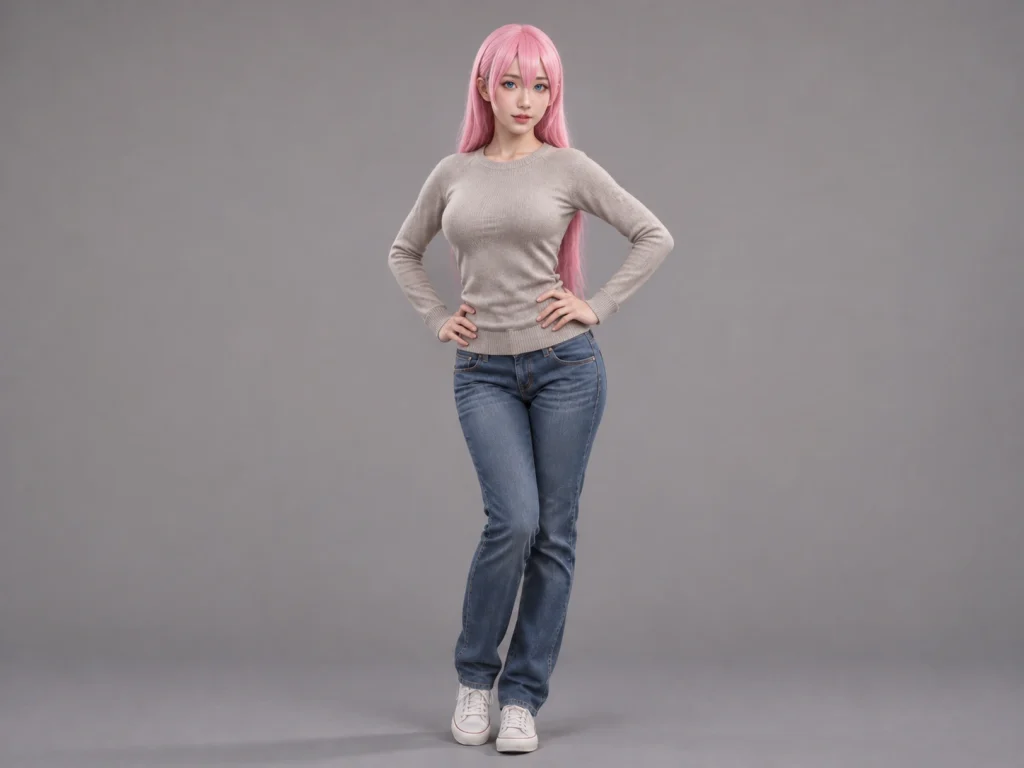
How to preserve camera angle and framing
An edit can preserve the subject but still feel different if the model zooms, changes focal perspective or invents more canvas. Protect camera properties whenever comparison matters.
Keep the exact crop, framing, camera angle, subject scale, horizon, lens perspective and image orientation unchanged. Do not zoom, outpaint, rotate or reframe the photo.
Especially useful for before/after examples on SEO pages.
This is important for AvaClik comparison imagery because two images are easier to evaluate when the composition is stable.
How to preserve lighting while changing something else
If you insert a new garment or accessory, the new pixels need to inherit the source light. If the model relights the entire scene, the photo stops feeling like the same capture.
Match the new or edited element to the original light direction, softness, color temperature, exposure and shadow density. Do not relight the face, body or background.
This tells the model to integrate the edit instead of redesigning the lighting setup.
Example: change an outfit and preserve everything else
Outfit replacement is a useful stress test because the changed region touches the torso, arms, hands and sometimes hair.
Replace only the current top with a fitted black leather jacket with realistic seams, natural folds and subtle texture. Keep the same identity, face, hair, body proportions, pose, arm position, hands, trousers, background, camera angle and crop. Make the jacket follow the existing body position and match the original lighting and shadows.
This is longer than a basic prompt because the task touches many preservation-sensitive regions.
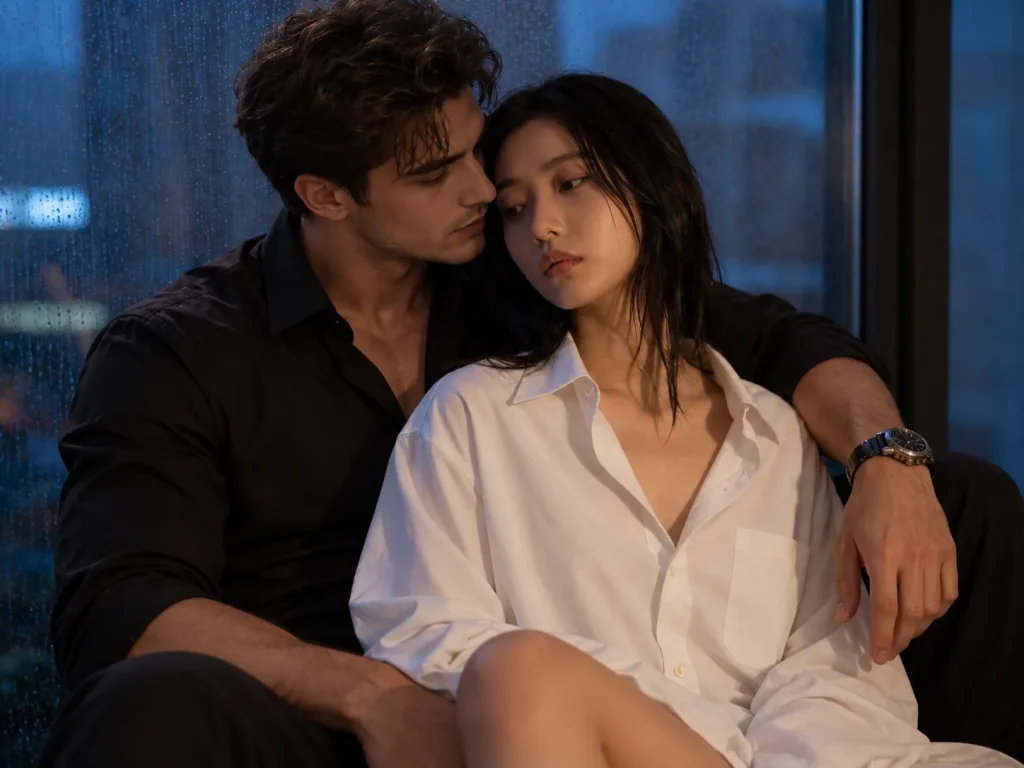
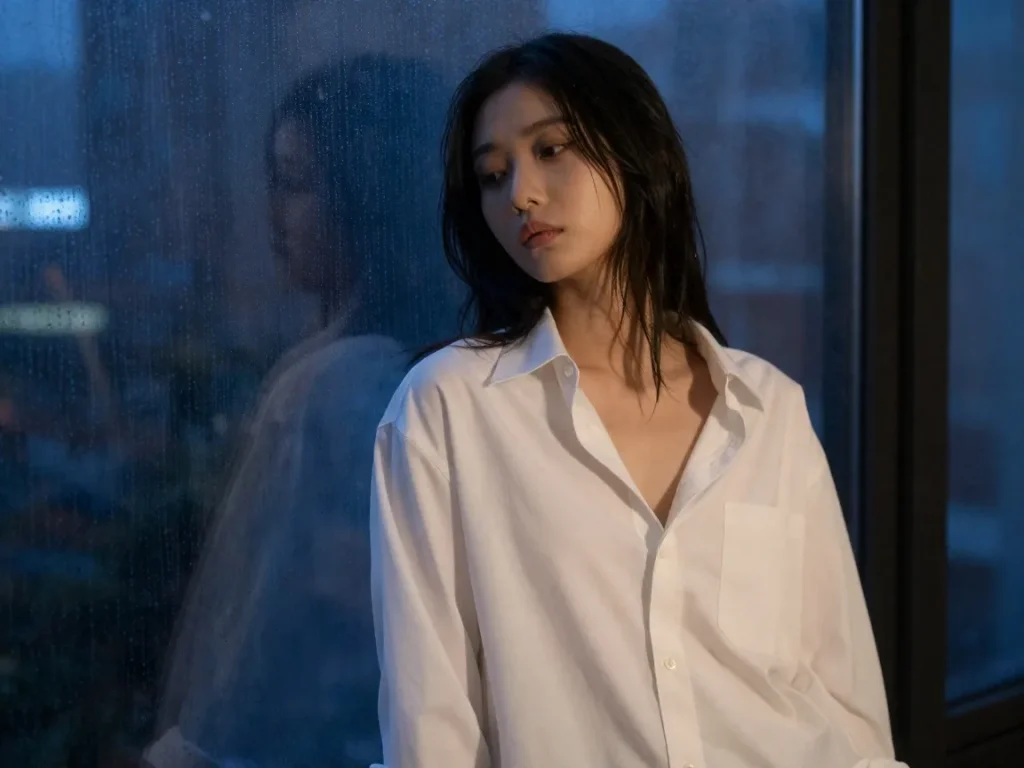
Example: change hair color without changing identity
Change only the hair color to natural dark brown with subtle tonal variation. Keep the hairstyle, length, volume, hairline, eyebrows, face, skin tone, expression, pose, background, lighting and crop unchanged.
Hairline and eyebrows matter because color edits can accidentally alter the facial frame.
Example: change the background while preserving the person
Here the preservation logic flips: the background is intentionally allowed to change, so the subject becomes the protected region.
Replace only the background with a modern hotel room with neutral bedding and warm practical lights. Keep the adult subject’s identity, face, hair, body proportions, pose, hands, outfit, subject edges, camera angle and crop unchanged. Match the new room’s perspective and lighting to the existing subject.
Protect edge detail around hair, shoulders and clothing.
Do not preserve everything equally
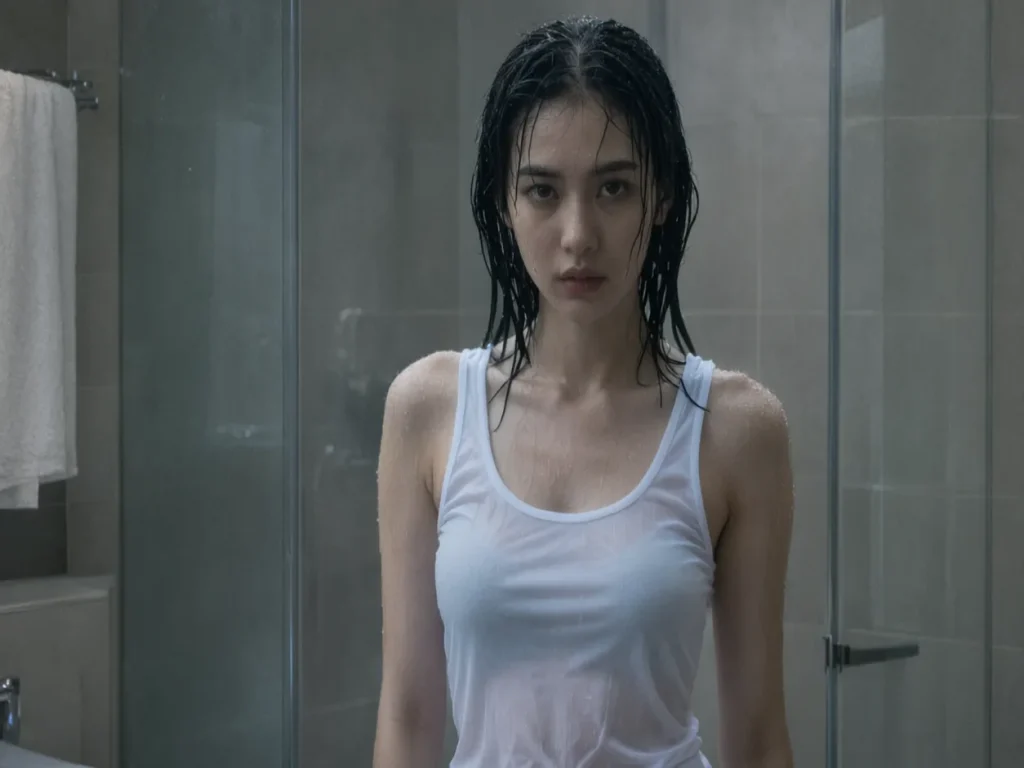
A very long preservation list can become noisy. Rank your priorities. For a portrait, identity is usually first. For an e-commerce image, product geometry and label text may matter more than a background reflection. For a before/after blog example, composition and crop may be essential because readers need to compare the exact same subject position.
A useful order is:
- Critical: details that would make the edit unusable if changed.
- Important: details that should stay close but can tolerate tiny variation.
- Flexible: details the editor may adjust naturally to integrate the edit.
A preservation checklist after every generation
- Face: compare eye spacing, nose, lips, jawline, hairline, age and expression.
- Body: compare shoulder width, torso length, waist/hip geometry and limb position.
- Hands: count fingers, check grip and compare hand position.
- Background: look for moved furniture, missing objects or altered depth of field.
- Camera: compare crop, subject scale, horizon and perspective.
- Lighting: compare direction, softness, color and shadow placement.
- Edges: inspect hair, straps, jewelry, fingers and object boundaries.
What to do when one protected detail still drifts
Do not rewrite the whole prompt immediately. Keep the successful edit instruction and strengthen the protection around the failed element. If only the face changed, add a more specific identity line. If the crop changed, add a camera lock. If background objects moved, explicitly preserve the environment.
If many protected details drift at once, the request may simply be too broad. Break the edit into smaller steps. The guide How to Edit Only One Part of a Photo With AI covers that workflow.
Preservation recipes for common editing tasks
The ideal preservation list changes with the task. Reusing one giant “keep everything” sentence everywhere is less useful than protecting the details most exposed by the edit.
For outfit replacement
Prioritize identity, body proportions, shoulder and arm geometry, hands, pose, lower clothing, background, camera angle and crop. Let the new garment itself change freely enough to create believable seams, folds and shadows.
For hair changes
Prioritize identity, hairline, eyebrows, facial proportions, skin tone, expression, neck, pose and background. If only color is changing, explicitly preserve length, volume and hairstyle.
For background replacement
Protect the entire subject: face, body, pose, wardrobe, hands, hair edges, scale in frame and camera angle. The environment can change, but the new perspective and light should be built around the preserved subject.
For portrait retouching
Protect facial shape, permanent skin features, age, expression, hairline and natural texture. Define the temporary distractions you actually want reduced rather than asking for “perfect skin.”
For object removal
Protect nearby surfaces, shadows, object edges, subject placement and perspective. Describe what should be reconstructed behind the removed item when that is visually obvious.
How to compare preservation objectively
It is easy to accept a polished result because it looks attractive overall. A better preservation test is to compare the source and result feature by feature. Do not ask only “does this look good?” Ask “is this still the same face?”, “is the head tilted at the same angle?”, “did the hand move?”, “did the camera zoom?” and “did the room geometry change?”
For a before/after pair intended for an SEO page, stable composition is especially valuable. If the subject shifts several centimeters in frame, the comparison exaggerates the amount of change and makes the example harder to trust. Keeping crop, camera angle and subject scale stable makes the intended edit easier to judge.
A useful production practice is to reject examples with attractive but obvious preservation failures. A technically less dramatic edit that keeps the original person and composition can be a stronger product demonstration than a spectacular transformation that redraws the whole photo.
Preservation and realism are separate quality dimensions
An image can be realistic but poorly preserved, or well preserved but visually fake. A new jacket may have excellent fabric texture while the face no longer matches. Another result may keep the face perfectly but use shadows that do not fit the room. Judge both dimensions separately.
For AvaClik examples, this means selecting outputs that pass two tests: the intended change looks believable, and the protected details still match the source. The combination is what makes a before/after image persuasive.
Frequently asked questions
Can AI keep the original face exactly?
Generative editing can preserve identity closely, but it may still redraw pixels around the edited area. Strong source images, focused edits and explicit identity protection reduce drift.
Why does the pose move when I change clothes?
New clothing requires the model to reconstruct fabric around the body. If the model regenerates too much of the torso or limbs, pose geometry can shift. Tell the garment to follow the existing body position and protect pose and proportions.
Should I always say “keep everything unchanged”?
That phrase can help, but a focused list of the most important protected details is usually clearer.
How do I preserve the exact crop?
Name crop, framing, subject scale and camera angle explicitly, and tell the editor not to zoom, outpaint or reframe.
What if the edit is realistic but no longer looks like the same photo?
That usually means preservation failed even though rendering quality succeeded. Compare identity, pose, composition and environment separately from realism.
A good edit changes the target, not the photograph’s identity
The purpose of preservation instructions is not to freeze the entire image. It is to protect the visual facts that make the source recognizable while allowing the requested target to change naturally. Choose those facts deliberately, state them clearly and inspect them after generation.
Try the workflow in the AvaClik AI Photo Editor by Prompt: make one change, protect the details that define the original, and compare the result at full size before moving to the next edit.

Try this in AvaClik
Try the workflow in AvaClik
Upload a photo you have permission to edit, make a change, check the result and refine it.
Try AvaClik AI Photo Editor ↗