How to Keep the Same Face When Editing Photos With AI
Learn how to reduce face drift in AI photo editing with better source images, identity-preservation prompts, staged edits and a practical face comparison checklist.
On this page
Open the AvaClik tool connected to this guide and try it on your photo.
One of the most frustrating AI photo editing failures is simple: you ask to change the outfit or background, and the finished image looks like a different person. The edit may be attractive, but if the face drifts, the result is useless for anyone who wanted to keep the original identity.
Keep the person’s identity as close to the uploaded photo as possible: preserve facial proportions, eye shape and spacing, nose, lips, jawline, hairline, skin marks and expression. Do not beautify or redesign the face.You can use this approach in the AvaClik AI Photo Editor by Prompt. It improves control, but no generative editor can promise mathematically identical facial pixels after every transformation. Treat face preservation as something to test and verify, not as a guarantee.
Why does AI change the face during an unrelated edit?
Generative image editing often rebuilds part of the image rather than moving a few pixels the way a traditional retouching tool would. If a clothing, background or lighting change causes the model to regenerate pixels near the head, it may reinterpret the face at the same time. Small shifts in eye spacing, jaw shape, nose width, skin texture or expression can be enough to make a familiar person look wrong.
Face drift becomes more likely when the source face is tiny, blurred, heavily compressed, partly hidden, at an extreme angle or under difficult lighting. It can also increase when a prompt requests many simultaneous transformations or includes broad beauty instructions such as “make her more beautiful.”
Start with a source photo the model can read
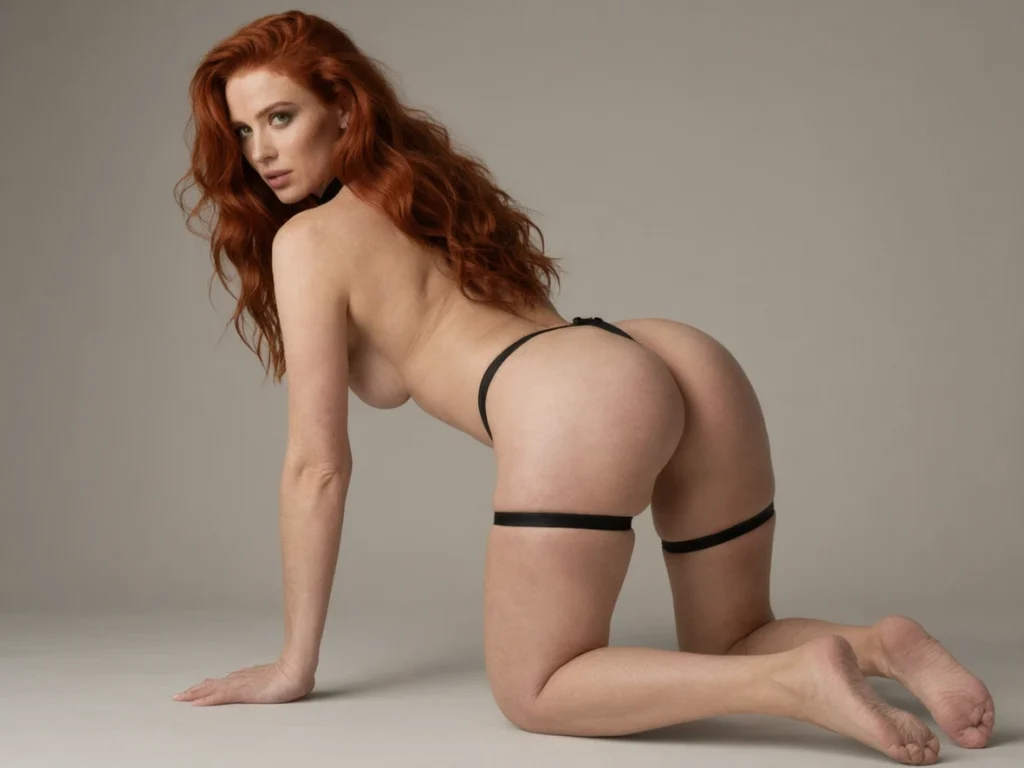
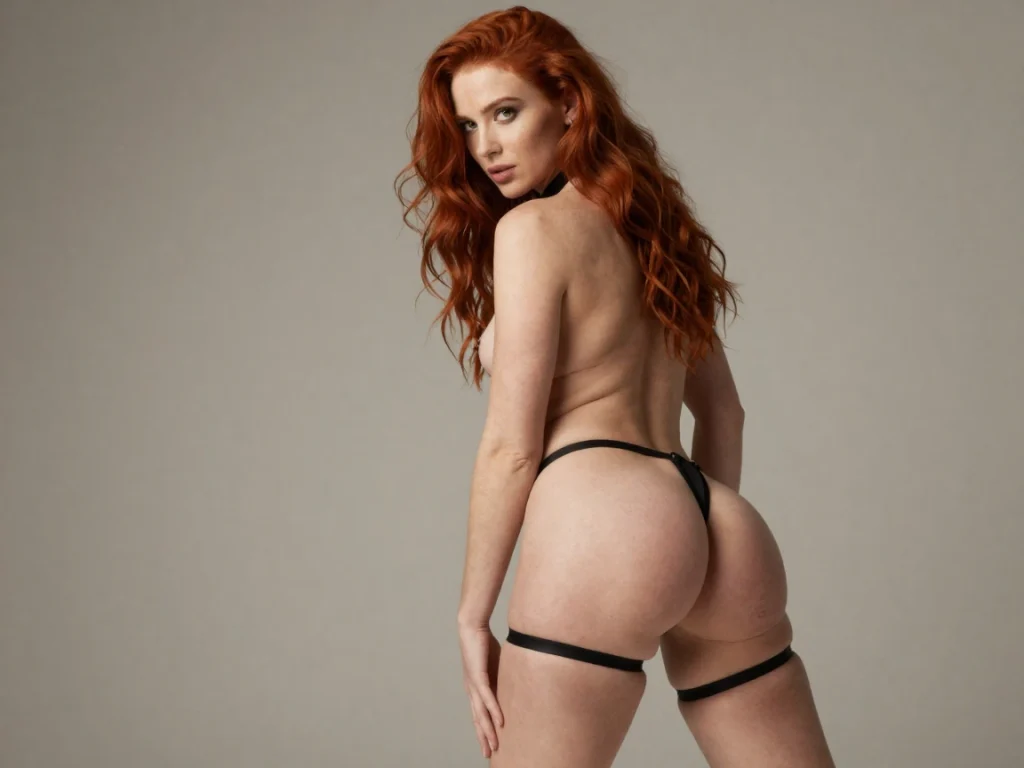
If identity matters, source quality matters. A model cannot preserve detail it cannot see. Use the clearest available image, especially when the face occupies only a small part of the frame.
- Prefer a sharp face with visible eyes, nose, mouth and jawline.
- Avoid severe motion blur or heavy compression when you have a better source.
- If the face is tiny in a full-body shot, expect identity to be harder to judge.
- Extreme profile angles can make some facial features unavailable as anchors.
- Heavy sunglasses, hands over the face or hair covering key features reduce the information available to preserve.

Write an identity preservation line
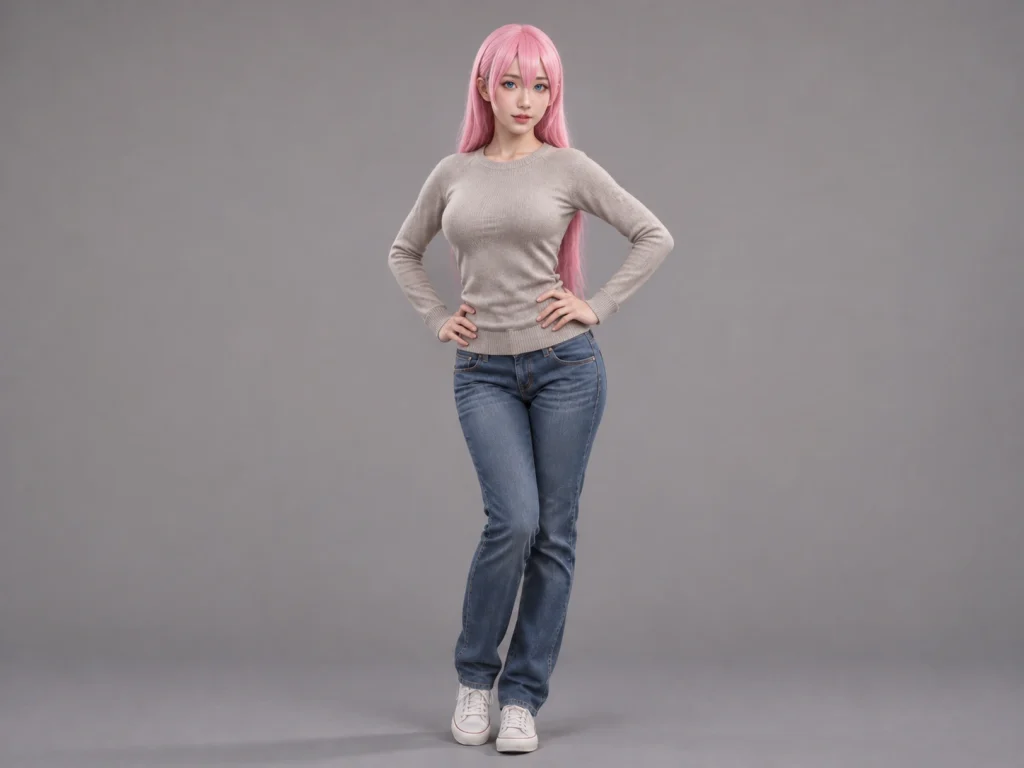
“Keep the face the same” is useful, but when identity is the main requirement, be more concrete. Name the facial relationships that must remain consistent. You do not need to describe the person from scratch; you are telling the editor which parts of the uploaded reference should not be redesigned.
Keep the person’s identity as close to the uploaded photo as possible. Preserve facial proportions, eye shape and spacing, nose, lips, jawline, cheek structure, hairline, skin marks and expression. Do not beautify, age, de-age or redesign the face.
Use this when the requested edit is outside the face.
Change only [target]. Keep the face, facial proportions, expression, hairline and identity unchanged.
A shorter preserve line is often enough for simple edits.
Make one primary change at a time
Identity preservation is harder when the model is simultaneously asked to change hairstyle, makeup, facial expression, outfit, pose, body shape, room and lighting. Even if each request is individually reasonable, together they encourage a broader reinterpretation of the image.
For a complex makeover, use stages. First change clothing. Review the face. Then change the background. Review again. Then adjust lighting. If face drift appears after one stage, you know which step introduced it.
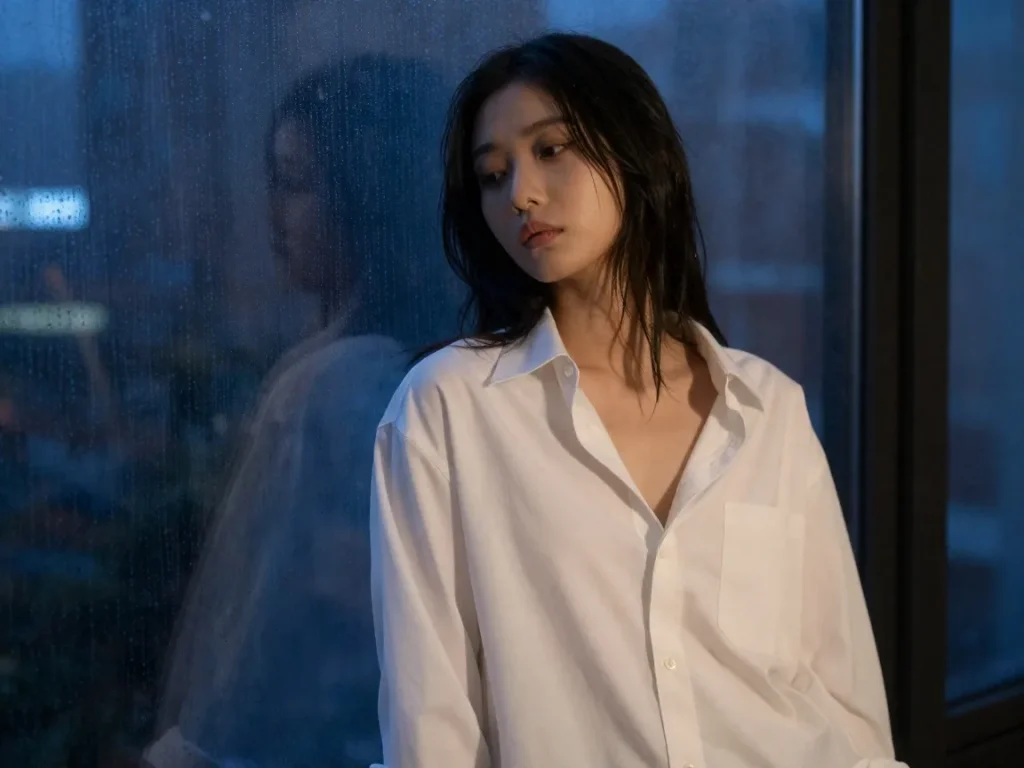
Example: change clothes without changing the face
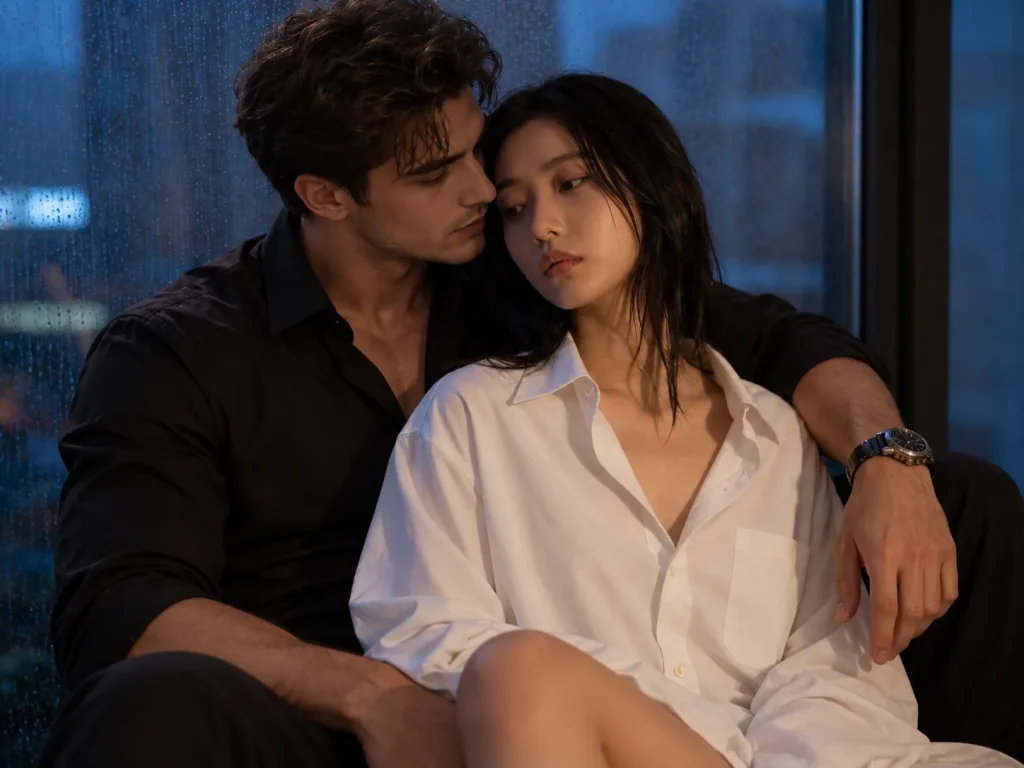
Replace the current top with a fitted black satin blouse with natural folds and realistic fabric texture. Keep the person’s identity, face shape, eyes, nose, lips, jawline, hairline, expression, body proportions, pose, hands, background, crop and camera angle unchanged. Match the garment to the original lighting.
Clothing edges and hands are the second things to inspect after the face.
If the new clothing changes the neck area, shoulders or hair overlap, the model may redraw pixels near the face. Check jawline, ears, hairline and expression after the edit.
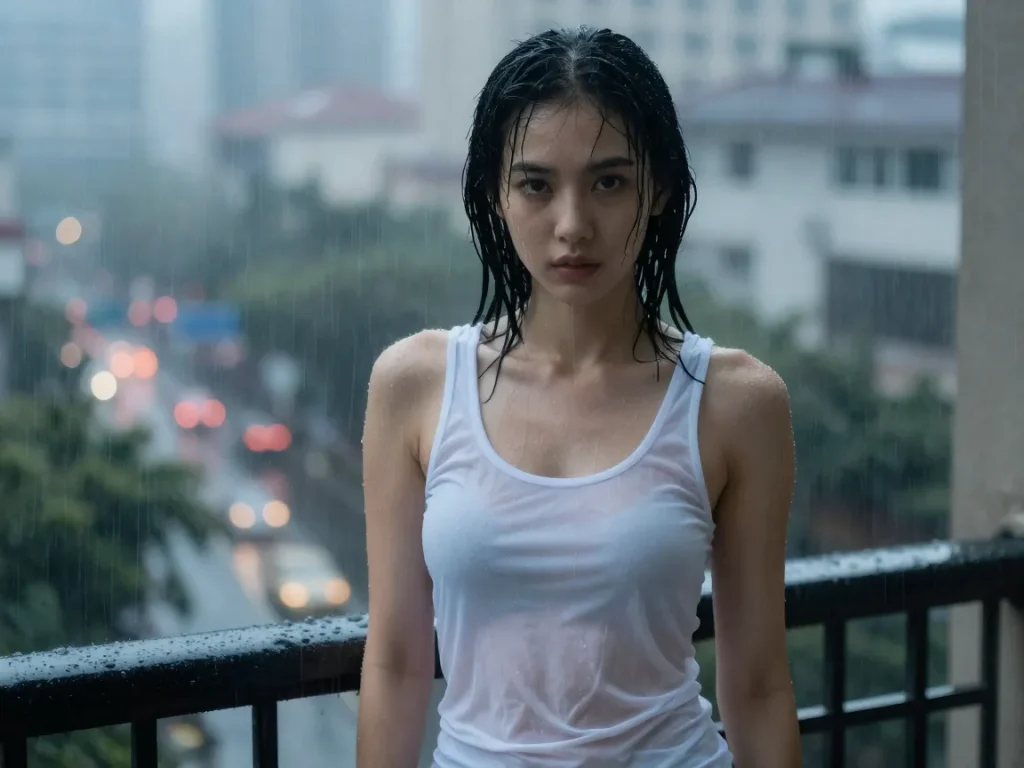
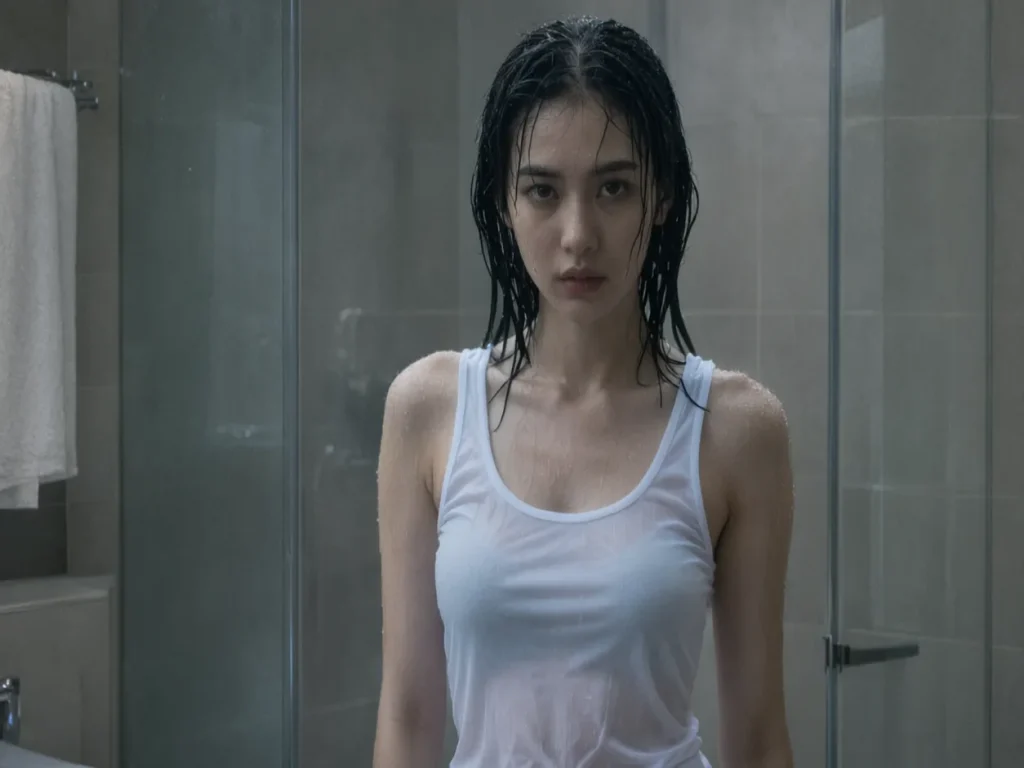
Example: change the background without changing the face
Replace only the background with a realistic modern hotel room using warm lamps and neutral decor. Keep the person, identity, facial proportions, expression, hairstyle, outfit, body, pose, camera angle and framing unchanged. Preserve natural hair edges and do not relight the face more than necessary.
Large relighting requests can increase the amount of the subject that gets redrawn.
Background replacement often looks most stable when the new environment is compatible with the existing subject lighting. If the source has cool daylight and the new room is extremely warm and dark, the editor may need to reinterpret the person to make the composite believable.
Example: change hair while preserving identity
Hair editing is more difficult because the requested change touches the head itself. Protect the hairline, forehead shape and facial geometry. Ask for one hairstyle change rather than a complete beauty transformation.
Change the hairstyle to shoulder-length loose waves with the same natural hair color. Preserve the exact forehead shape and hairline as closely as possible, and keep the face, facial proportions, eye shape, nose, lips, jawline, expression, skin texture, body, outfit and background unchanged.
The hairline is an important visual identity boundary.
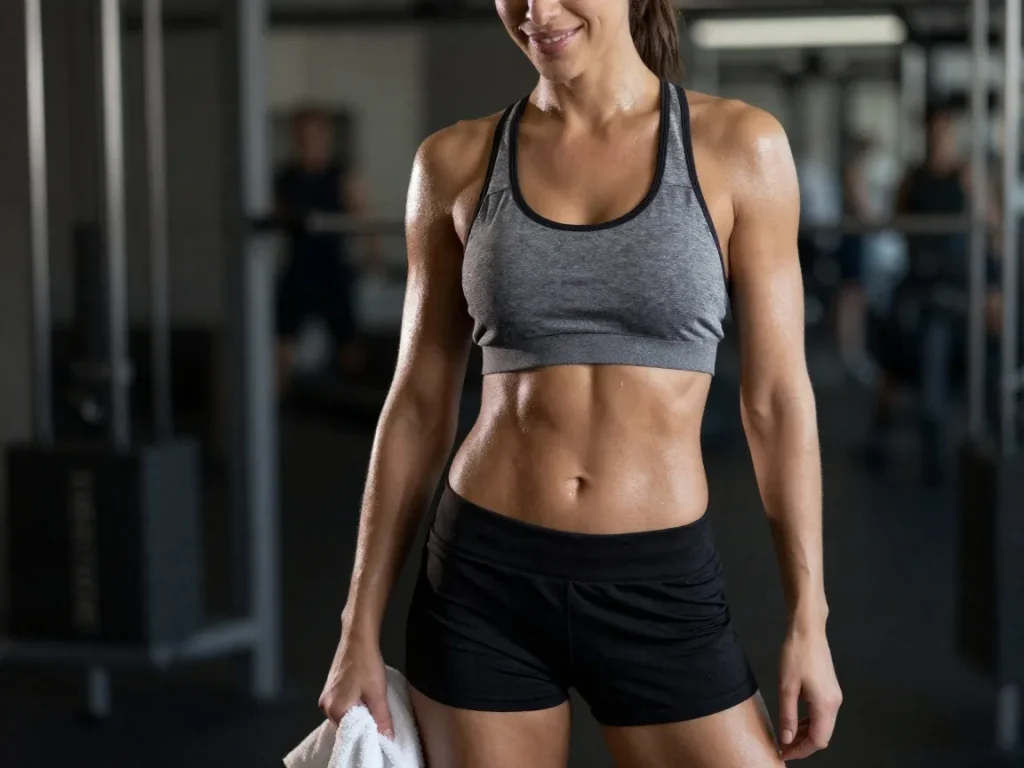
Example: add makeup without turning the person into someone else
Makeup affects high-salience facial areas. Keep the request cosmetic: eyeliner, lashes, lipstick, skin finish. Do not combine it with “make the eyes bigger,” “slim the face,” “lift the cheekbones” and other geometry changes if identity is the priority.
Add tasteful evening makeup: subtle eyeliner, defined lashes, muted rose lipstick and a natural skin finish. Keep the person’s eye shape, eye spacing, eyebrows, nose, lip shape, jawline, face proportions, skin texture, expression and hairstyle unchanged.
Makeup should sit on the existing face rather than becoming a new face.
Example: relight a portrait without redesigning the face
Relight the portrait with soft warm window light from camera-left and gentle shadow falloff. Keep the person’s identity, facial geometry, expression, hairstyle, pose, outfit, background and crop unchanged. Do not smooth or reshape the face.
A change in light can make the same face appear different, so compare geometry rather than only the mood.
When judging the output, remember that lighting itself changes perceived cheekbones, nose shape and eye depth. Compare fixed landmarks—eye spacing, mouth width, jaw outline and hairline—rather than assuming every appearance change is geometric drift.
What to avoid when the face must stay recognizable
Broad beauty instructions
“Make me more attractive,” “perfect face,” or “model look” invites the editor to redesign features. Ask for specific retouching instead.
Too many face-related edits at once
New hair, makeup, expression, age and facial proportions in one prompt make identity preservation internally contradictory.
Describing a different person
If you upload a photo and then describe a new set of facial features, the model has to choose between the source and your text. If the source identity matters, use the image as the identity reference rather than writing a new face.
Over-smoothing
Skin texture, freckles, moles and fine asymmetries contribute to recognition. Removing everything can make a face feel synthetic even when the basic geometry is similar.
Repeated full-image regeneration
If one result is close, use a narrow follow-up correction. Repeating a broad prompt from scratch can produce a different interpretation every time.
What about photos with two or more people?
Group photos add ambiguity. Identify people by location or clothing: “the person in the black jacket at camera-left.” If every face must stay recognizable, say so explicitly and inspect each one. Small faces in a wide group image are especially difficult to preserve because there are fewer source pixels for each identity.
Change only the background. Keep every person in the photo recognizable and preserve each face, expression, hairstyle, body position, clothing and relative position. Do not merge, remove or add people.
Use a clear positional description if only one person should be edited.
How to check whether the face actually stayed the same
Do not rely only on the “overall vibe.” Compare the output and source side by side at the same zoom. Look at:
- distance and angle between the eyes;
- eyelid shape and eyebrow position;
- nose width, length and tip shape;
- mouth width and lip contour;
- jawline and chin;
- hairline and forehead;
- moles, freckles and other stable marks;
- expression and apparent age.
What to do when the face still drifts
- Reduce the task. Remove secondary changes and regenerate only the main edit.
- Strengthen the preserve line. Name the facial features that moved.
- Reduce unnecessary relighting. Keep the original subject light when possible.
- Use a clearer source. If available, start from a higher-quality image where the face is larger.
- Correct narrowly. If the output is otherwise good, ask only to restore the affected facial feature while preserving everything else.
- Know when to use another workflow. If pixel-level identity is mandatory, a generative edit may not be the right final tool for that particular task.
For a broader diagnostic workflow, read How to Fix Bad AI Photo Edits.
Face preservation and realism are connected
An identity can feel wrong even when measurements are close if the result becomes overly airbrushed, eyes become unnaturally sharp, teeth change, or skin loses its original texture. A believable edit preserves both geometry and photographic character. The realism guide covers this in detail: How to Get Realistic Results From AI Photo Editing.
Adult and boudoir photo edits
The same identity-preservation rules apply to adult-oriented or boudoir edits. Use adult subjects only, with the required consent and rights to the image. If the requested change is clothing, room, light or styling, keep the identity instructions separate and explicit rather than rewriting the person as a new character.
Frequently asked questions
Can an AI editor guarantee exactly the same face?
No generative workflow should be treated as a guarantee of pixel-identical identity. You can improve consistency with a clear source, narrow edits and explicit preservation instructions, then verify the output.
Does writing “keep the face unchanged” help?
It is a useful start. When identity is especially important, name the facial relationships and permanent details you want preserved.
Why does changing clothes affect the face?
The model may regenerate a broader region of the image to make the new clothing, neck, hair, shoulders and lighting coherent. That broader redraw can affect facial pixels.
Should I describe my face in the prompt?
Usually not if the uploaded image already provides the identity. Use text to protect the existing face rather than inventing a new written description that could conflict with it.
What edit is hardest for identity preservation?
Changes that directly touch the head or require broad scene reconstruction—major hairstyle changes, age changes, expression changes, extreme relighting or new poses—can be more challenging than isolated background or color edits.
Can I test the same-face prompt in AvaClik?
Yes. Open the AvaClik AI Photo Editor by Prompt, upload a photo you are permitted to use, make one edit and compare the output carefully with the original.
Final takeaway
Keeping the same face is less about finding one magic phrase and more about reducing how much freedom the editor has to reinterpret the person. Start from a readable source, make one primary change, protect concrete identity features, avoid broad beauty instructions and compare the result at full size. If the face drifts, simplify the task before adding more words.


Try this in AvaClik
Try the workflow in AvaClik
Upload a photo you have permission to edit, make a change, check the result and refine it.
Try identity-safe editing ↗