How to Edit Photos With AI Prompts: Complete Guide + Examples
Learn how to edit photos with AI prompts, write clearer instructions, preserve faces and other important details, review results, and improve difficult edits with practical examples.
On this page
Open the AvaClik tool connected to this guide and try it on your photo.
AI photo editing no longer requires a long list of sliders, masks, and manual selections for every small change. With a prompt-based editor, you can upload an existing image and describe the result you want in ordinary language. The difficult part is not learning a special command language. It is learning how to describe the change clearly enough that the model understands what should change, what should stay, and what visual details matter most.
This guide explains how to edit photos with AI text prompts in a practical way. It covers prompt structure, common editing tasks, preservation instructions, difficult cases, quality checks, and a repeatable workflow you can use for portraits, outfits, backgrounds, lighting, creative adult imagery, and other edits involving consenting adults.
Important: use only images you have the right to edit. For adult content, every depicted person must be an adult and the image must be used with the required consent and rights.
Quick answer
To edit a photo with an AI prompt, upload the original image, describe one specific change, and name the important details that should stay unchanged. A useful starting formula is: change + visual details + preservation. For example: “Change the outfit to a black evening dress. Keep the face, hairstyle, pose and background unchanged.”
How AI photo editing with text prompts works
A prompt-based photo editor starts from an image you already have. Instead of generating an entirely new scene from nothing, the model receives both the uploaded image and your written instruction. It then creates a new version that tries to follow the requested change while using the original photo as visual context.
That distinction matters. A good editing prompt does not need to describe every object already visible in the picture. In most cases, the original image already provides the face, pose, camera angle, composition, background, clothing, lighting, and other context. Your job is mainly to describe the edit.
For example, instead of writing a long description of a portrait from top to bottom, you can ask for one concrete change:
Change the jacket to a fitted black leather jacket. Keep the face, hairstyle, pose, camera angle and background unchanged.
The instruction has two useful parts: what should change and what should remain stable. That pattern is more useful than filling the prompt with unrelated adjectives.
If you want to try this approach directly, open the AvaClik AI photo editor with text prompts, upload an image you are allowed to use, and describe one clear change first.
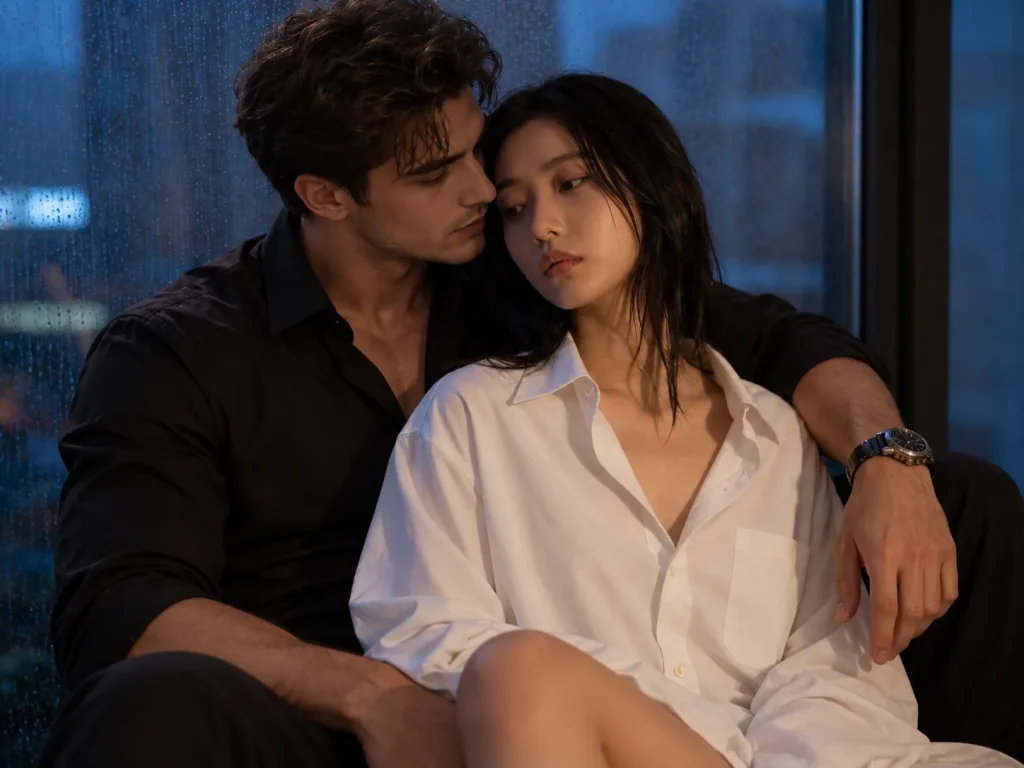
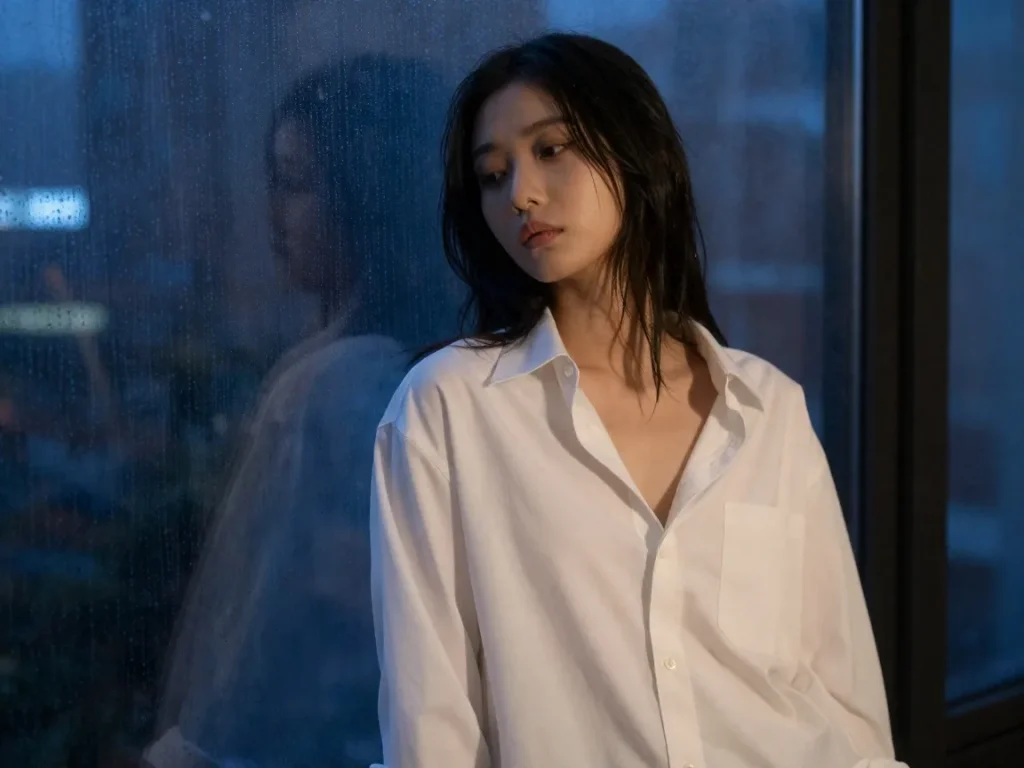
The easiest prompt structure: action + details + preservation
You do not need a complicated prompt formula, but a simple structure makes your request easier to understand:
- Action: say what should change.
- Details: describe the desired result.
- Preservation: name the important elements that should stay.
A basic template looks like this:
[Change this] to [desired result]. Keep [important details] unchanged.
1. Start with a concrete action
Use verbs that describe the actual edit: change, replace, remove, add, brighten, darken, restyle, recolor, soften, move, or transform. A concrete action gives the model a clear starting point.
Compare these two instructions:
- Vague: Make this photo better and more stylish.
- Clearer: Replace the casual shirt with an elegant dark burgundy evening jacket and add soft studio lighting.
The second prompt gives the editor something specific to do.
2. Add only the details that affect the result
Useful details include color, material, fit, lighting direction, atmosphere, location, time of day, camera feel, or the type of visual treatment you want. Details are valuable when they remove ambiguity.
For clothing, for example, you may specify fabric and fit. For a background, describe the place and atmosphere. For lighting, say whether you want soft daylight, warm sunset light, dramatic side light, or clean studio illumination.
3. State what must be preserved
When the original photo contains important features you want to keep, say so. Common preservation instructions include:
- keep the face unchanged;
- keep the hairstyle and hair color;
- keep the current pose;
- keep the camera angle and crop;
- keep the background;
- keep the clothing except for the requested item;
- keep the lighting direction;
- keep body proportions natural.
Preservation instructions communicate intent, but no generative editor can guarantee pixel-perfect locking of every detail. Always inspect the result.
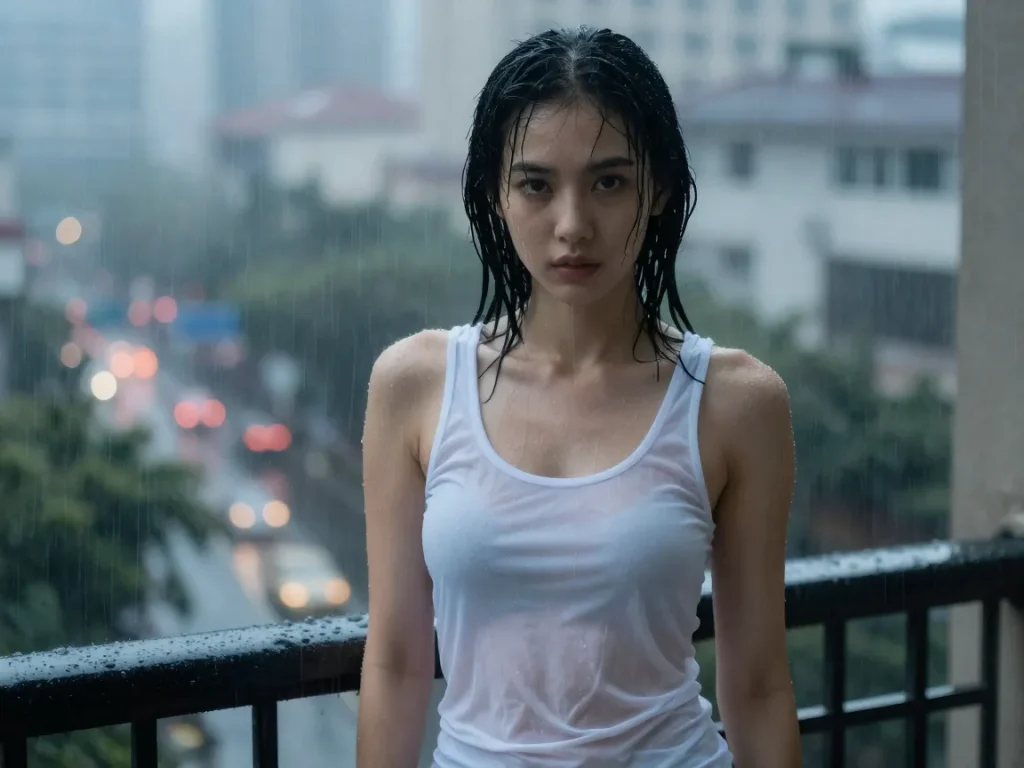
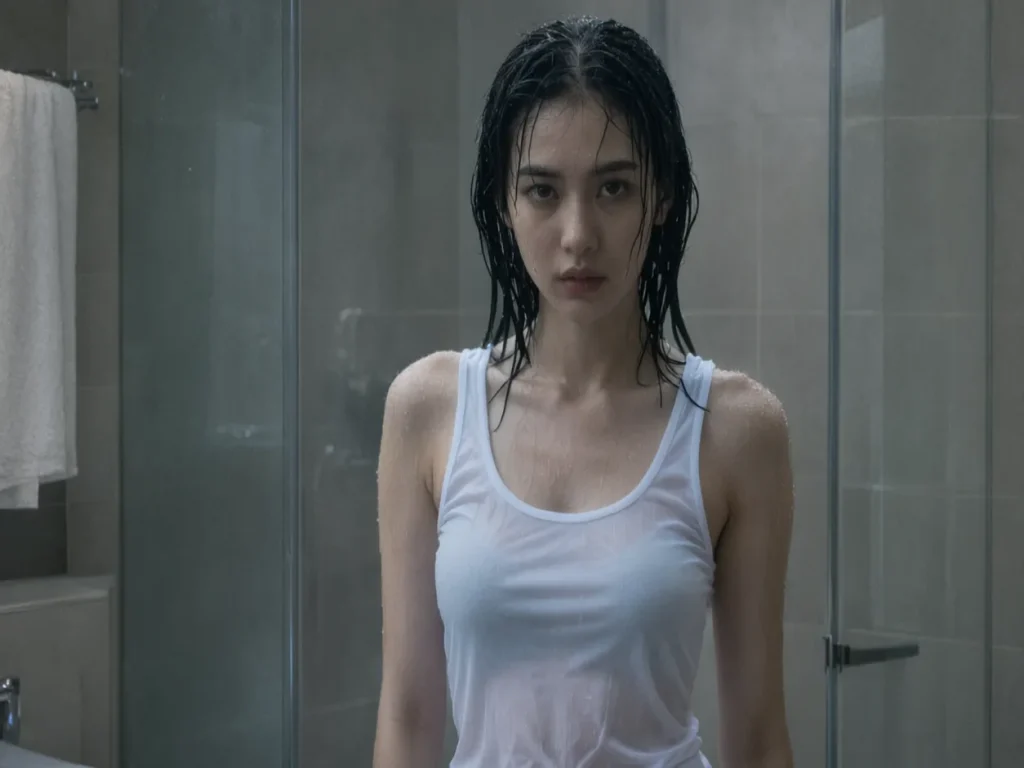
Practical AI photo editing prompt examples
The following examples show the structure rather than a magic set of words. Adapt them to the image you are actually editing.
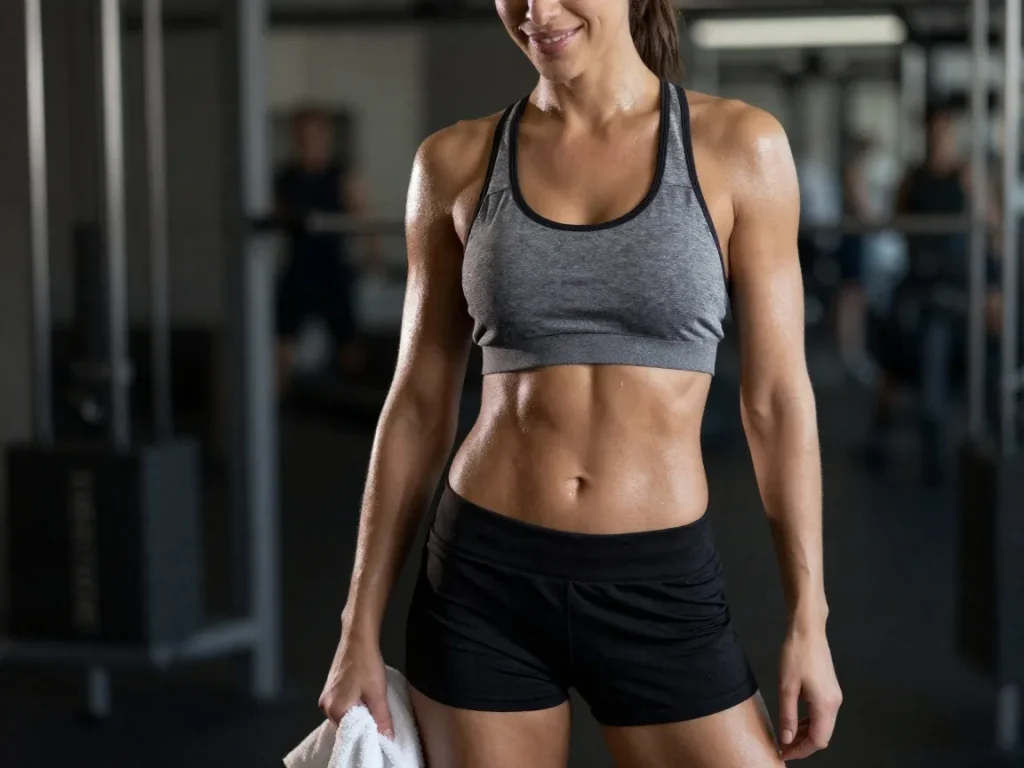
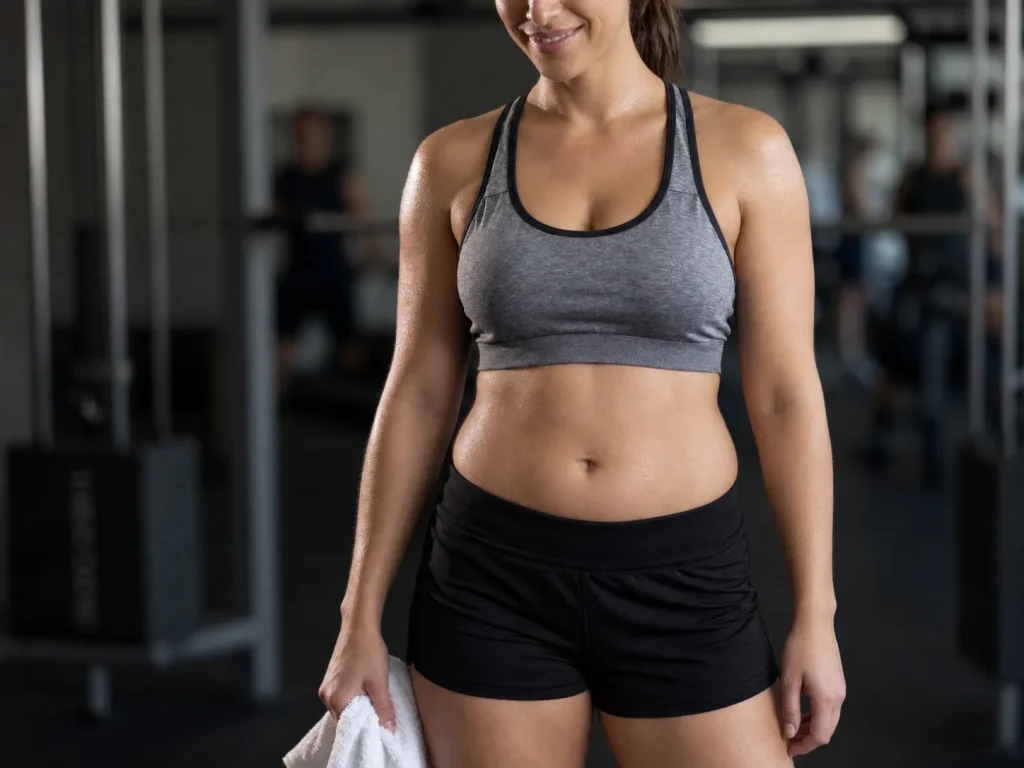
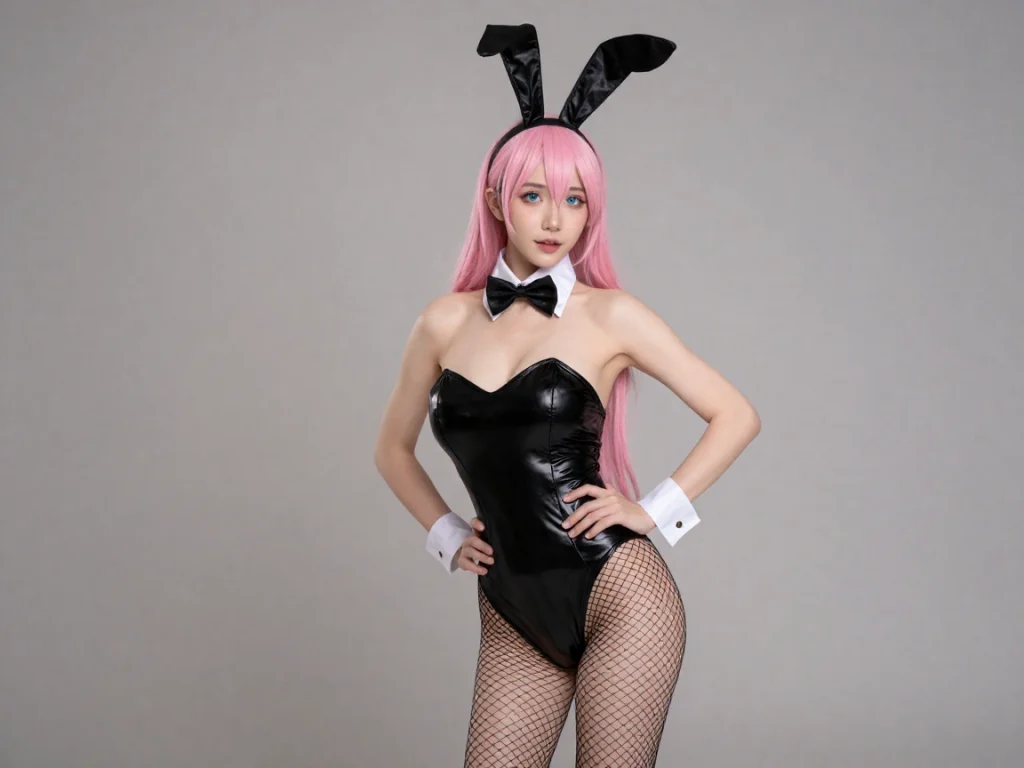
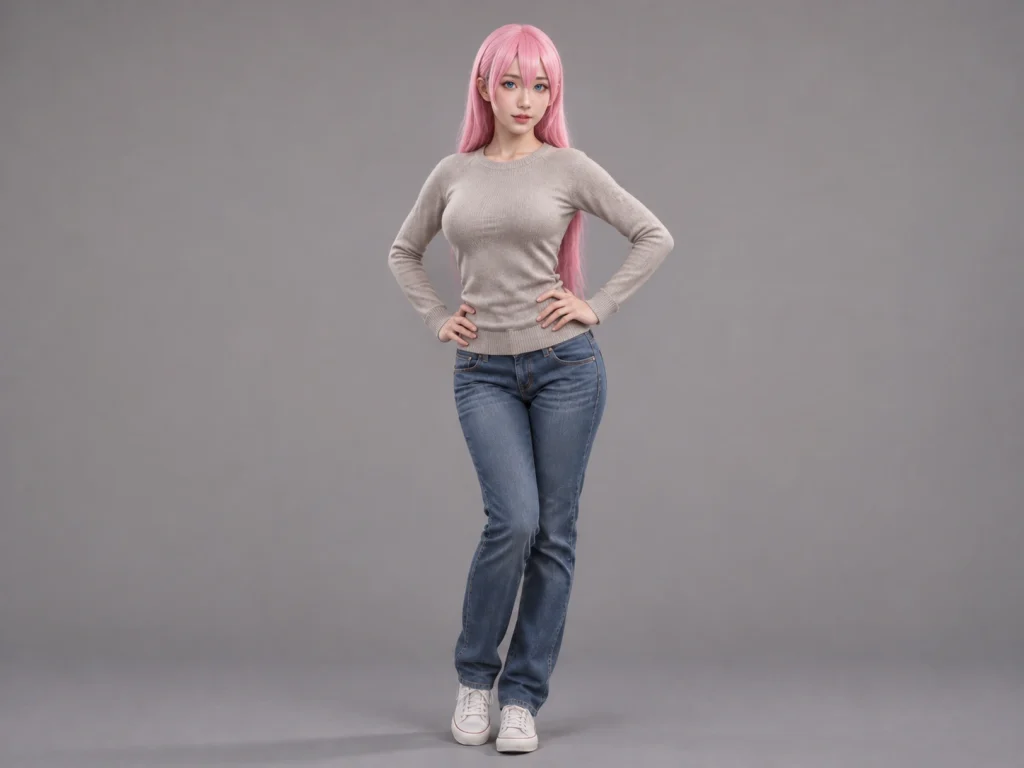
Change an outfit
Replace the white shirt with a fitted dark green satin blouse with long sleeves. Keep the face, hair, pose, hands, background and camera angle unchanged.
Change one clothing detail
Change the jacket color from beige to deep violet. Keep the cut, fabric texture, folds, body position, face and background unchanged.
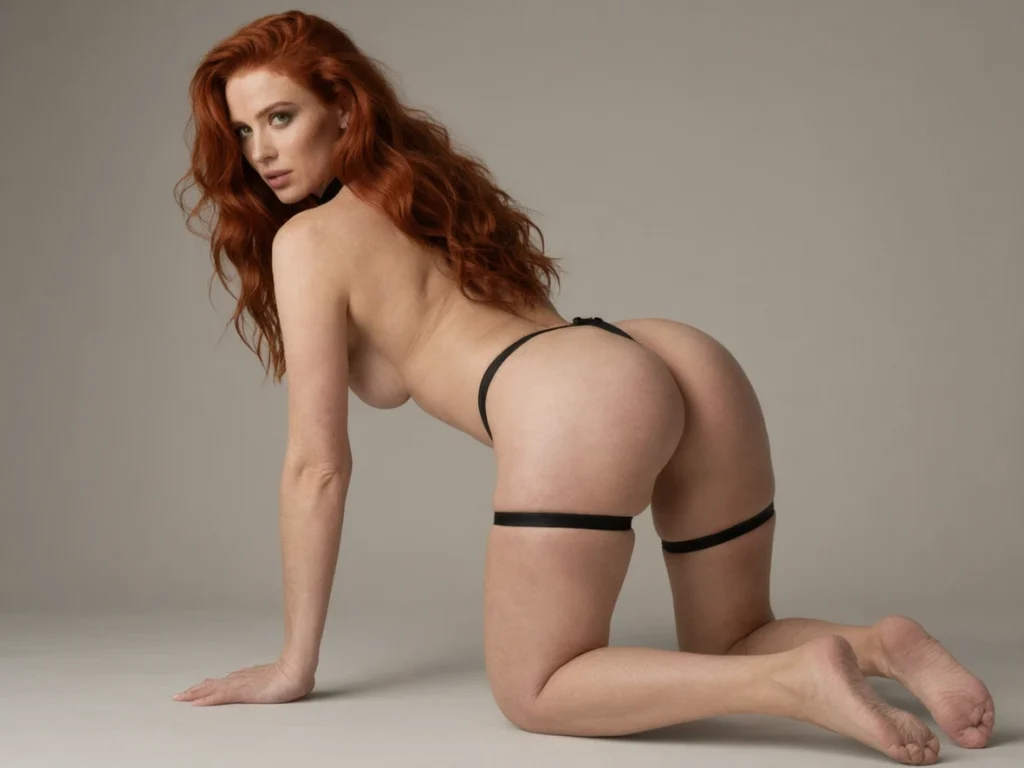
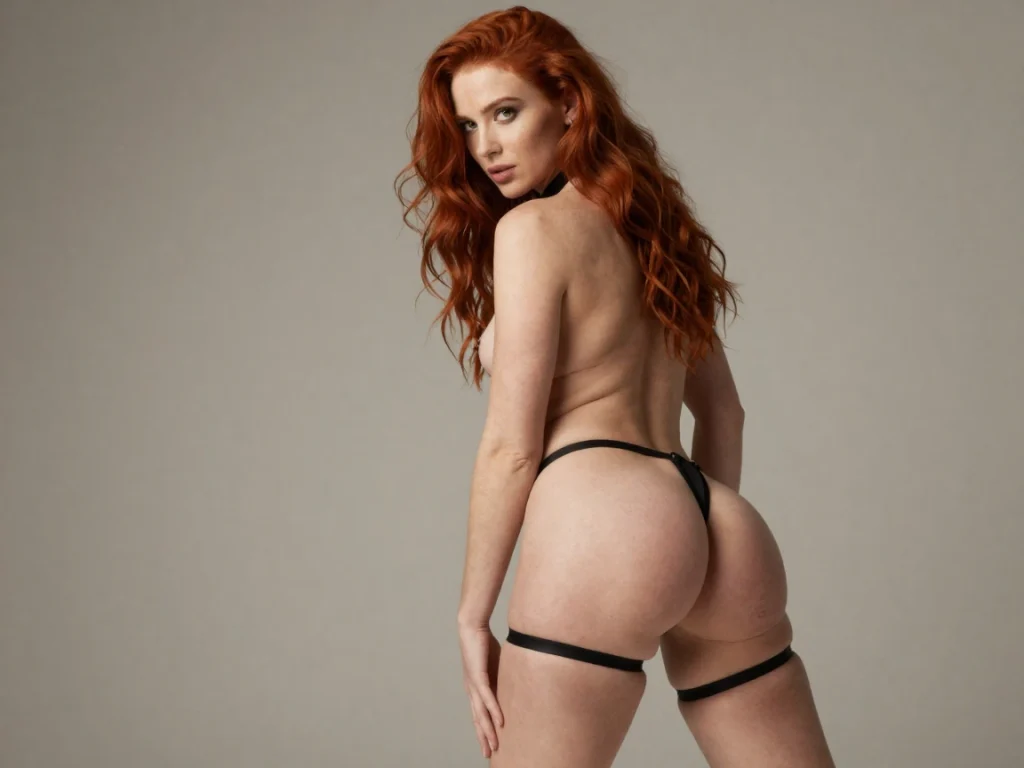
Replace the background
Replace the background with a modern hotel room at night, with warm lamps and subtle city lights through the window. Keep the person, pose, clothing and camera perspective unchanged.
Change the lighting
Add soft golden-hour light from the left side, with gentle highlights on the face and realistic shadows. Keep the pose, clothing, background composition and facial features unchanged.
Refine a portrait
Give the portrait a polished editorial look with softer skin texture, balanced contrast and natural catchlights in the eyes. Keep identity, facial structure, hairstyle and expression unchanged.
Create a more dramatic visual style
Transform the scene into a cinematic night portrait with moody violet and warm practical lighting, subtle depth of field and realistic skin tones. Preserve the person, pose and framing.
Edit consensual adult imagery
For adult imagery, the same prompt principles apply: describe the requested visual change, specify what should remain stable, and avoid conflicting instructions. Use only images of consenting adults that you have the right to edit, and stay within the service and model rules.
How to keep important parts of the original photo
One of the biggest differences between a useful edit and an unwanted rewrite is how clearly you communicate the scope of the change. If you ask for a new outfit but do not mention the face, pose, or background, the model may decide that some of those elements can change too.
A useful technique is to think in two columns:
| Change | Preserve |
|---|---|
| Jacket style and color | Face, hair, pose, hands, background |
| Background location | Person, outfit, camera angle |
| Lighting | Composition, facial features, clothing |
| Hair style | Face, expression, outfit, background |
| Overall visual mood | Identity and main scene structure |
You do not have to list everything in every prompt. Focus on the details that would make the edit unusable if they changed.
Do not overload the preservation list
There is also a practical limit. A prompt that says “change the outfit, but change absolutely nothing else, preserve every pixel, every shadow, every fold, every strand of hair, every object and every texture exactly” asks a generative system to behave like a deterministic pixel editor. That may not match how the model works.
Prioritize the important constraints instead: identity, pose, framing, major objects, and any detail directly connected to the task.
How to handle difficult edits
Some requests are naturally harder than others. Changing a simple color is usually easier than changing an entire outfit while preserving hands, body position, accessories, reflections, and fabric interactions. Replacing a plain background is usually easier than rebuilding a complex scene with precise geometry.
Make one major change at a time
If the edit is failing, reduce the number of simultaneous instructions. Instead of asking for a new hairstyle, new outfit, different background, different lighting, a new pose and a new camera angle in one generation, split the work into stages.
A staged workflow might look like:
- change the outfit;
- review the face, hands and body;
- change the background;
- adjust lighting or visual style;
- perform a final quality check.
This makes it easier to identify which instruction caused an unwanted change.
Use concrete visual language
Words like “beautiful,” “premium,” “better,” or “hotter” are subjective. They may help with tone, but they do not tell the model exactly what should happen. Whenever possible, translate the desired impression into visible properties.
Instead of “make the background more expensive,” try “replace the background with a modern luxury apartment interior, dark wood, warm indirect lighting and large windows at night.”
Resolve contradictions
Conflicting instructions can make results less predictable. Examples include asking for dramatic hard side lighting and flat soft lighting at the same time, or requesting a major pose change while also asking to preserve the exact body position.
If a result seems confused, reread the prompt and remove instructions that compete with each other.
Match the request to the original image
The source image still matters. A low-resolution photo, hidden hands, extreme crop, unusual perspective, heavy motion blur, or very complex lighting can make preservation more difficult. If a critical detail is not visible in the original, the model has to invent more of it.
What to check after an AI edit
Do not judge a result only by the first overall impression. Zoom in and review the areas that generative editing can struggle with.
Face and identity
Check facial structure, eyes, mouth, skin texture, hairline and expression. If identity preservation is important, compare the result directly with the original.
Hands and small anatomy details
Hands, fingers, jewelry, overlapping objects and fine edges deserve a closer look, especially after clothing or pose-related changes.
Clothing and object boundaries
Look at sleeves, collars, straps, hems, buttons, accessories and places where fabric touches the body. Make sure the edited object fits the scene rather than appearing pasted on.
Lighting consistency
If you changed the background or light, check whether highlights and shadows on the subject still make sense. A realistic edit usually needs the subject and environment to feel as if they belong to the same lighting setup.
Background geometry
Inspect windows, furniture, mirrors, straight lines, text, repeated patterns and reflections. Complex backgrounds can contain subtle errors that are easy to miss at thumbnail size.
Scope of the edit
Finally, compare the result with your preservation instructions. Did the model alter something you specifically wanted to keep? If so, revise the prompt and make that constraint clearer.
Common mistakes when writing photo editing prompts
Mistake 1: describing a mood instead of an edit
“Make it amazing” leaves too many possibilities. Say what visible changes would make it amazing for your use case.
Mistake 2: changing too many things at once
Large multi-part prompts are harder to debug. Break complex work into stages.
Mistake 3: forgetting preservation instructions
If the face, pose, outfit, background, or framing matters, mention it.
Mistake 4: writing a huge prompt because longer feels better
More text is not automatically more control. Unnecessary details can introduce ambiguity. Use enough information to define the edit and the important constraints.
Mistake 5: expecting exact deterministic behavior
Generative editing produces a new interpretation of the image. A clear prompt can improve consistency, but you should still review the output and be prepared to refine the request.
Mistake 6: ignoring the source image
The model cannot reliably preserve details that are not visible or understandable in the original. Better source images usually give the editor more useful visual information.
A repeatable prompt-based photo editing workflow
If you want consistent results, use the same workflow instead of reinventing the process for every image.
- Choose the image. Use a photo you have the right to edit. For adult content, confirm the required consent and age conditions.
- Define one primary goal. Decide what the main edit is before writing the prompt.
- Write the action. Start with a direct instruction such as change, replace, add or remove.
- Add useful visual details. Include color, material, setting, light or style only when they affect the result.
- Name the important preserved elements. Focus on identity, pose, framing and other critical details.
- Generate the new version. In AvaClik, the editor shows the token cost before processing.
- Inspect the result. Check face, hands, edges, background, lighting and preservation.
- Refine instead of rewriting blindly. If one part is wrong, adjust the prompt around that problem.
This workflow is especially useful when you are testing several versions of the same idea. Keep the original image, compare the outputs, and change one important instruction at a time.
When should you use a dedicated tool instead?
Prompt editing is flexible because it can describe many kinds of changes. But flexibility is not always the fastest path. If you repeatedly perform one specific task and AvaClik has a dedicated tool for it, that specialized workflow may be easier.
Use prompt editing when the request is custom, combines details that do not fit a preset, or needs natural-language control. Use a dedicated editor when the task has a purpose-built flow and you want fewer decisions.
The AI Photo Editor by Prompt is a good starting point for custom changes because you can explain the idea in normal English rather than selecting from a fixed list of styles.
Frequently asked questions
Do I need to know prompt engineering?
No. For photo editing, simple and specific instructions are usually more useful than complicated prompt syntax. Explain what to change, add the relevant visual details, and mention what should stay.
How long should an AI editing prompt be?
There is no perfect length. Many useful edits fit into one or two sentences. Add more detail only when it reduces ambiguity or protects an important element of the original image.
Can I ask the AI to keep the face unchanged?
Yes, you can explicitly request face or identity preservation. Treat it as an instruction rather than a guarantee, and always compare the output with the original.
Can I change clothing with a text prompt?
Yes. Describe the garment, color, material, fit and any important details, then specify what should remain unchanged. For complex clothing interactions, review hands, edges, folds and accessories carefully.
Can I replace a background without changing the person?
You can request that the background be replaced while preserving the subject, pose, outfit and camera perspective. The new environment may still affect lighting or edge details, so inspect the result closely.
Can prompt-based editing be used for adult photos?
AvaClik supports adult-oriented photo editing within its service and model rules. Use only content involving adults, with the required consent and rights to the images.
What should I do if the result is very different from the prompt?
Shorten the request, remove contradictions, make the main action more concrete, and specify the most important preservation constraints. If the task is complex, split it into multiple edits.
Is a longer prompt always better?
No. A longer prompt can be worse if it contains redundant or conflicting instructions. Clarity is more important than length.
Final takeaway
The best way to edit photos with AI text prompts is to treat the prompt like a concise editing brief. Start with one clear action, add visual details that actually matter, state what should remain stable, and review the generated image carefully. When a request becomes too complex, break it into smaller edits and refine one problem at a time.
If you want to test the workflow, open the AvaClik prompt-based AI photo editor, upload a photo you are allowed to use, and begin with one simple change. You can make the prompt more specific after you see how the first version behaves.
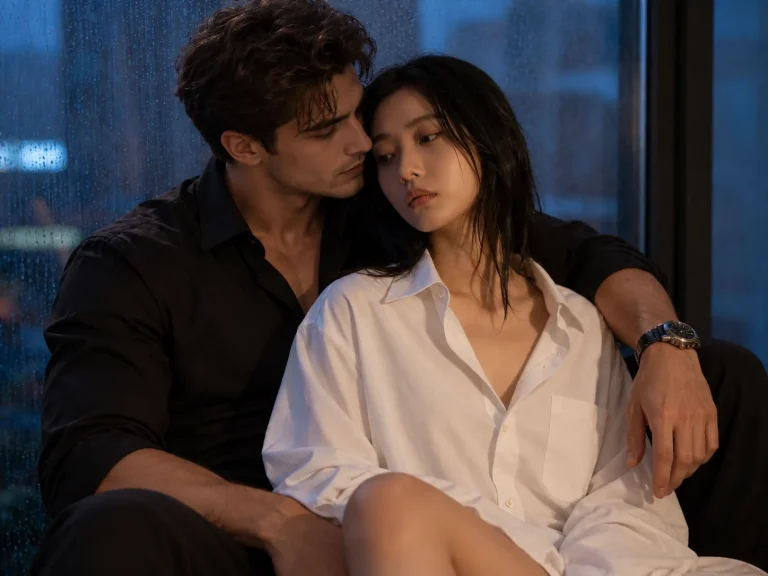
Try this in AvaClik
Try the workflow in AvaClik
Upload a photo you have permission to edit, make a change, check the result and refine it.
Try AI Photo Editing by Prompt ↗