How to Change Beard Color With AI Without Changing the Style
Learn how to recolor facial hair while keeping beard shape, length, density, face and portrait lighting unchanged.
On this page
Open the AvaClik tool connected to this guide and try it on your photo.
Beard recoloring is easiest to judge when shape stays fixed. If the editor also changes length, density, cheek line or moustache geometry, you cannot tell whether you prefer the new color or simply prefer the new beard.
Quick answer
Keep beard style, length, density, cheek line and neckline unchanged, then change only the shade. Use natural tonal variation, preserve skin and lighting, and compare warm, cool, dark, grey or salt-and-pepper options on the same portrait.
Lock beard shape before recoloring
Geometry should remain identical across color comparisons so shade is the only meaningful variable. Generate more than one candidate when the boundary is difficult. Facial hair contains thousands of small dark-light transitions, and one version may preserve the mouth better while another handles cheek edges or jaw attachment more cleanly. Comparing candidates from the same source is often faster and more reliable than stacking many repair instructions onto a weak first result.
Geometry should remain identical across color comparisons so shade is the only meaningful variable. A practical test for lock beard shape before recoloring is to ask what visual evidence the source image provides and what the model has to invent. With change beard color with AI, the safest result keeps the underlying face stable while using the available cheek, mouth, chin and jaw geometry to place new hair. The less the editor has to guess about hidden boundaries, the easier it is to get a believable result.
Match natural undertones
Beard hair can differ from scalp hair, but a realistic result still needs believable warm, cool or neutral undertones rather than arbitrary color. In How to Change Beard Color With AI Without Changing the Style, this matters because the goal is to change facial-hair color while holding every geometry and identity variable stable. Facial hair sits directly on high-information identity regions, so a visually attractive result can still be wrong if it silently changes the face underneath. Keep the edit narrow and judge the beard against the original portrait rather than judging the new style in isolation.
Beard hair can differ from scalp hair, but a realistic result still needs believable warm, cool or neutral undertones rather than arbitrary color. Review this section at two scales. At normal viewing size, look for overall beard silhouette, balance and whether the style belongs on the same person. At close zoom, inspect shade, warmth, tonal variation, root color, highlights, skin spill, eyebrow/hair consistency and preserved beard shape. Those two views catch different failures: silhouette problems are obvious from a distance, while edge, strand and identity problems usually appear only when you inspect the details.
- Beard hair can differ from scalp hair
- but a realistic result still needs believable warm
- cool or neutral undertones rather than arbitrary color
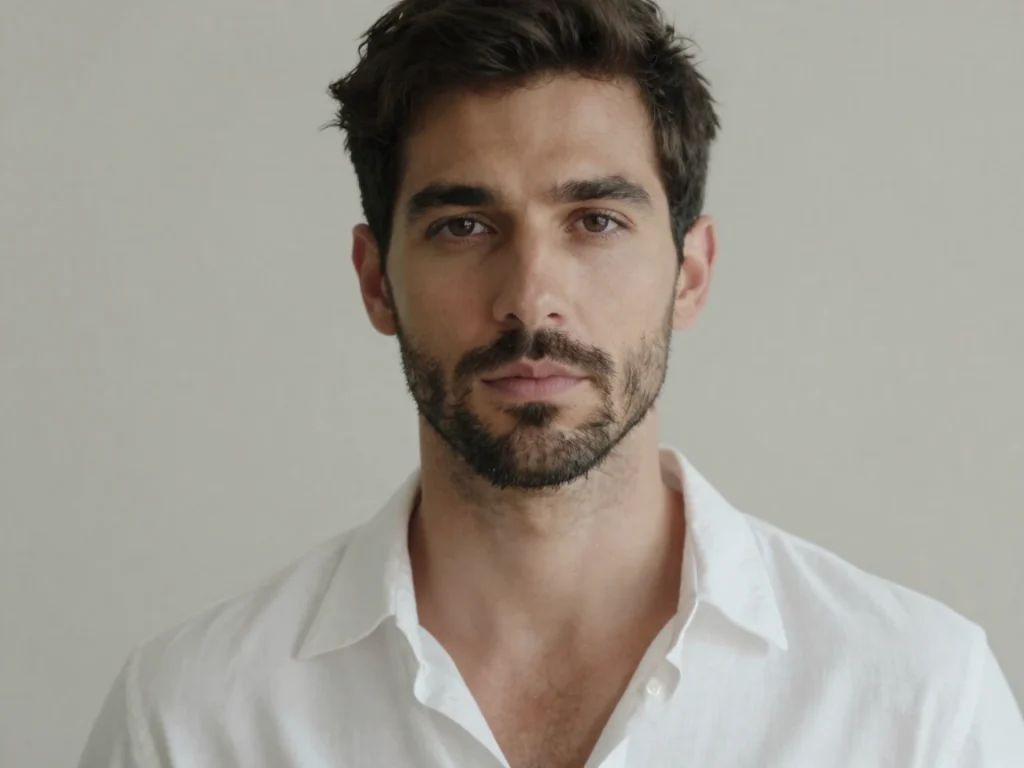
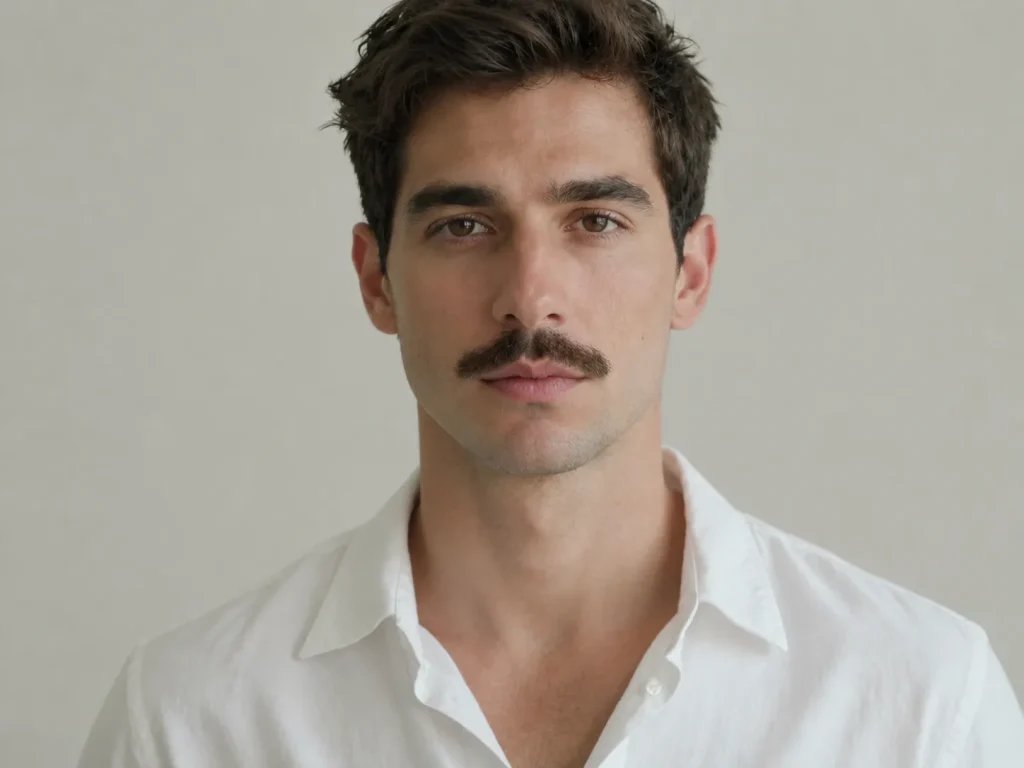
Dark brown and black beards
Very dark color needs visible strand highlights and skin transition so the beard does not become a flat black mask. A practical test for dark brown and black beards is to ask what visual evidence the source image provides and what the model has to invent. With change beard color with AI, the safest result keeps the underlying face stable while using the available cheek, mouth, chin and jaw geometry to place new hair. The less the editor has to guess about hidden boundaries, the easier it is to get a believable result.
Very dark color needs visible strand highlights and skin transition so the beard does not become a flat black mask. For a publishable before-and-after example in How to Change Beard Color With AI Without Changing the Style, keep crop, expression, camera angle and exposure consistent. If the “after” image also receives better skin, a different jaw or a more flattering light, readers cannot tell what the beard operation actually contributed. A fair example isolates the facial-hair change and makes preservation quality visible.
Warm and cool brown
Brown facial hair contains substantial tonal variation; temperature and highlight behavior often matter more than a single hex-like color label. Review this section at two scales. At normal viewing size, look for overall beard silhouette, balance and whether the style belongs on the same person. At close zoom, inspect shade, warmth, tonal variation, root color, highlights, skin spill, eyebrow/hair consistency and preserved beard shape. Those two views catch different failures: silhouette problems are obvious from a distance, while edge, strand and identity problems usually appear only when you inspect the details.
Brown facial hair contains substantial tonal variation; temperature and highlight behavior often matter more than a single hex-like color label. Generate more than one candidate when the boundary is difficult. Facial hair contains thousands of small dark-light transitions, and one version may preserve the mouth better while another handles cheek edges or jaw attachment more cleanly. Comparing candidates from the same source is often faster and more reliable than stacking many repair instructions onto a weak first result.

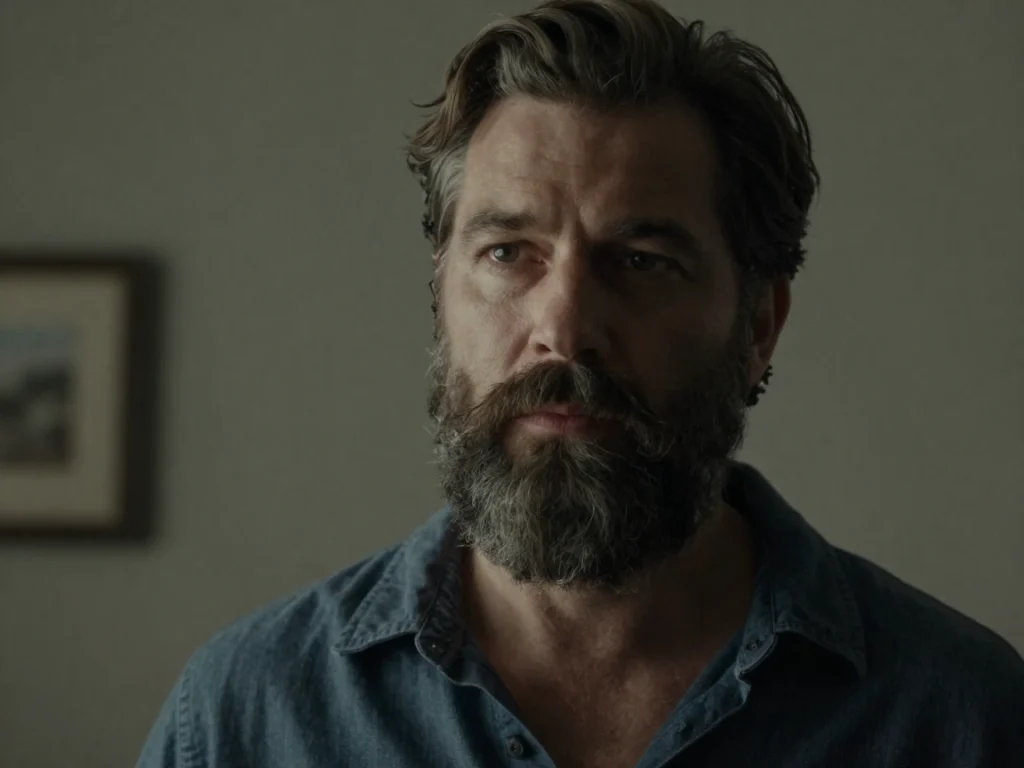
Red and auburn tones
Copper or auburn beard color should preserve darker roots and natural variation rather than covering every strand uniformly. For a publishable before-and-after example in How to Change Beard Color With AI Without Changing the Style, keep crop, expression, camera angle and exposure consistent. If the “after” image also receives better skin, a different jaw or a more flattering light, readers cannot tell what the beard operation actually contributed. A fair example isolates the facial-hair change and makes preservation quality visible.
Copper or auburn beard color should preserve darker roots and natural variation rather than covering every strand uniformly. In How to Change Beard Color With AI Without Changing the Style, this matters because the goal is to change facial-hair color while holding every geometry and identity variable stable. Facial hair sits directly on high-information identity regions, so a visually attractive result can still be wrong if it silently changes the face underneath. Keep the edit narrow and judge the beard against the original portrait rather than judging the new style in isolation.
Grey beard
Natural grey usually mixes darker and lighter strands, especially around moustache and chin, instead of turning the beard uniformly silver. Generate more than one candidate when the boundary is difficult. Facial hair contains thousands of small dark-light transitions, and one version may preserve the mouth better while another handles cheek edges or jaw attachment more cleanly. Comparing candidates from the same source is often faster and more reliable than stacking many repair instructions onto a weak first result.
Natural grey usually mixes darker and lighter strands, especially around moustache and chin, instead of turning the beard uniformly silver. A practical test for grey beard is to ask what visual evidence the source image provides and what the model has to invent. With change beard color with AI, the safest result keeps the underlying face stable while using the available cheek, mouth, chin and jaw geometry to place new hair. The less the editor has to guess about hidden boundaries, the easier it is to get a believable result.
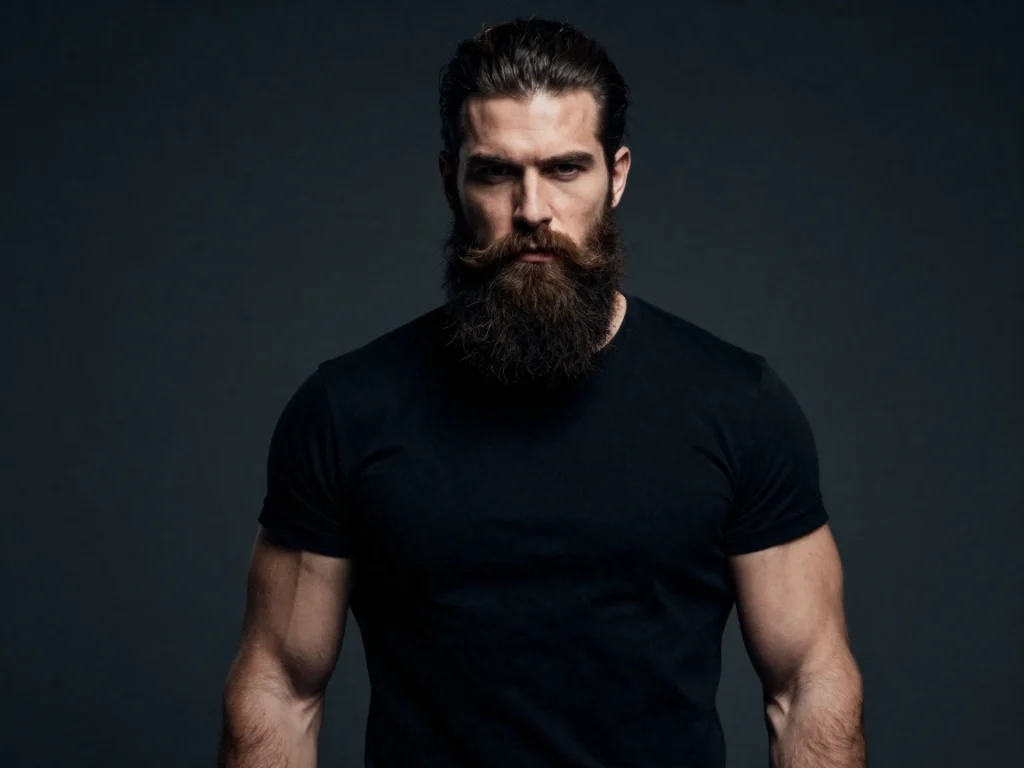
Salt-and-pepper facial hair
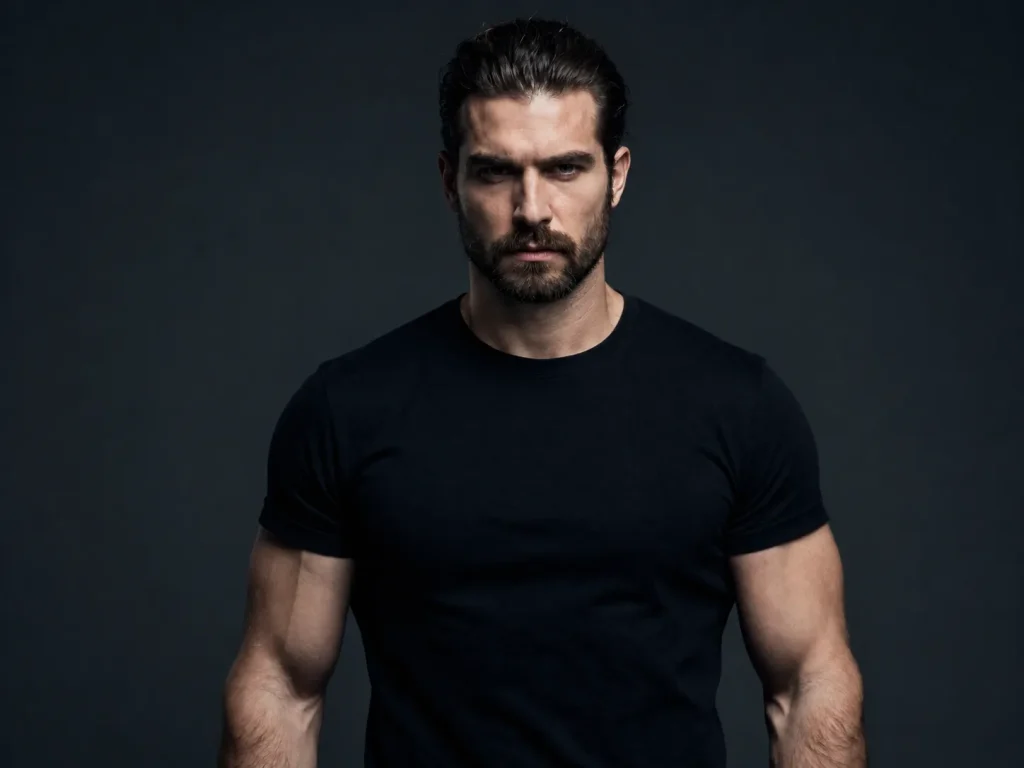
A mixed grey effect works best when the ratio and distribution are irregular but coherent with the person’s age and existing hair. In How to Change Beard Color With AI Without Changing the Style, this matters because the goal is to change facial-hair color while holding every geometry and identity variable stable. Facial hair sits directly on high-information identity regions, so a visually attractive result can still be wrong if it silently changes the face underneath. Keep the edit narrow and judge the beard against the original portrait rather than judging the new style in isolation.
A mixed grey effect works best when the ratio and distribution are irregular but coherent with the person’s age and existing hair. Review this section at two scales. At normal viewing size, look for overall beard silhouette, balance and whether the style belongs on the same person. At close zoom, inspect shade, warmth, tonal variation, root color, highlights, skin spill, eyebrow/hair consistency and preserved beard shape. Those two views catch different failures: silhouette problems are obvious from a distance, while edge, strand and identity problems usually appear only when you inspect the details.
Prevent color spill onto skin
Recoloring should stay on facial-hair strands and not tint lips, cheeks or the skin between sparse hairs. A practical test for prevent color spill onto skin is to ask what visual evidence the source image provides and what the model has to invent. With change beard color with AI, the safest result keeps the underlying face stable while using the available cheek, mouth, chin and jaw geometry to place new hair. The less the editor has to guess about hidden boundaries, the easier it is to get a believable result.
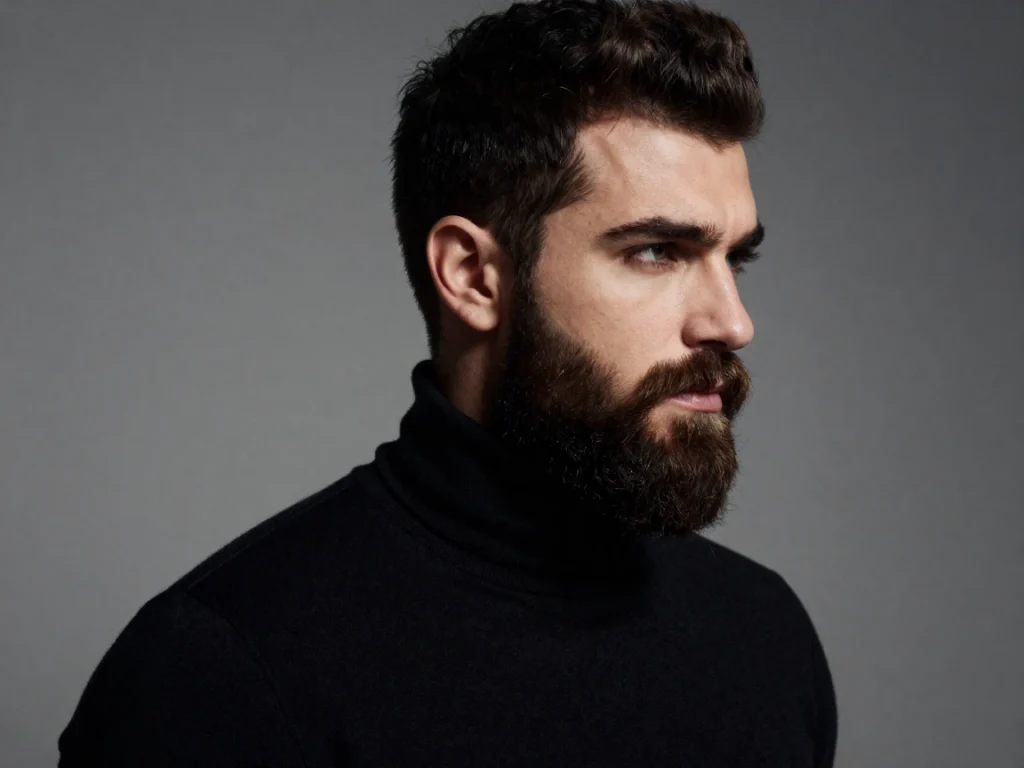
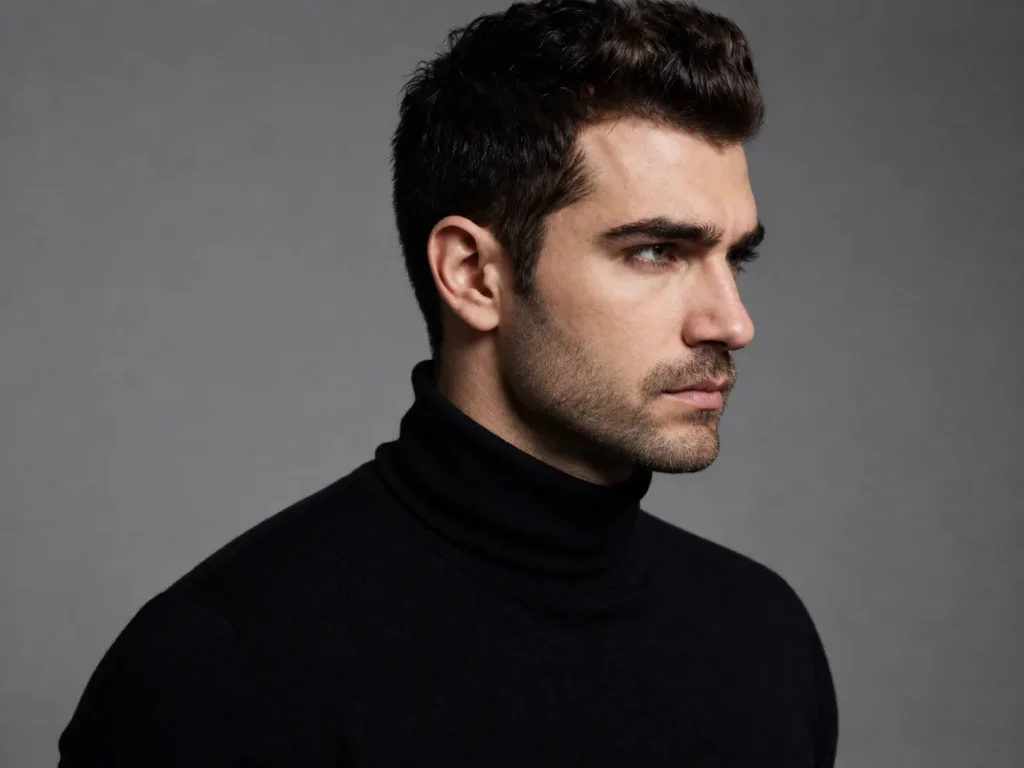
Recoloring should stay on facial-hair strands and not tint lips, cheeks or the skin between sparse hairs. For a publishable before-and-after example in How to Change Beard Color With AI Without Changing the Style, keep crop, expression, camera angle and exposure consistent. If the “after” image also receives better skin, a different jaw or a more flattering light, readers cannot tell what the beard operation actually contributed. A fair example isolates the facial-hair change and makes preservation quality visible.
Decide whether eyebrows and scalp hair stay unchanged
For a beard-only color test, keep eyebrows and hairstyle fixed so the visual effect is easy to judge. Review this section at two scales. At normal viewing size, look for overall beard silhouette, balance and whether the style belongs on the same person. At close zoom, inspect shade, warmth, tonal variation, root color, highlights, skin spill, eyebrow/hair consistency and preserved beard shape. Those two views catch different failures: silhouette problems are obvious from a distance, while edge, strand and identity problems usually appear only when you inspect the details.
For a beard-only color test, keep eyebrows and hairstyle fixed so the visual effect is easy to judge. Generate more than one candidate when the boundary is difficult. Facial hair contains thousands of small dark-light transitions, and one version may preserve the mouth better while another handles cheek edges or jaw attachment more cleanly. Comparing candidates from the same source is often faster and more reliable than stacking many repair instructions onto a weak first result.
Compare color options under the same lighting
Warm indoor light can make shades look different; one source portrait lets you compare colors fairly. For a publishable before-and-after example in How to Change Beard Color With AI Without Changing the Style, keep crop, expression, camera angle and exposure consistent. If the “after” image also receives better skin, a different jaw or a more flattering light, readers cannot tell what the beard operation actually contributed. A fair example isolates the facial-hair change and makes preservation quality visible.
Warm indoor light can make shades look different; one source portrait lets you compare colors fairly. In How to Change Beard Color With AI Without Changing the Style, this matters because the goal is to change facial-hair color while holding every geometry and identity variable stable. Facial hair sits directly on high-information identity regions, so a visually attractive result can still be wrong if it silently changes the face underneath. Keep the edit narrow and judge the beard against the original portrait rather than judging the new style in isolation.

Ready-to-copy examples
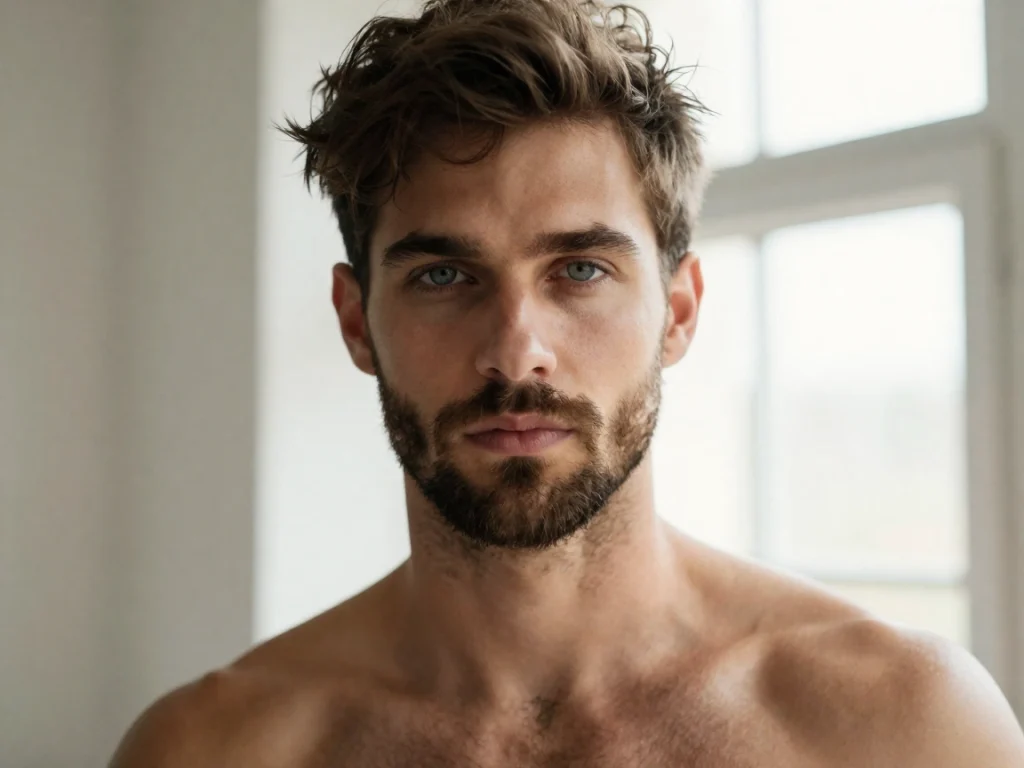
Use these as starting points. Keep the preservation clause when identity matters, and change only the facial-hair variables you actually want to compare.
Keep the exact beard style, length, density, cheek line and neckline unchanged. Change only the beard color to natural dark brown with subtle tonal variation and realistic highlights.Keep the same facial-hair geometry and change only the beard color to natural salt-and-pepper with mixed dark and grey strands, slightly more grey around the chin and moustache.A practical step-by-step workflow
Use a controlled sequence when testing change beard color with AI. Start from the original portrait for each major style comparison so identity changes do not accumulate from one generated image to the next.
- 1. Choose a clear adult portrait where cheeks, mouth, chin and jaw are visible.
- 2. Decide the one main facial-hair variable you want to test: style, length, density or color.
- 3. Preserve facial identity, hairstyle, expression, skin tone, camera angle, lighting, clothing and background.
- 4. Generate several candidates and compare overall beard silhouette before zooming into cheek, lip, jaw and neckline details.
- 5. If identity changes, retry from the original. If only the beard edge or color is wrong, make one narrow correction at a time.
Before exporting How to Change Beard Color With AI Without Changing the Style examples, compare source and result at the same crop. The beard should look attached to the original face and light, not like a separate layer that happens to be in the right location.
Common mistakes to avoid
- Changing beard style, color, face shape and portrait lighting at the same time when you only need to compare facial hair.
- Accepting a beard because the style looks attractive without checking whether lips, jaw, skin texture or nose changed.
- Using a heavily cropped or shadowed source and then expecting precise moustache, cheek and neckline boundaries.
- Treating AI-generated beard density as a prediction of how real facial hair will grow.
- Repairing many unrelated problems on a drifted result instead of retrying from the original portrait.
Related AvaClik beard guides
Use these related guides when the next question is about prompts, source-photo quality, identity preservation, beard realism or repairing a weak result.
- How to Try a Beard on Your Photo With AI: Complete Guide
- 40 AI Beard Prompts for Realistic Beard, Stubble & Mustache Styles
- How to Change Beard Style Without Changing Your Face
- Best Photos for AI Beard Try-On: Angle, Lighting & Jawline
Frequently asked questions
Will the AI beard look exactly like my real beard would grow?
No. It is a visual preview. Real facial-hair density, patchiness, growth direction, curl, color and growth rate vary and cannot be inferred perfectly from a generated image.
What kind of photo works best?
A clear front or gentle three-quarter adult portrait with visible cheeks, mouth, chin and jawline is easiest to evaluate.
Can I change beard color in AvaClik?
Yes. The Beard tool supports color choice. For a fair comparison, keep beard shape and density fixed when testing color.
Should I use the result as a barber reference?
You can use it as a visual style reference, but treat it as inspiration rather than a guarantee of how your real facial hair will grow or trim.
Try the beard style in AvaClik
Open AvaClik AI Beard Changer to test the workflow from How to Change Beard Color With AI Without Changing the Style. Use a photo you have the right to edit, choose a beard or stubble preset, adjust color only when it is part of the comparison, and inspect the generated result before saving.

Try this in AvaClik
Try the workflow in AvaClik
Upload a photo you have permission to edit, make a change, check the result and refine it.
Try AvaClik AI Beard Changer ↗