How to Change Your Hairstyle in a Photo With AI: Complete Guide
Learn how to change a hairstyle in a photo with AI, choose a useful source image, use presets or a reference, adjust color and review the result.
On this page
Open the AvaClik tool connected to this guide and try it on your photo.
AI hairstyle editing is most useful when you treat it as a controlled visual try-on rather than a one-click prediction of a real haircut. The source portrait supplies the face, head angle and lighting, while the selected style or reference image guides the new hair shape, length, texture and color.
Quick answer
Upload a clear portrait, choose a hairstyle preset or add a reference image, decide whether to keep or change the hair color, generate several versions and compare the hairline, forehead, ears, strands near the face and overall silhouette before saving.
What an AI hairstyle editor actually changes
The model may rebuild the visible hair mass, parting, fringe, volume, strands around the face and shadows on the forehead or neck. It should preserve identity, but small facial changes can happen and need review. For How to Change Your Hairstyle in a Photo With AI: Complete Guide, judge this detail in relation to the original portrait rather than as an isolated beauty effect. Hair geometry sits next to the face, ears, neck and clothing, so a locally attractive result can still be wrong if it changes identity, head angle or scene lighting. Keep the purpose of the edit narrow and compare the result with the source at the same zoom.
The model may rebuild the visible hair mass, parting, fringe, volume, strands around the face and shadows on the forehead or neck. It should preserve identity, but small facial changes can happen and need review. When testing what an ai hairstyle editor actually changes, save multiple candidates instead of forcing one weak image through many correction passes. Hair contains thousands of small edges and tonal transitions, so one version may preserve identity better while another handles strands, ears or shoulder overlap more cleanly. Comparing candidates is often faster than repeatedly repairing a poor starting point.
Choose a source photo that gives the model useful information
Use a sharp portrait with one adult, a visible face and hairline, moderate lighting and enough space around the head. Avoid hats, heavy motion blur and extreme crops when possible. A practical way to evaluate choose a source photo that gives the model useful information is to identify what should change and what should remain stable before generating. With how to change hairstyle with AI, the change may be hair length, fringe, texture or color, while facial features, expression, makeup, camera perspective and background are often preservation targets. This simple split makes failures much easier to diagnose.
Use a sharp portrait with one adult, a visible face and hairline, moderate lighting and enough space around the head. Avoid hats, heavy motion blur and extreme crops when possible. Review choose a source photo that gives the model useful information both at normal viewing size and at close zoom. At normal size, inspect the hairstyle silhouette and whether it suits the portrait. At close zoom, inspect the hairline, roots, fine strands, ear boundaries, neck, clothing overlap and any background pattern near the hair. The two views reveal different classes of problems.
- Use a sharp portrait with one adult
- a visible face and hairline
- moderate lighting and enough space around the head
- Avoid hats
- heavy motion blur and extreme crops when possible
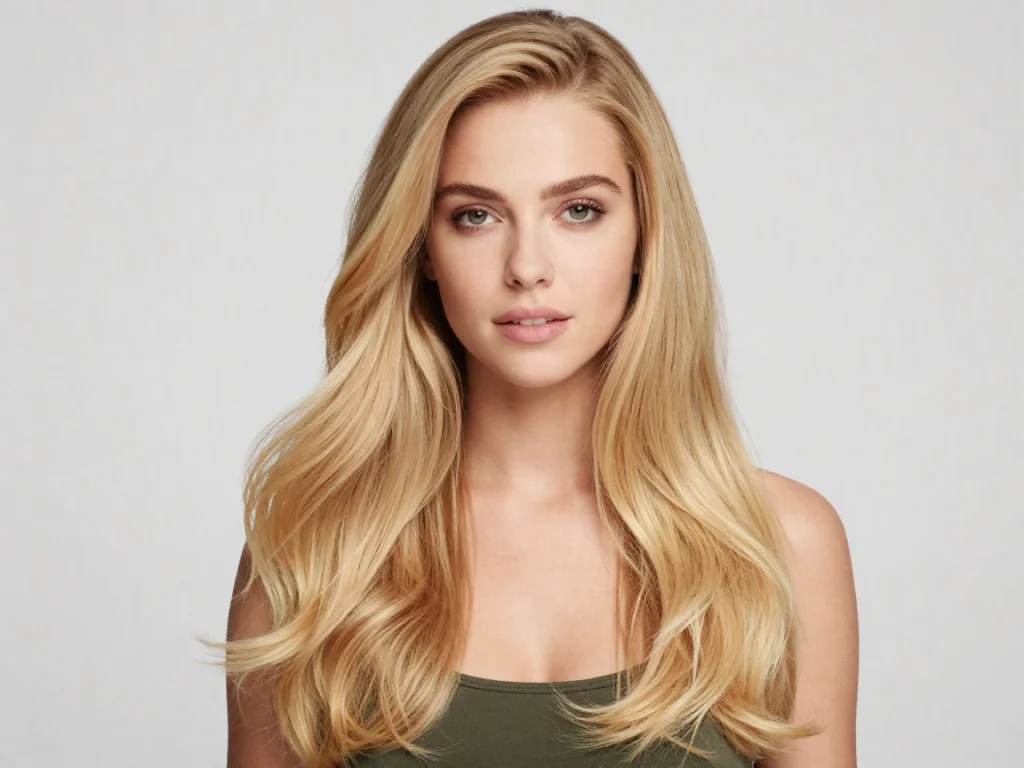
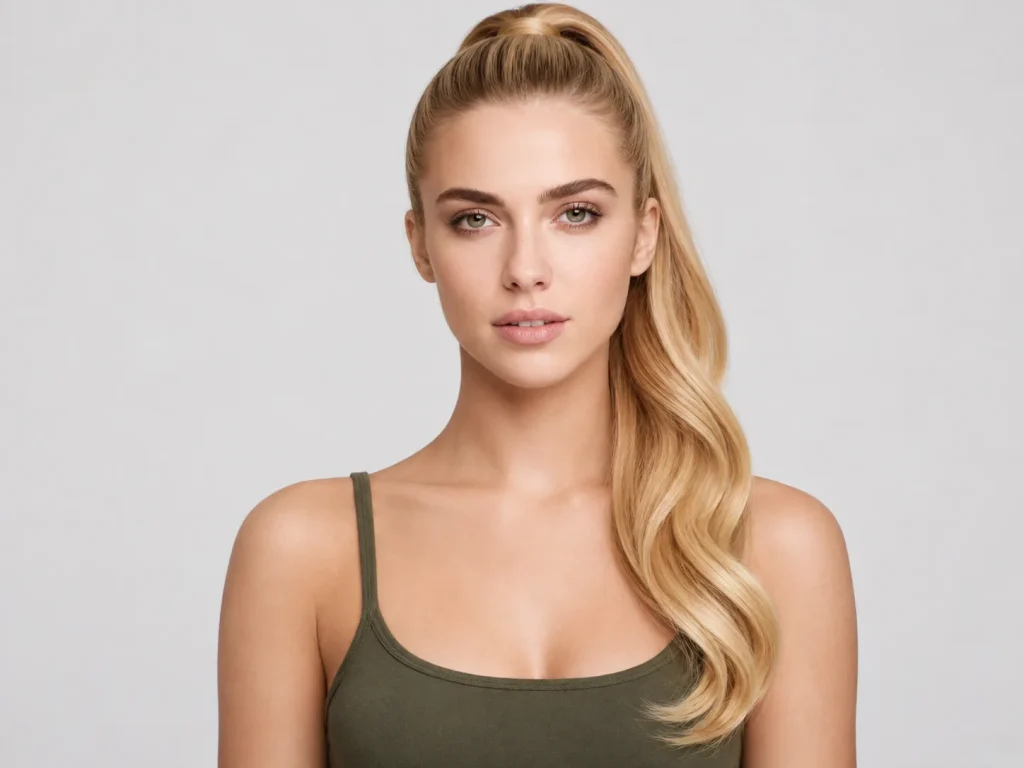
Choose between a preset and a reference hairstyle
Presets are efficient for common cuts. A reference image is better when you care about a particular silhouette, fringe shape, curl pattern or styling direction. When testing choose between a preset and a reference hairstyle, save multiple candidates instead of forcing one weak image through many correction passes. Hair contains thousands of small edges and tonal transitions, so one version may preserve identity better while another handles strands, ears or shoulder overlap more cleanly. Comparing candidates is often faster than repeatedly repairing a poor starting point.
Presets are efficient for common cuts. A reference image is better when you care about a particular silhouette, fringe shape, curl pattern or styling direction. For a publishable example in How to Change Your Hairstyle in a Photo With AI: Complete Guide, keep the before and after framing consistent. A fair comparison should not secretly improve the portrait by changing crop, exposure, makeup or face shape at the same time. That matters for readers because they should be able to see what the hairstyle operation itself contributed.
Decide the target length and silhouette first
Length and overall shape affect the entire head outline. Set bob, shoulder-length, long layers, pixie or other major geometry before fine styling decisions. Review decide the target length and silhouette first both at normal viewing size and at close zoom. At normal size, inspect the hairstyle silhouette and whether it suits the portrait. At close zoom, inspect the hairline, roots, fine strands, ear boundaries, neck, clothing overlap and any background pattern near the hair. The two views reveal different classes of problems.
Length and overall shape affect the entire head outline. Set bob, shoulder-length, long layers, pixie or other major geometry before fine styling decisions. For How to Change Your Hairstyle in a Photo With AI: Complete Guide, judge this detail in relation to the original portrait rather than as an isolated beauty effect. Hair geometry sits next to the face, ears, neck and clothing, so a locally attractive result can still be wrong if it changes identity, head angle or scene lighting. Keep the purpose of the edit narrow and compare the result with the source at the same zoom.
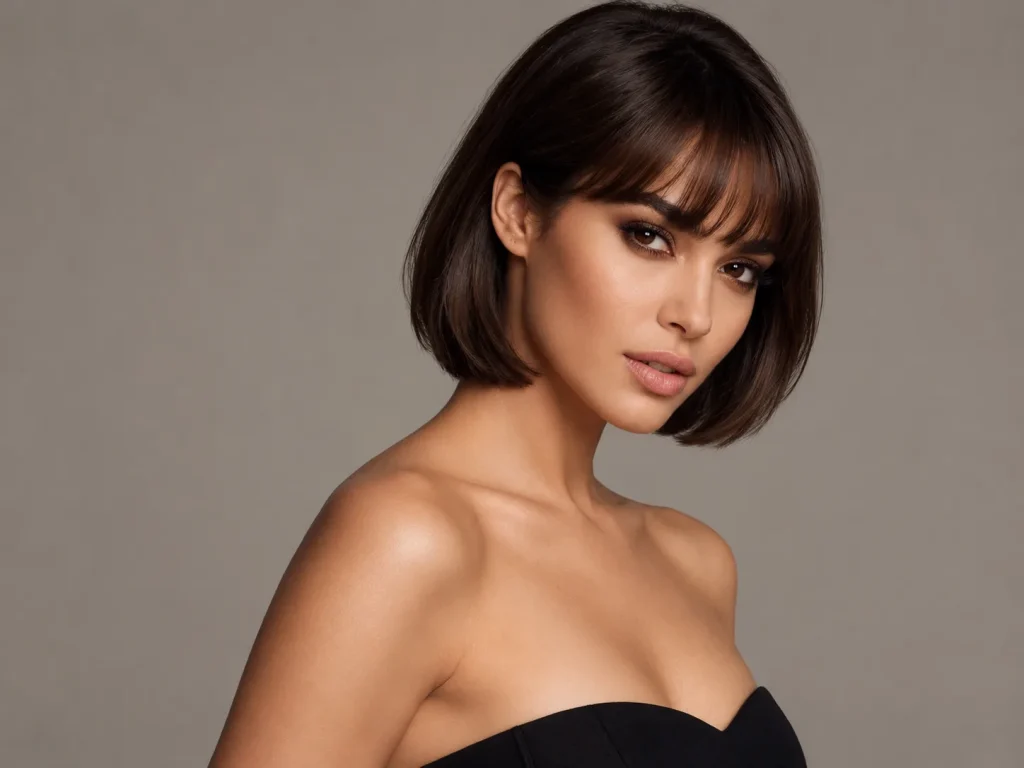
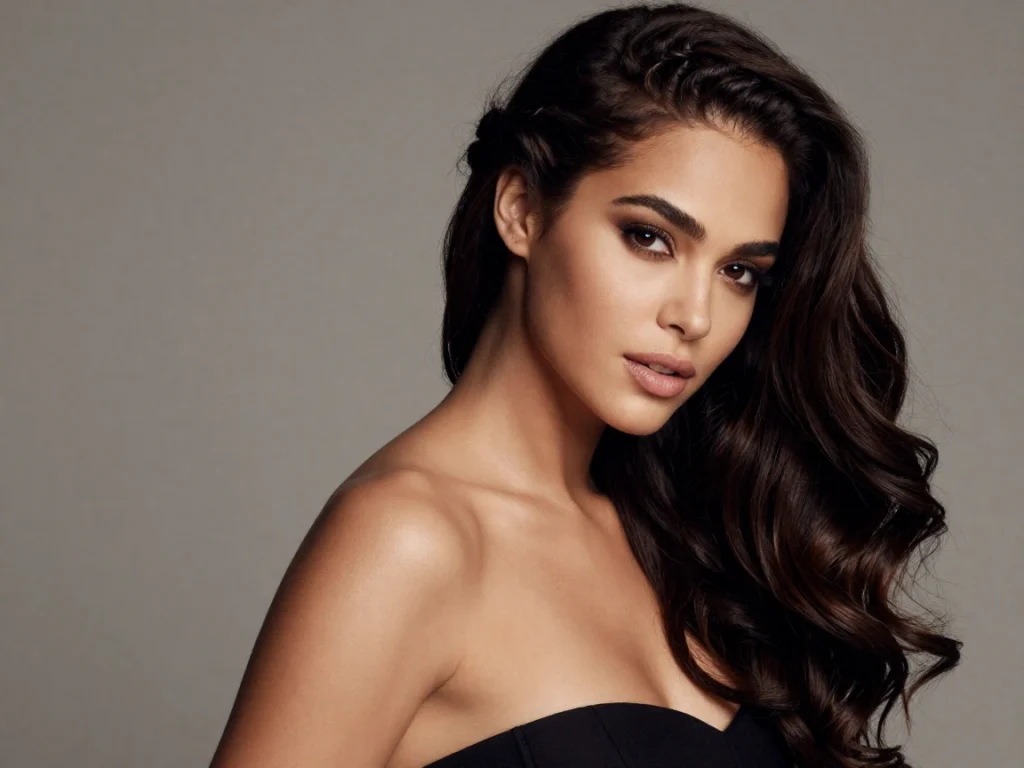
Specify texture and movement
Straight, wavy, curly, coily, sleek, tousled and voluminous hair create different edge patterns and different relationships with shoulders and clothing. For a publishable example in How to Change Your Hairstyle in a Photo With AI: Complete Guide, keep the before and after framing consistent. A fair comparison should not secretly improve the portrait by changing crop, exposure, makeup or face shape at the same time. That matters for readers because they should be able to see what the hairstyle operation itself contributed.
Straight, wavy, curly, coily, sleek, tousled and voluminous hair create different edge patterns and different relationships with shoulders and clothing. A practical way to evaluate specify texture and movement is to identify what should change and what should remain stable before generating. With how to change hairstyle with AI, the change may be hair length, fringe, texture or color, while facial features, expression, makeup, camera perspective and background are often preservation targets. This simple split makes failures much easier to diagnose.
- Straight
- wavy
- curly
- coily
- sleek
Protect the hairline and forehead
The hairline is one of the fastest ways to spot an artificial result. Check temple shape, forehead height and whether baby hairs or fringe edges look plausible. For How to Change Your Hairstyle in a Photo With AI: Complete Guide, judge this detail in relation to the original portrait rather than as an isolated beauty effect. Hair geometry sits next to the face, ears, neck and clothing, so a locally attractive result can still be wrong if it changes identity, head angle or scene lighting. Keep the purpose of the edit narrow and compare the result with the source at the same zoom.
The hairline is one of the fastest ways to spot an artificial result. Check temple shape, forehead height and whether baby hairs or fringe edges look plausible. When testing protect the hairline and forehead, save multiple candidates instead of forcing one weak image through many correction passes. Hair contains thousands of small edges and tonal transitions, so one version may preserve identity better while another handles strands, ears or shoulder overlap more cleanly. Comparing candidates is often faster than repeatedly repairing a poor starting point.
Keep or change hair color deliberately
If the haircut is the only goal, preserve the original color. If color is part of the new look, describe shade, warmth and highlights separately so you can judge shape and color changes independently. A practical way to evaluate keep or change hair color deliberately is to identify what should change and what should remain stable before generating. With how to change hairstyle with AI, the change may be hair length, fringe, texture or color, while facial features, expression, makeup, camera perspective and background are often preservation targets. This simple split makes failures much easier to diagnose.
If the haircut is the only goal, preserve the original color. If color is part of the new look, describe shade, warmth and highlights separately so you can judge shape and color changes independently. Review keep or change hair color deliberately both at normal viewing size and at close zoom. At normal size, inspect the hairstyle silhouette and whether it suits the portrait. At close zoom, inspect the hairline, roots, fine strands, ear boundaries, neck, clothing overlap and any background pattern near the hair. The two views reveal different classes of problems.
Preserve the face, makeup and accessories
A hairstyle edit should not silently change eye shape, lips, skin texture, makeup, earrings or glasses. Explicit preservation instructions help keep the task focused. When testing preserve the face, makeup and accessories, save multiple candidates instead of forcing one weak image through many correction passes. Hair contains thousands of small edges and tonal transitions, so one version may preserve identity better while another handles strands, ears or shoulder overlap more cleanly. Comparing candidates is often faster than repeatedly repairing a poor starting point.
A hairstyle edit should not silently change eye shape, lips, skin texture, makeup, earrings or glasses. Explicit preservation instructions help keep the task focused. For a publishable example in How to Change Your Hairstyle in a Photo With AI: Complete Guide, keep the before and after framing consistent. A fair comparison should not secretly improve the portrait by changing crop, exposure, makeup or face shape at the same time. That matters for readers because they should be able to see what the hairstyle operation itself contributed.
- A hairstyle edit should not silently change eye shape
- lips
- skin texture
- makeup
- earrings or glasses
Generate more than one candidate
Hair is highly detailed and a single generation may have an awkward strand, ear edge or parting. Compare several candidates instead of over-correcting one weak result. Review generate more than one candidate both at normal viewing size and at close zoom. At normal size, inspect the hairstyle silhouette and whether it suits the portrait. At close zoom, inspect the hairline, roots, fine strands, ear boundaries, neck, clothing overlap and any background pattern near the hair. The two views reveal different classes of problems.
Hair is highly detailed and a single generation may have an awkward strand, ear edge or parting. Compare several candidates instead of over-correcting one weak result. For How to Change Your Hairstyle in a Photo With AI: Complete Guide, judge this detail in relation to the original portrait rather than as an isolated beauty effect. Hair geometry sits next to the face, ears, neck and clothing, so a locally attractive result can still be wrong if it changes identity, head angle or scene lighting. Keep the purpose of the edit narrow and compare the result with the source at the same zoom.
Review the result at full size
Zoom into the hairline, ears, neck, shoulders and any region where hair crosses clothing. Check that strands do not melt into the background and that lighting on the hair agrees with the face. For a publishable example in How to Change Your Hairstyle in a Photo With AI: Complete Guide, keep the before and after framing consistent. A fair comparison should not secretly improve the portrait by changing crop, exposure, makeup or face shape at the same time. That matters for readers because they should be able to see what the hairstyle operation itself contributed.
Zoom into the hairline, ears, neck, shoulders and any region where hair crosses clothing. Check that strands do not melt into the background and that lighting on the hair agrees with the face. A practical way to evaluate review the result at full size is to identify what should change and what should remain stable before generating. With how to change hairstyle with AI, the change may be hair length, fringe, texture or color, while facial features, expression, makeup, camera perspective and background are often preservation targets. This simple split makes failures much easier to diagnose.
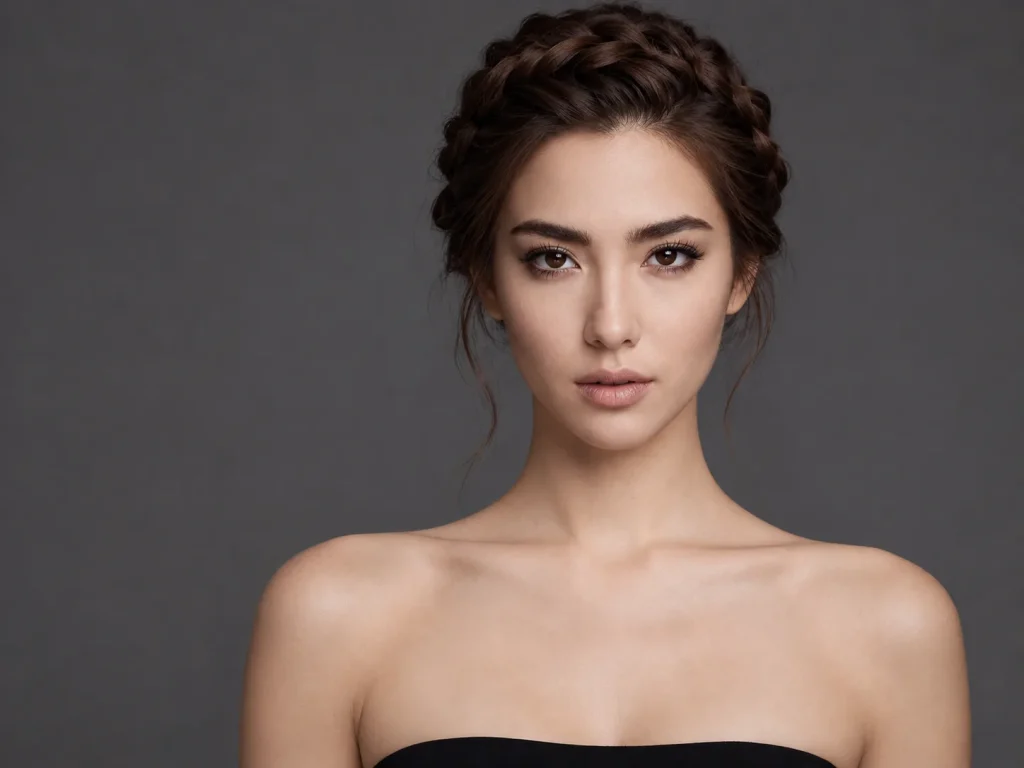
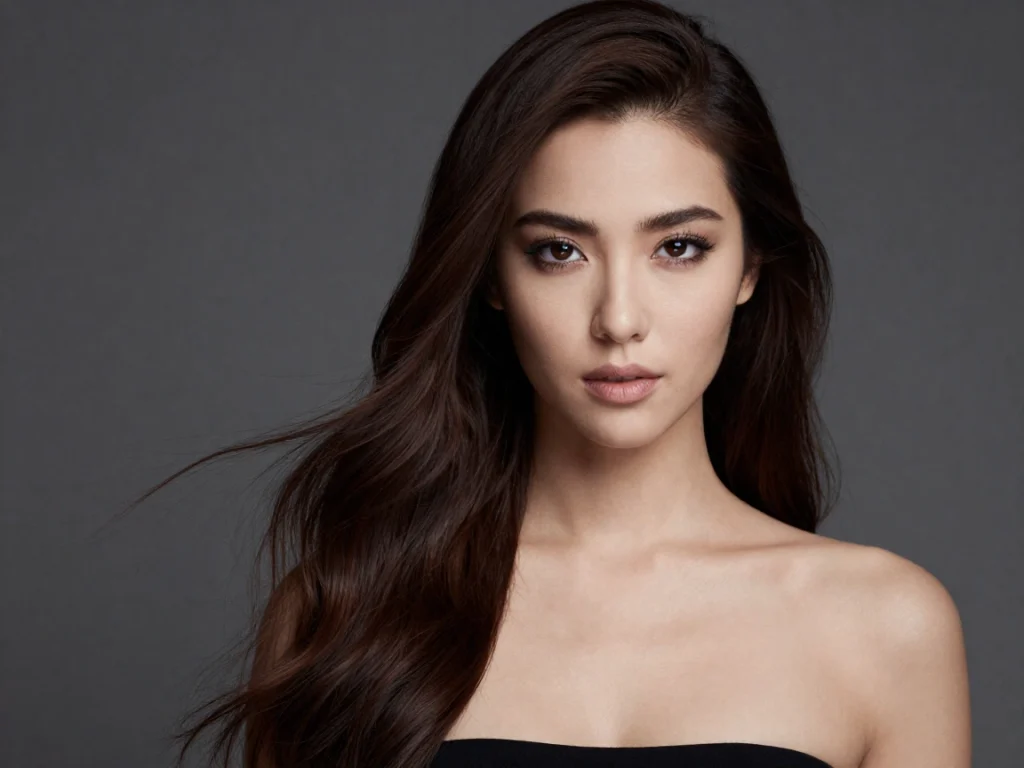
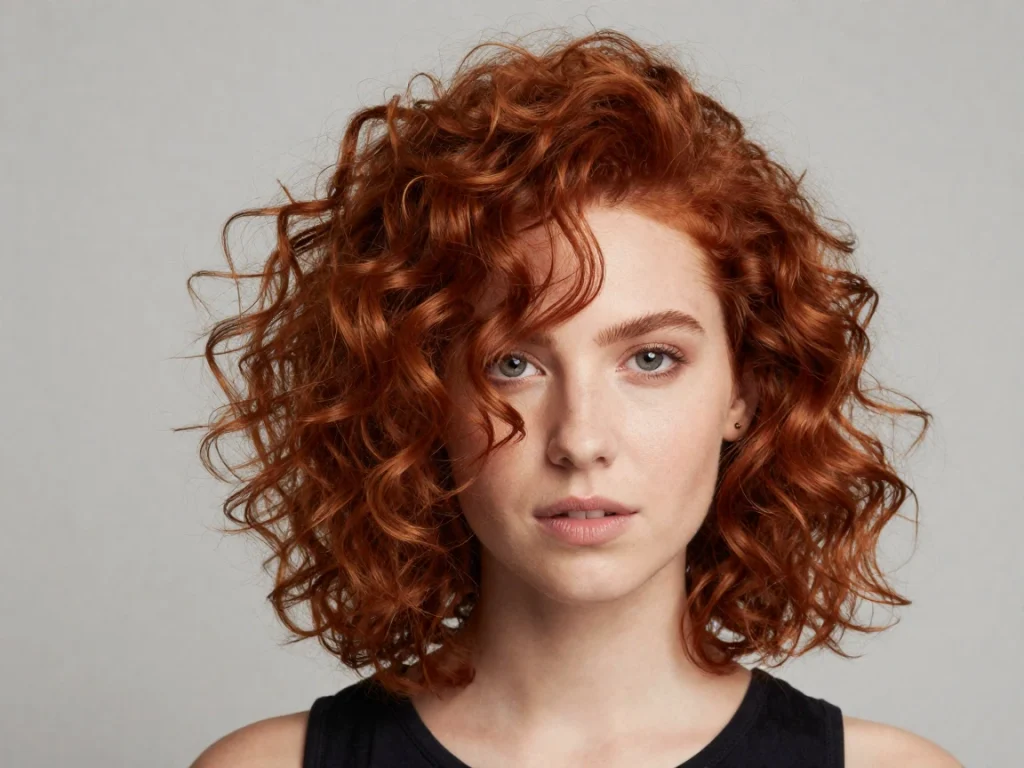
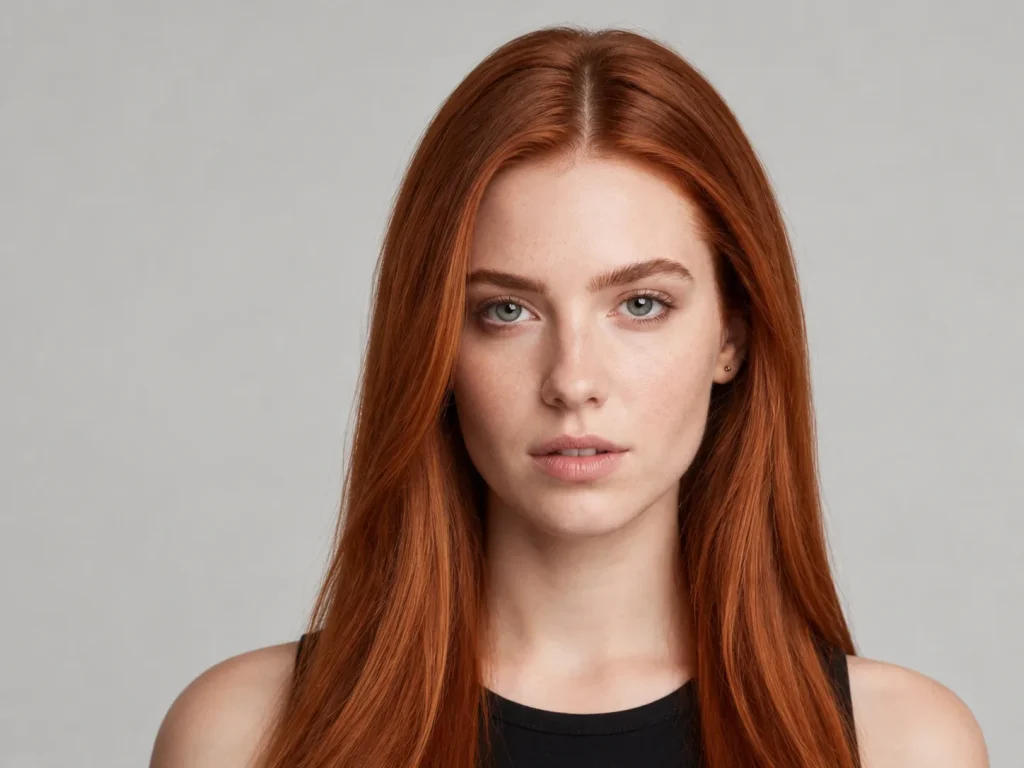
Ready-to-copy examples
Use these as starting points. Keep the preservation clause when identity matters, and change only the hairstyle attributes that are relevant to your photo.
Change the hairstyle to a shoulder-length layered cut with soft face-framing pieces and a natural center part. Keep the same face, expression, makeup, skin tone, outfit, camera angle, lighting and background.Use the second image only as a hairstyle reference. Transfer the overall length, fringe shape and texture to the person in the first image while preserving their identity, facial features, head angle and original scene.A practical step-by-step workflow
Use the same controlled sequence whenever you test how to change hairstyle with AI. Starting from the original image each time makes comparisons cleaner and prevents small identity or texture changes from accumulating across revisions.
- 1. Choose the clearest source portrait available and keep the full head visible.
- 2. Decide the one main hair decision you want to test: shape, length, fringe, texture, reference style or color.
- 3. Preserve the face, expression, skin tone, makeup, head angle, outfit, lighting and background unless they are intentionally part of the edit.
- 4. Generate several candidates and compare silhouette first, then inspect hairline, ears, neck and strand boundaries at full size.
- 5. If a result drifts, retry from the original with a narrower instruction instead of stacking unrelated corrections onto the altered image.
Before exporting the example for How to Change Your Hairstyle in a Photo With AI: Complete Guide, compare it with the original at the same crop and zoom. The final hairstyle should read as part of the same person and photograph, with stable identity, believable boundaries and no unrelated changes introduced just to make the new hair look polished.
Common mistakes to avoid
- Changing haircut, hair color, makeup and lighting at the same time when you only want to compare one variable.
- Using a cropped or heavily blurred portrait and then judging fine hairline detail as if the source contained it.
- Accepting a stylish result without checking whether the face, forehead, ears, jewelry or background changed.
- Treating a reference image as a promise of exact reproduction instead of guidance that must adapt to the base person.
- Using an AI salon preview as a guarantee of how real hair will behave after cutting, coloring or styling.
Related AvaClik hairstyle guides
Use these related guides when the next question is about source-photo quality, prompts, identity preservation, reference images or fixing a result that looks artificial.
- 50 AI Hairstyle Prompts for Realistic Hair Makeovers
- How to Change Hairstyle Without Changing Your Face
- Best Photos for AI Hairstyle Try-On: Angle, Lighting & Hairline
- How to Copy a Hairstyle From a Reference Photo With AI
Frequently asked questions
Will an AI hairstyle preview look exactly like a real haircut?
No. It is a visual preview. Real results depend on hair density, texture, growth pattern, styling, products and the work of the stylist.
Should I use a front-facing photo?
A clear front or gentle three-quarter portrait is usually easiest because the face, hairline and overall head shape are visible.
Can AvaClik keep my original hair color?
Yes. The hairstyle workflow can keep the original shade or use another color, but always review the result for changes near the hairline and face.
Can I use a reference hairstyle photo?
Yes. AvaClik supports a second image as a hairstyle reference. Treat it as guidance rather than a guarantee of pixel-for-pixel copying.
Try the hairstyle in AvaClik
Open AvaClik AI Hairstyle Changer to test the workflow from How to Change Your Hairstyle in a Photo With AI: Complete Guide. Use a photo you have the right to edit, choose a ready-made style or hairstyle reference, set hair color only when it is part of the test, and inspect the result carefully before saving.
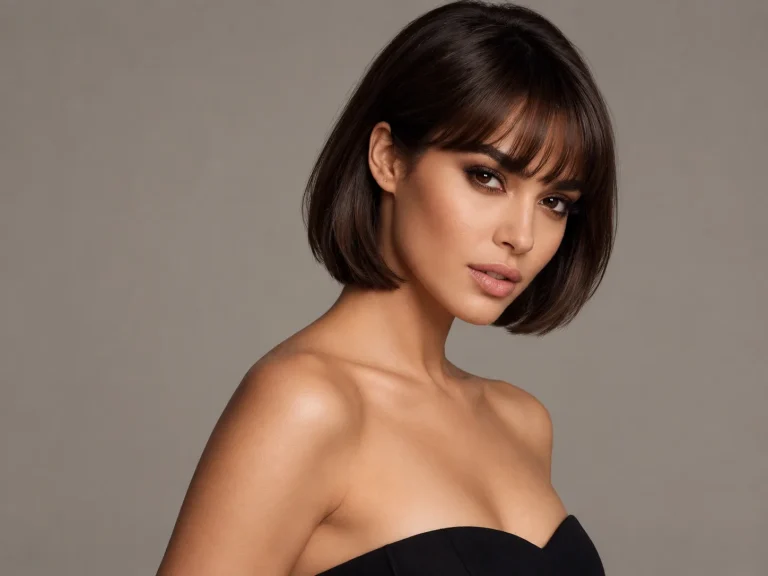
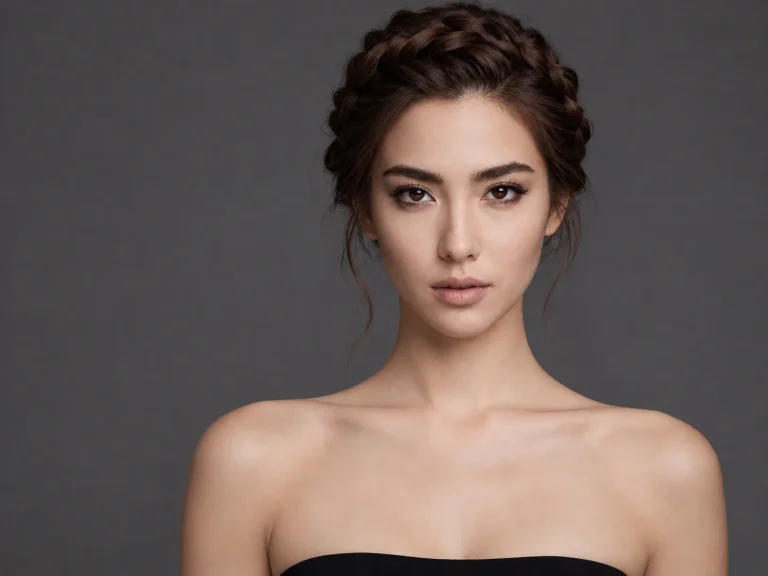
Try this in AvaClik
Try the workflow in AvaClik
Upload a photo you have permission to edit, make a change, check the result and refine it.
Try AvaClik AI Hairstyle Changer ↗