How to Put Two People Together in One Photo With AI
Combine two separate people into one believable photo by choosing the base scene, matching perspective, light, scale and natural body spacing.
On this page
Open the AvaClik tool connected to this guide and try it on your photo.
Combining two separate portraits into one shared photograph is more than placing one person beside the other. The final image needs a single camera perspective, one lighting environment and believable spacing between both bodies.
Quick answer
Pick one photo to define the final scene, use the other as the source for the second person, decide who stands where, match relative height and eye line, and preserve both identities. Keep the first composition simple before trying hugs, crossed arms or complex contact.
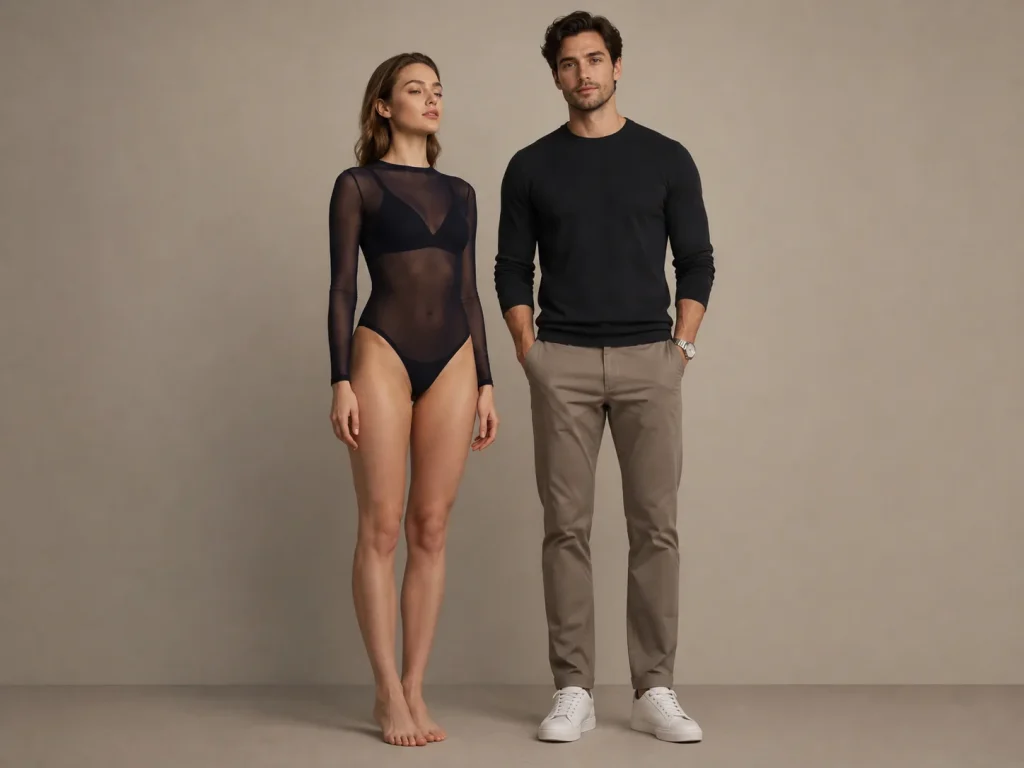
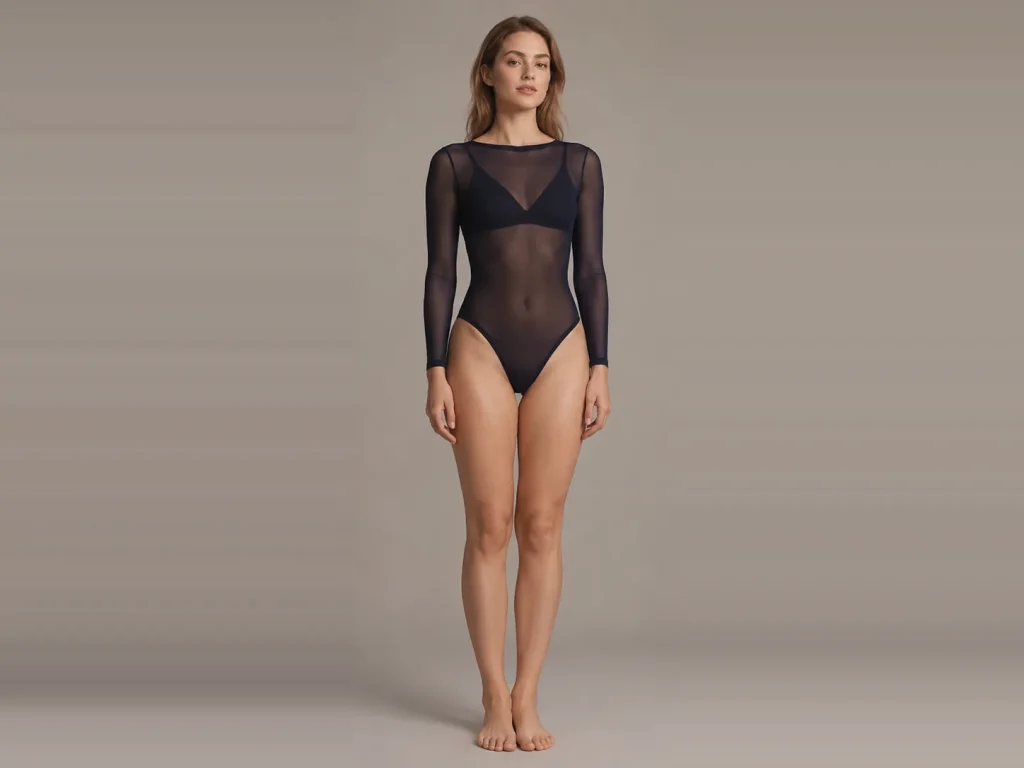
Choose which photo defines the scene
One source should control the final background, crop and camera geometry. Mixing both backgrounds often produces an unclear composition. When reviewing choose which photo defines the scene, compare the result with both source photos. The new composition should keep recognizable identity from the second image while matching the geometry of the base photo. Check face shape, hairstyle, outfit details, hand count, foot placement, shadows and any overlap with nearby people or furniture before accepting the result.
One source should control the final background, crop and camera geometry. Mixing both backgrounds often produces an unclear composition. With choose which photo defines the scene, physical relationships matter more than decorative wording. Saying “standing to the right, half a step behind the group, feet on the same floor plane, warm light from camera-left” gives the model clearer constraints than simply asking for a “natural group photo.” Mood words can help, but position, scale and light are what make the person feel present in the scene.
For this section, make the comparison against the source files concrete. Note exactly what should change and what should stay stable. In a workflow about put two people together in one photo with AI, that distinction prevents a visually impressive result from hiding a change to identity, wardrobe, framing or scene geometry that the user did not request.
Preserve identity from both sources
Describe which person comes from which image and ask to preserve recognizable face, hairstyle and key outfit details. A useful workflow for How to Put Two People Together in One Photo With AI is to change one compositional decision at a time. If placement is wrong, fix placement first. If the person is the correct size but the light does not match, keep the size and correct only the lighting instruction. Small controlled revisions make it easier to identify what improved the composite and what caused a new artifact.
Describe which person comes from which image and ask to preserve recognizable face, hairstyle and key outfit details. In How to Put Two People Together in One Photo With AI, the important point is that the inserted person must belong to the same photographic space as the original subjects. Scale, camera height, lighting direction, floor contact and occlusion all work together. A result can look convincing at thumbnail size but still fail when you compare faces, hands, shadows and the relative height of everyone in the scene.
For this section, make the comparison against the source files concrete. Note exactly what should change and what should stay stable. In a workflow about put two people together in one photo with AI, that distinction prevents a visually impressive result from hiding a change to identity, wardrobe, framing or scene geometry that the user did not request.
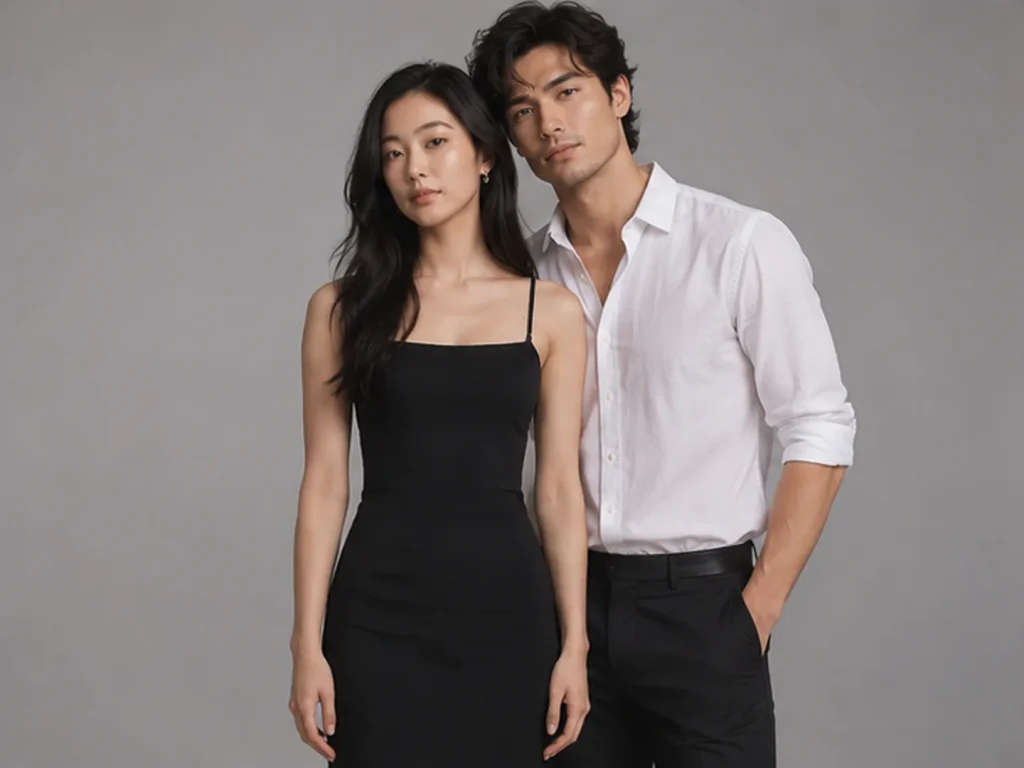
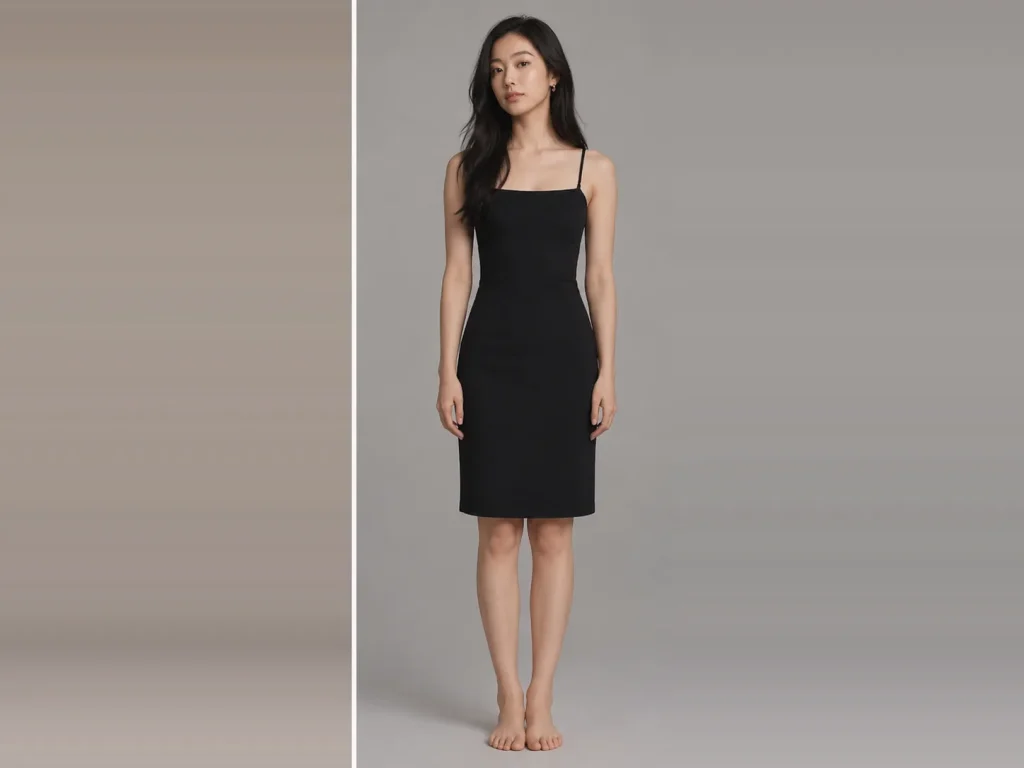
Set a believable relative height
If one person is naturally taller, keep that relationship or use scene cues to avoid a random size mismatch. With set a believable relative height, physical relationships matter more than decorative wording. Saying “standing to the right, half a step behind the group, feet on the same floor plane, warm light from camera-left” gives the model clearer constraints than simply asking for a “natural group photo.” Mood words can help, but position, scale and light are what make the person feel present in the scene.
If one person is naturally taller, keep that relationship or use scene cues to avoid a random size mismatch. For How to Put Two People Together in One Photo With AI, treat the base image as the reference for perspective and atmosphere. The second photo supplies the person, but it should not silently redefine the whole scene. Preserve the original crop, existing people and major background lines unless the edit genuinely needs more room. This makes it easier to judge whether the added person was integrated rather than whether the entire photo was regenerated.
For this section, make the comparison against the source files concrete. Note exactly what should change and what should stay stable. In a workflow about put two people together in one photo with AI, that distinction prevents a visually impressive result from hiding a change to identity, wardrobe, framing or scene geometry that the user did not request.
Use the first image as the final scene. Add the person from the second image standing to the left of the first person. Match camera height, body scale, lighting and floor shadow. Preserve both faces and outfits.
Adapt placement and preservation to the actual source photos.
Create one photo where both adults sit beside each other on the same sofa. Keep recognizable identity from both source photos, use natural shoulder spacing and hand placement, and match the room lighting.
Adapt placement and preservation to the actual source photos.
Use realistic body spacing
Two people standing together usually have a consistent shoulder gap or slight overlap. Too much empty space looks staged; too little can create fused limbs. In How to Put Two People Together in One Photo With AI, the important point is that the inserted person must belong to the same photographic space as the original subjects. Scale, camera height, lighting direction, floor contact and occlusion all work together. A result can look convincing at thumbnail size but still fail when you compare faces, hands, shadows and the relative height of everyone in the scene.
Two people standing together usually have a consistent shoulder gap or slight overlap. Too much empty space looks staged; too little can create fused limbs. When reviewing use realistic body spacing, compare the result with both source photos. The new composition should keep recognizable identity from the second image while matching the geometry of the base photo. Check face shape, hairstyle, outfit details, hand count, foot placement, shadows and any overlap with nearby people or furniture before accepting the result.
For this section, make the comparison against the source files concrete. Note exactly what should change and what should stay stable. In a workflow about put two people together in one photo with AI, that distinction prevents a visually impressive result from hiding a change to identity, wardrobe, framing or scene geometry that the user did not request.
Align eye lines and camera height
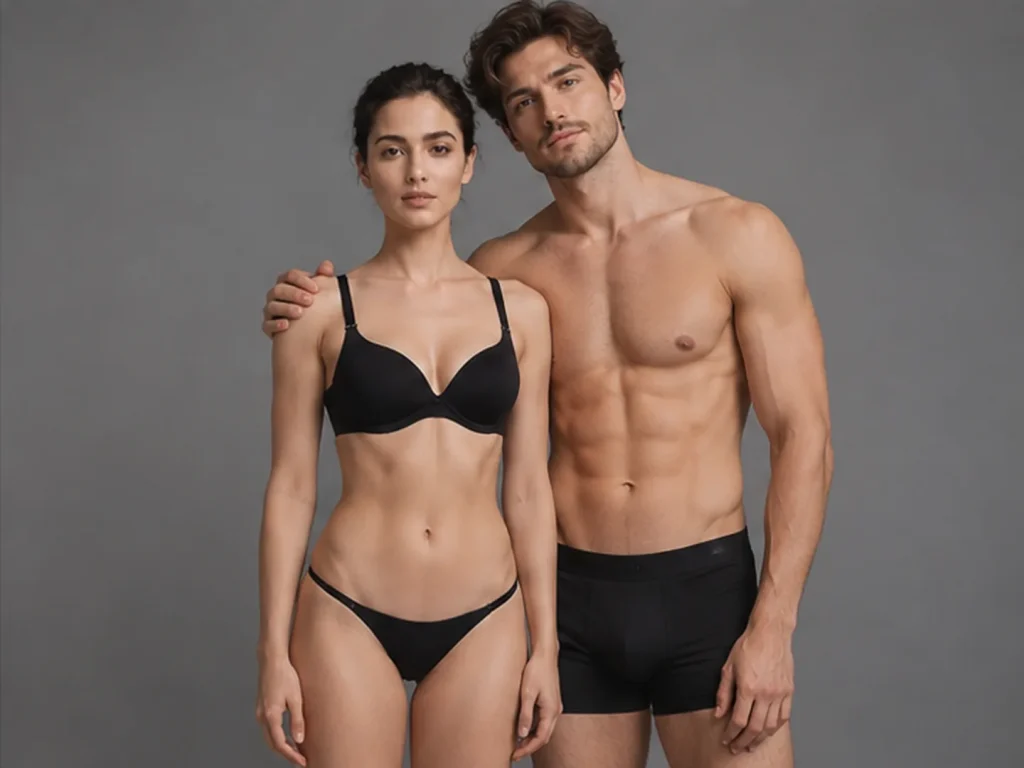
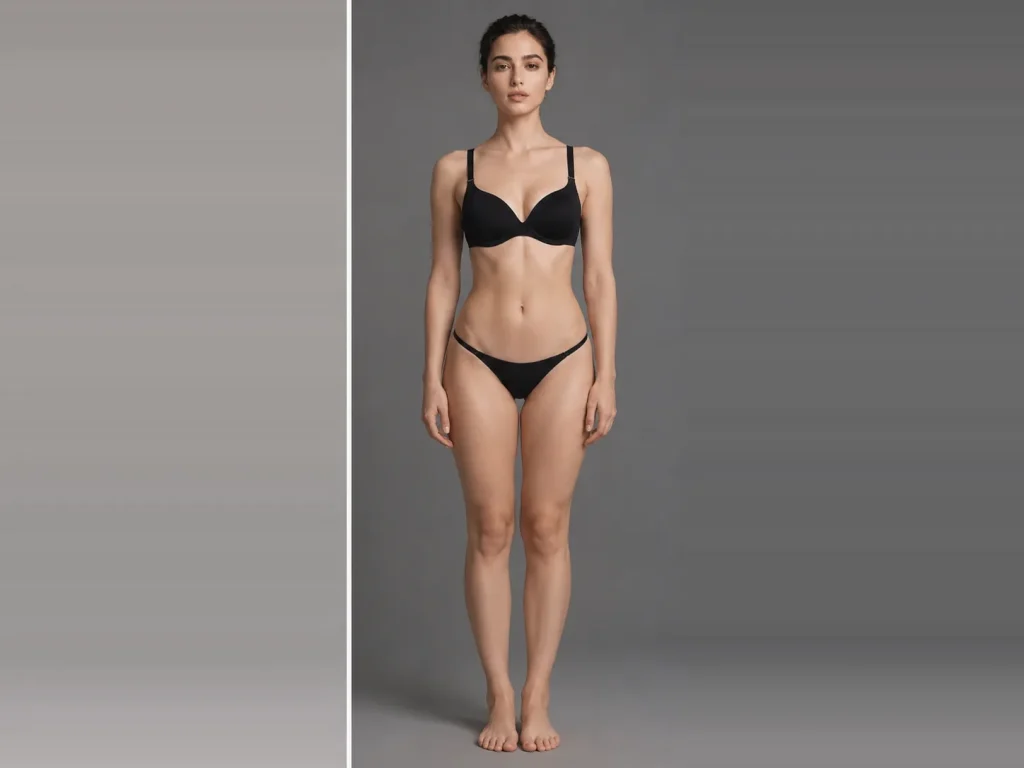
Both faces should respond to the same camera position. A portrait shot from below and another from above may require more reconstruction. For How to Put Two People Together in One Photo With AI, treat the base image as the reference for perspective and atmosphere. The second photo supplies the person, but it should not silently redefine the whole scene. Preserve the original crop, existing people and major background lines unless the edit genuinely needs more room. This makes it easier to judge whether the added person was integrated rather than whether the entire photo was regenerated.
Both faces should respond to the same camera position. A portrait shot from below and another from above may require more reconstruction. A useful workflow for How to Put Two People Together in One Photo With AI is to change one compositional decision at a time. If placement is wrong, fix placement first. If the person is the correct size but the light does not match, keep the size and correct only the lighting instruction. Small controlled revisions make it easier to identify what improved the composite and what caused a new artifact.
For this section, make the comparison against the source files concrete. Note exactly what should change and what should stay stable. In a workflow about put two people together in one photo with AI, that distinction prevents a visually impressive result from hiding a change to identity, wardrobe, framing or scene geometry that the user did not request.
Unify lighting
The final image should have one key light direction and color temperature, even if the original portraits were shot differently. When reviewing unify lighting, compare the result with both source photos. The new composition should keep recognizable identity from the second image while matching the geometry of the base photo. Check face shape, hairstyle, outfit details, hand count, foot placement, shadows and any overlap with nearby people or furniture before accepting the result.
The final image should have one key light direction and color temperature, even if the original portraits were shot differently. With unify lighting, physical relationships matter more than decorative wording. Saying “standing to the right, half a step behind the group, feet on the same floor plane, warm light from camera-left” gives the model clearer constraints than simply asking for a “natural group photo.” Mood words can help, but position, scale and light are what make the person feel present in the scene.
For this section, make the comparison against the source files concrete. Note exactly what should change and what should stay stable. In a workflow about put two people together in one photo with AI, that distinction prevents a visually impressive result from hiding a change to identity, wardrobe, framing or scene geometry that the user did not request.
Choose compatible poses
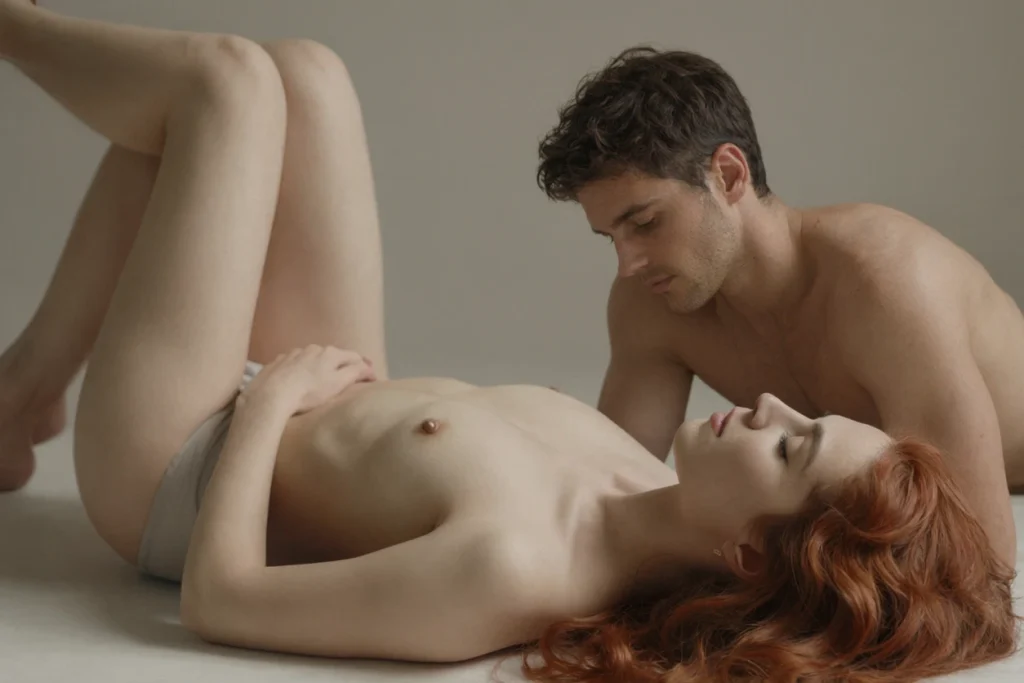
Simple standing or seated pairs are easier than combining two unrelated action poses. A useful workflow for How to Put Two People Together in One Photo With AI is to change one compositional decision at a time. If placement is wrong, fix placement first. If the person is the correct size but the light does not match, keep the size and correct only the lighting instruction. Small controlled revisions make it easier to identify what improved the composite and what caused a new artifact.
Simple standing or seated pairs are easier than combining two unrelated action poses. In How to Put Two People Together in One Photo With AI, the important point is that the inserted person must belong to the same photographic space as the original subjects. Scale, camera height, lighting direction, floor contact and occlusion all work together. A result can look convincing at thumbnail size but still fail when you compare faces, hands, shadows and the relative height of everyone in the scene.
For this section, make the comparison against the source files concrete. Note exactly what should change and what should stay stable. In a workflow about put two people together in one photo with AI, that distinction prevents a visually impressive result from hiding a change to identity, wardrobe, framing or scene geometry that the user did not request.
Use the first image as the final scene. Add the person from the second image standing to the left of the first person. Match camera height, body scale, lighting and floor shadow. Preserve both faces and outfits.
Adapt placement and preservation to the actual source photos.
Create one photo where both adults sit beside each other on the same sofa. Keep recognizable identity from both source photos, use natural shoulder spacing and hand placement, and match the room lighting.
Adapt placement and preservation to the actual source photos.
Add physical contact carefully
Hands on shoulders, hugs and linked arms can look natural, but they also create extra anatomy and occlusion challenges. With add physical contact carefully, physical relationships matter more than decorative wording. Saying “standing to the right, half a step behind the group, feet on the same floor plane, warm light from camera-left” gives the model clearer constraints than simply asking for a “natural group photo.” Mood words can help, but position, scale and light are what make the person feel present in the scene.
Hands on shoulders, hugs and linked arms can look natural, but they also create extra anatomy and occlusion challenges. For How to Put Two People Together in One Photo With AI, treat the base image as the reference for perspective and atmosphere. The second photo supplies the person, but it should not silently redefine the whole scene. Preserve the original crop, existing people and major background lines unless the edit genuinely needs more room. This makes it easier to judge whether the added person was integrated rather than whether the entire photo was regenerated.
For this section, make the comparison against the source files concrete. Note exactly what should change and what should stay stable. In a workflow about put two people together in one photo with AI, that distinction prevents a visually impressive result from hiding a change to identity, wardrobe, framing or scene geometry that the user did not request.
Keep the base background stable
Tell the editor to leave architecture, furniture and major textures unchanged so the image does not become a new scene. In How to Put Two People Together in One Photo With AI, the important point is that the inserted person must belong to the same photographic space as the original subjects. Scale, camera height, lighting direction, floor contact and occlusion all work together. A result can look convincing at thumbnail size but still fail when you compare faces, hands, shadows and the relative height of everyone in the scene.
Tell the editor to leave architecture, furniture and major textures unchanged so the image does not become a new scene. When reviewing keep the base background stable, compare the result with both source photos. The new composition should keep recognizable identity from the second image while matching the geometry of the base photo. Check face shape, hairstyle, outfit details, hand count, foot placement, shadows and any overlap with nearby people or furniture before accepting the result.
For this section, make the comparison against the source files concrete. Note exactly what should change and what should stay stable. In a workflow about put two people together in one photo with AI, that distinction prevents a visually impressive result from hiding a change to identity, wardrobe, framing or scene geometry that the user did not request.
Compare both faces to the sources
A result can preserve one person well and drift on the other. Check both identities separately before judging the composite as a whole. For How to Put Two People Together in One Photo With AI, treat the base image as the reference for perspective and atmosphere. The second photo supplies the person, but it should not silently redefine the whole scene. Preserve the original crop, existing people and major background lines unless the edit genuinely needs more room. This makes it easier to judge whether the added person was integrated rather than whether the entire photo was regenerated.
A result can preserve one person well and drift on the other. Check both identities separately before judging the composite as a whole. A useful workflow for How to Put Two People Together in One Photo With AI is to change one compositional decision at a time. If placement is wrong, fix placement first. If the person is the correct size but the light does not match, keep the size and correct only the lighting instruction. Small controlled revisions make it easier to identify what improved the composite and what caused a new artifact.
For this section, make the comparison against the source files concrete. Note exactly what should change and what should stay stable. In a workflow about put two people together in one photo with AI, that distinction prevents a visually impressive result from hiding a change to identity, wardrobe, framing or scene geometry that the user did not request.
Example prompts to adapt
Use the first image as the final scene. Add the person from the second image standing to the left of the first person. Match camera height, body scale, lighting and floor shadow. Preserve both faces and outfits.Create one photo where both adults sit beside each other on the same sofa. Keep recognizable identity from both source photos, use natural shoulder spacing and hand placement, and match the room lighting.Treat these examples as starting points for How to Put Two People Together in One Photo With AI, not fixed recipes. The strongest prompt describes the actual placement, camera geometry, lighting relationship and protected details visible in the two source images you are using.
A practical step-by-step workflow
For how to put two people together in one photo with ai, use a repeatable sequence rather than changing placement, scale, lighting and styling all at once. Start from the original files each time, save several candidates, and compare them side by side at full size.
- 1. Choose the base photo and decide what parts of it must remain unchanged.
- 2. Choose the source image of the person and check face clarity, body visibility, camera angle and lighting.
- 3. Describe the intended placement, relative scale, depth and simple pose.
- 4. Generate from the original files and compare the new person with nearby people and scene references.
- 5. Inspect identity, hands, feet, overlaps, contact shadows, background geometry, sharpness and color.
- 6. Refine one failed constraint at a time and export a new file while keeping the original sources.
Before export in How to Put Two People Together in One Photo With AI, zoom into the transition zones that matter for this composition: hair against the background, shoulders near another person, hands near clothing, shoes or seated contact points, and the local shadow. These details often reveal a compositing mistake sooner than the center of the face.
Quality checklist before saving
- The added face still resembles the source person.
- Every existing face and expression remains recognizable.
- Relative height and body scale fit nearby people.
- Feet or seated body parts touch the correct surface.
- Hands have plausible anatomy and do not fuse with clothing or other people.
- Lighting direction, softness and color fit the base image.
- Contact shadows and depth cues place the person in the scene.
- Straight background lines and repeated textures are not warped.
- Local sharpness, grain and compression do not make the new person stand out.
- The edited image is not presented as documentary evidence of an event that did not occur.
Related AvaClik guides
These guides cover the next common problems in the same workflow: better source selection, stronger prompts, realistic integration and troubleshooting.
- How to Add a Person to a Photo With AI
- Best Photos for Adding a Person With AI
- How to Make an Added Person Look Natural
- 25 AI Prompts for Adding a Person to a Photo
Frequently asked questions
Which image should be the base?
Use the photo with the background, crop and camera angle you want to keep in the final result.
Can two headshots become a full-body photo?
The model may invent missing body and clothing details, so a result can be plausible but will not be a faithful reconstruction of information that was never visible.
Can I make the people hug?
Yes, but start with a simpler composition if identity is the priority. Physical contact creates more hand and arm interactions to review.
How do I keep both faces?
Use clear source images and explicitly ask to preserve both identities. Then inspect each face separately at full size.
Try this in AvaClik
Try the workflow in AvaClik
Upload a photo you have permission to edit, make a change, check the result and refine it.
Try AvaClik AI Add Person ↗